
Browse articles
- Getting started
- Project finances
- Billing by the hour
- Practice finances
- Grouping fees
- Budgeting project costs
- Claim an expense
- Recording revenue entries
- Recording project expenses
- Purchase orders
- Approving expenses
- Going further
- Construction cost fees
- Recurring fees
- Billing expenses
- Contingencies and discounts
- Billing progress claims
- Project templates
- Overheads
- Getting started
- Billing milestones
- Sending an invoice
- Billing logged time
- Month-end invoicing
- Bill hours at different rates
- Fee proposal templates
- Writing a fee proposal
- Getting a proposal signed
- Link invoices that are already in Xero
- Going further
- Payments and overdue invoices
- Connect your accounting system
- Fee groups on invoices
- Tax codes and accounts
- Connect QuickBooks
- Set your accounting defaults
- Sync an invoice to QuickBooks
- Connect Xero
- Set your Xero accounting defaults
- Sync an invoice to Xero
Rates on a project
See the rates one project charges and costs, choose whether rate changes reach it, and agree a rate with the client that steps up partway through the job.
What you'll achieve
See the rates a project uses, choose Locked or Dynamic for each side, and agree a rate with the client that changes partway through.
You'll end up with: The project charges the rate agreed with the client, stepping up on the agreed date, whatever later happens to the role's rate.
Before you start
Why a project needs its own rates
A role's rate is the practice's price list. A project is a deal with one client, and deals differ: a long-standing client negotiates a lower rate, a fee letter says the rate steps up after the first stage, or a job was quoted on last year's figures. Every project's Brief has a Rates section that answers two questions for that project: which rates does it use, and do rate changes reach it.
We'll use Riverside Apartments for City of Hawthorn. Its charge-out rates were locked at the quoted figures when the Senior Architect rate rose; see change a rate across your projects. Sarah Chen, a Senior Architect, is booked on it.
Rate changes: Locked or Dynamic
Under Rate changes, each side has its own answer:
- Locked keeps the amounts the project had on the day it was locked. Later changes to a role's, a person's or the practice's rate never reach it.
- Dynamic takes each rate change from its start date.
A common pattern is charge-out Locked, so the client pays what you quoted, and cost Dynamic, so pay rises still show in the project's margin.
- 1
Open the project, then its Brief, and go to Rates.
- 2
Under Rate changes, Charge-out rate reads Locked, with the date of the amounts it keeps. Cost rate reads Dynamic, Takes each rate change.
- 3
Under Rates on this project, each role and person working here shows their rate. Where a locked amount's role has moved on, today's figure shows in brackets, such as two hundred (now two hundred and ten).
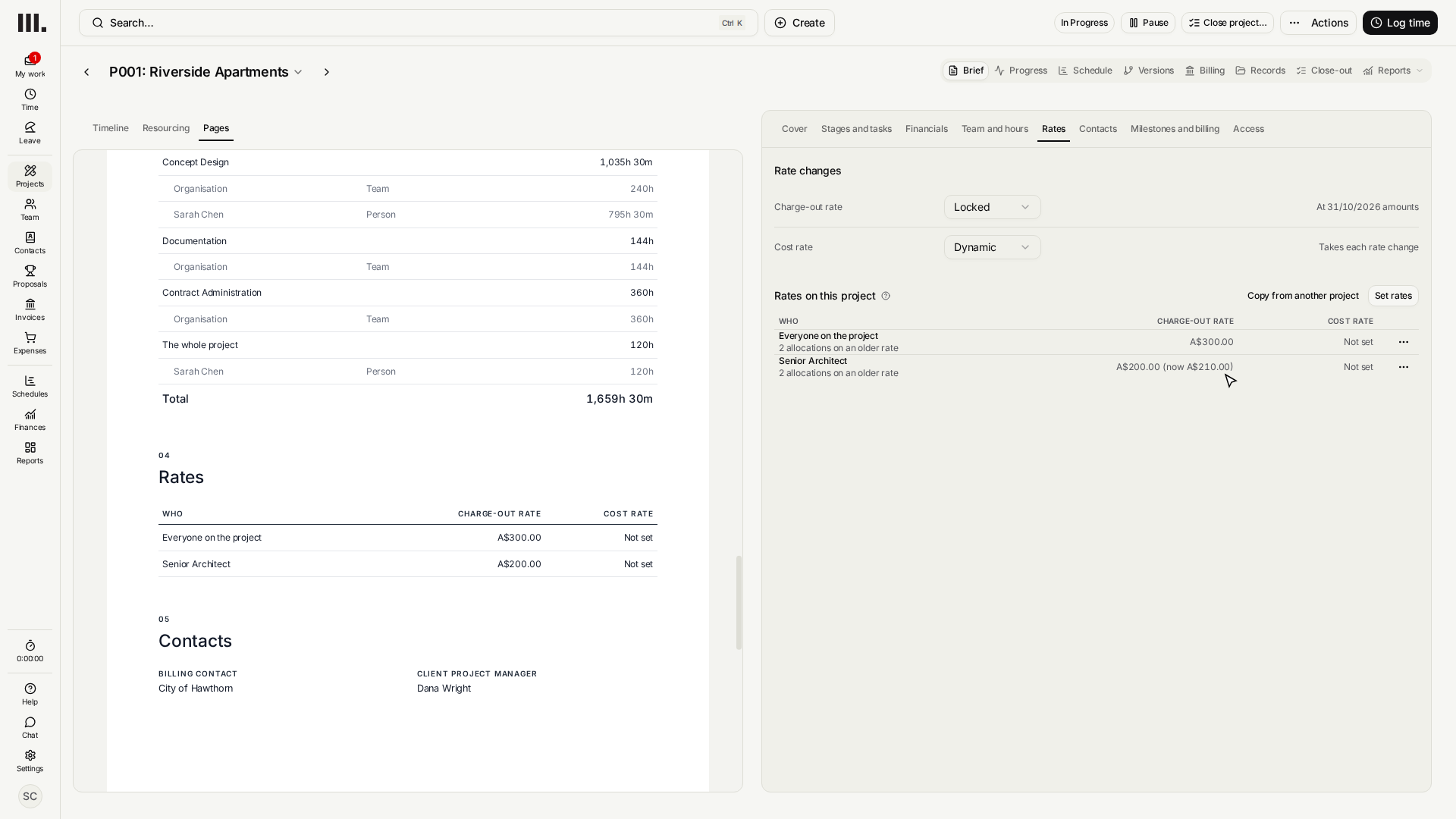
To change either side, choose Locked or Dynamic in its dropdown. Locked locks from today. Both offer Undo.
Agree a rate with the client
An agreed rate is set on this project only. It wins over the role's and the person's own rate here, and it stays put whether the project is Locked or Dynamic: rate changes elsewhere never move it.
- 1
Under Rates on this project, click Set rates.
- 2
Set For to A role and choose Senior Architect. Type one hundred and ninety in Amount an hour. What it changes shows each person's new rate before you save.
- 3
Riverside's locked Senior Architect amount already covers these dates, so Allocations already on the project asks what happens to Sarah's booked hours. Choose Existing allocations too, so they move onto the agreed rate.
- 4
Click Save. The Senior Architect row reads one hundred and ninety, agreed for this project.
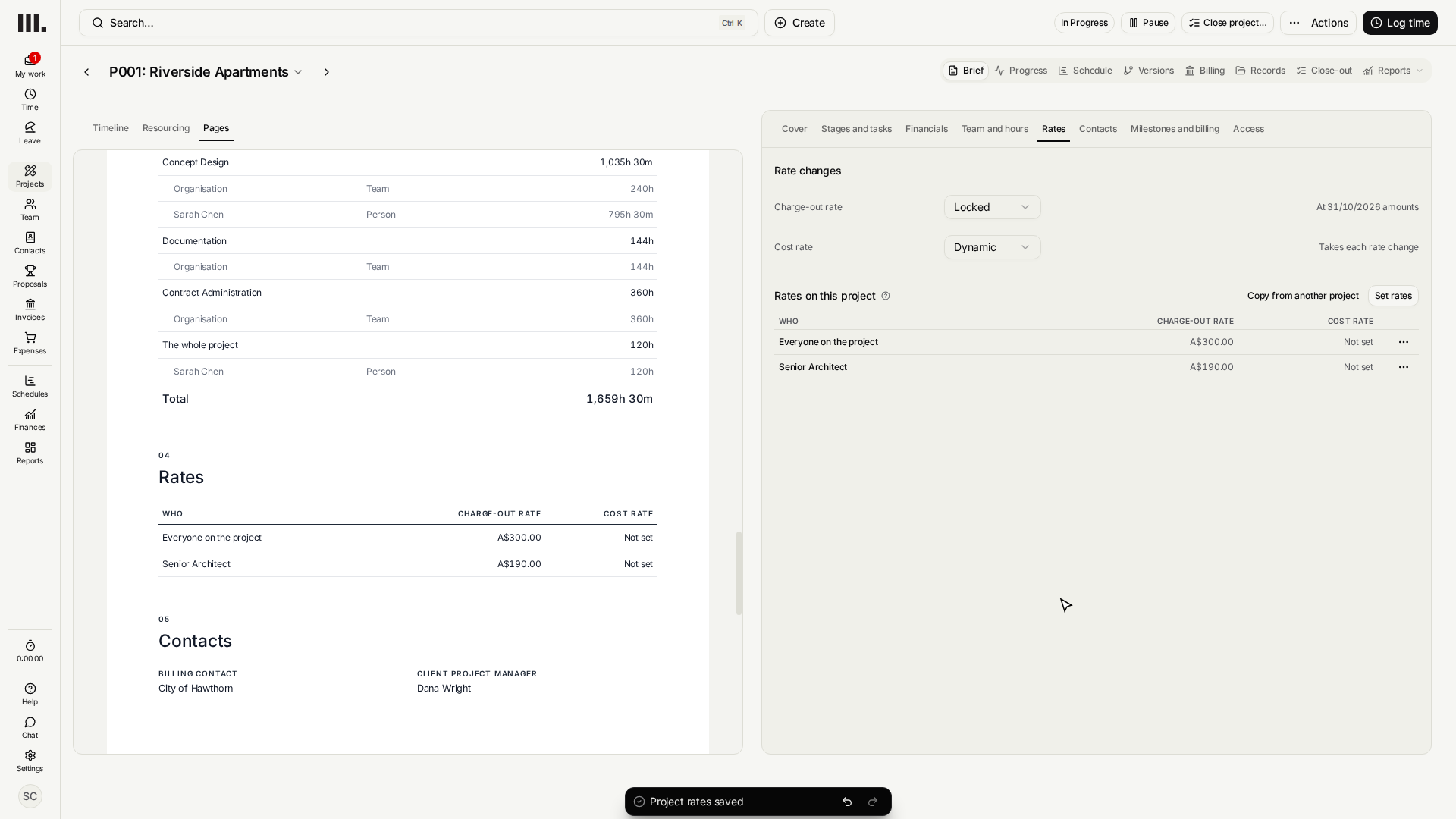
For can also be Chosen people, such as outsourced staff on a discounted rate, or Everyone on the project.
Step the agreed rate up from a date
Fee letters often step the rate up partway through: after a stage, or at the start of the next financial year. Change the agreed rate from that date instead of overwriting it.
- 1
Open the row's menu and click Change the charge-out rate.
- 2
Type one hundred and ninety-five and set Starts on to the first of next month.
- 3
Allocations already on the project asks what happens to work already booked. Existing allocations too reprices Sarah's booked hours from that date; work before it keeps one hundred and ninety. New allocations only leaves booked work on its rate.
- 4
Click Save. Open the row's menu again: each amount is listed with the date it starts, each with Change and Delete. A locked project also lists the amounts it kept from the role.
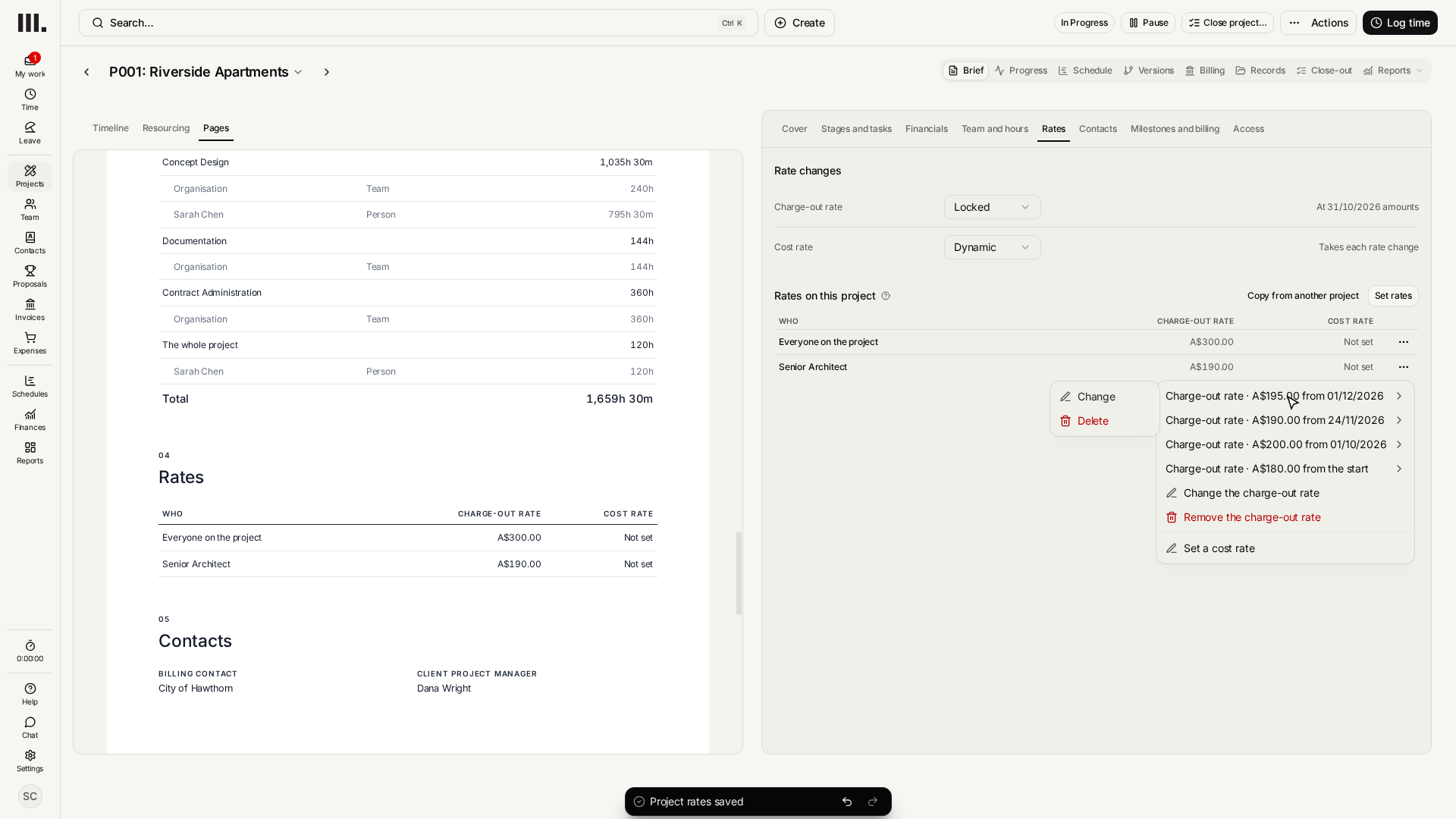
Whichever answer you choose, time already recorded keeps the rate it was worked at. Only allocated work moves.
Troubleshooting
- A row says some allocations are on an older rate. You chose New allocations only. Open the row's menu and click Apply to existing allocations to move them onto the project's rate.
- The project ignores a role rate rise. It is Locked, or it has an agreed rate for that role. The brackets show what the role charges today.
- Copy the same rates to another job. Click Copy from another project on the project that needs them, and choose the one to copy from.
Where this fits next
Hours worked before and after a rate change bill at the rate each was worked at. To set a role's own rates, see charge-out and cost rates.
Search Monument help
Search help articles and open a result.