
Browse articles
- Getting started
- Project finances
- Billing by the hour
- Practice finances
- Grouping fees
- Budgeting project costs
- Claim an expense
- Recording revenue entries
- Recording project expenses
- Purchase orders
- Approving expenses
- Going further
- Construction cost fees
- Recurring fees
- Billing expenses
- Contingencies and discounts
- Billing progress claims
- Project templates
- Overheads
- Getting started
- Billing milestones
- Sending an invoice
- Billing logged time
- Month-end invoicing
- Fee proposal templates
- Writing a fee proposal
- Getting a proposal signed
- Link invoices that are already in Xero
- Going further
- Payments and overdue invoices
- Connect your accounting system
- Fee groups on invoices
- Tax codes and accounts
Getting help
Use the Help menu to learn in Monument University, read the changelog, suggest features, chat with the Monument team and ask the Monument assistant, then choose which news emails you get.
What you'll achieve
Know every way the Help menu can help, and get an answer without leaving Monument: from the assistant first, and from a person at Monument when you need one.
You'll end up with: You know where to learn Monument and suggest features, when to ask the assistant, how to pass a question to the Monument team with the context already filled in, and how to choose which emails Monument sends you.
Before you start
One chat for both kinds of help
Most questions about Monument fall into one of two kinds. Some are about your own data: how many hours did Sarah Chen log on Riverside Apartments last week? Others need a person: why does this invoice total look wrong?, can you turn on a feature for us?
One chat answers both. The Monument assistant answers first: it can read the projects, tasks and time you already have access to, and answers straight away. When it can't settle something, one click hands your question, its answer and the page you were on to the people who build and support Monument, so you never explain it twice.
The Help menu
Every kind of help starts from one place: the Help button, the question-mark icon at the bottom of the navigation rail, just above Settings. Point at it and its menu opens beside the rail, like every other menu on the rail. Click Help to keep the menu open until you choose something:
- Help centre opens this help centre in a new browser tab, so Monument stays open where you were.
- University opens Monument University inside the app, with short lessons for your role.
- Changelog opens the Monument changelog in a new browser tab.
- Feature requests opens the page where you suggest improvements and back the ones you want.
- Chat with Monument opens the chat: the assistant first, and the Monument team when it can't help. Where your practice has only support chat, the entry reads Chat with the Monument team. It appears once chat is switched on for your practice.
Help stays highlighted while you're on University or Feature requests, so you can always see where you came from.
Learn at your own pace in Monument University
Monument University turns the help centre into a course. It follows the same journeys as this help centre, arranged in tracks for the job you do: Staff basics for everyone, Project lead for people who run projects, Practice admin for whoever sets up the firm, Team lead for people who approve their team's time and leave, Finance for whoever bills and keeps the books, and Principal for the people who steer the practice. You see the tracks your access lets you do. Each track is a list of short lessons, each with an estimated time and a Read the full guide link to the matching help article.
Tick a lesson off when you've done it, and the track's progress bar and your Overall progress move on. Some lessons tick themselves off when you do the real thing: logging your first time entry, creating your first project or saving your first report, for example.
Until you've finished, My work shows a Getting started section with your progress and a Keep learning button that takes you back to University. People who look after the practice also see Practice progress, which shows how far each person has got through every track.
Read the changelog
Changelog opens the Monument changelog in a new browser tab. Each entry says what changed in a release, so it's the quickest way to find out whether something you noticed is new.
Suggest a feature
Feature requests lists the improvements people have asked for, with each one's status. Search it first: if someone has already asked for what you want, click I'm interested to back it. If not, add your own.
- 1
Open Help, then Feature requests, and click New feature request.
- 2
Give it a short Title, such as "Show my leave on the project schedule", and use the description to say what problem it would solve for you.
- 3
Click Submit request. Monument reviews each request before it appears to everyone; until then only your practice can see it.
Open the chat
- 1
Point at Help at the bottom of the rail, or click it to keep its menu open.
- 2
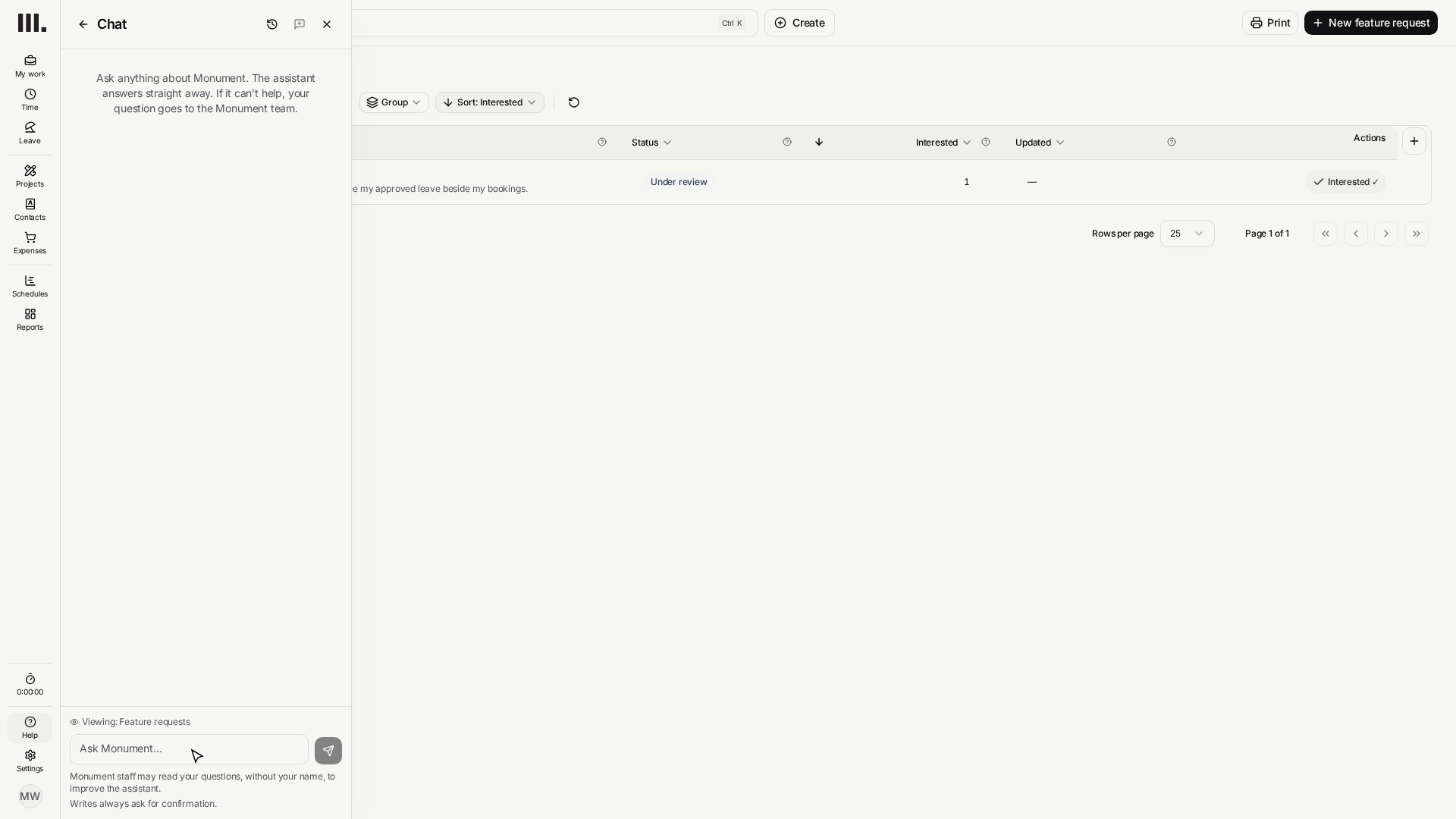
Choose Chat with Monument. The chat opens in the Help panel beside the rail, next to the page you're working on, and stays open while you move around.
- 3
Click Back to help to return to the Help menu, or Close chat to put it away. Your conversation is kept for next time.
Monument is switching chat on practice by practice, starting with a small number of practices. If there's no chat entry in your Help menu, your practice doesn't have it yet. Help centre, University, Changelog and Feature requests are always there.
Ask the assistant about your own work
The assistant knows which page you're on. Under the message box it shows Viewing: and the project, report or person on screen, so "this project" and "here" mean what you'd expect.
- 1
Open Riverside Apartments, then open Chat with Monument.
- 2
Type a question in the Ask Monument… box, such as "How many hours has Sarah Chen logged on this project this month?", and press Enter.
- 3
Read the answer. The assistant looks only at data your own access level lets you see, the same as the rest of Monument.
- 4
Ask it to change something, such as "Log 2 hours for me on Design development today", and it shows Allow this write? first. Click Run to make the change or Skip to leave things as they are.
The header has two more buttons: New conversation starts afresh, and Past conversations lists your earlier chats so you can pick one up again.
The assistant never changes your data without asking. Every change waits for you to click Run, so it's safe to ask it to do things as well as to look things up.
Hand a question to the Monument team
After an answer, the assistant asks Did that help? When it didn't, click No, ask the team.
- 1
Click No, ask the team. The same conversation goes on with the Monument team.
- 2
Check the message it has typed for you: your question, the assistant's answer and the page you were on. Add anything else the team should know.
- 3
Press Send. Nothing reaches Monument until you do.
The Monument team sees the assistant question your message came from, so they can pick up where it left off, and their reply arrives in the same conversation. While the chat is closed, the Help button shows how many replies you haven't read yet, and so does the menu item, for example Chat with Monument (2). Opening the chat then takes you straight to that reply.
From Past conversations you can open your earlier conversations or start a new one. A conversation the team has closed shows Closed · replying will reopen it: write in it again and it comes back to the team.
Send screenshots and files
A screenshot often explains a problem faster than a paragraph. Click Attach files beside the message box, or paste an image straight into the box.
- Types: images (PNG, JPEG, GIF, WebP), PDF, Word, Excel, plain text and CSV files.
- Size: up to 20 MB per file, and up to 10 files on one message.
Each file shows as a chip above the box while it uploads. Click its remove button to take it off before you send.
Choose which news emails you get
Monument sometimes emails the people at your practice about the product itself. Those emails come in four kinds: Important notices, Product updates, Tips and training, and Surveys and research.
The unsubscribe link at the foot of one of these emails stops only that kind. It then opens an Email preferences page with a switch for each kind, so you can turn the others off or back on in the same place. Unsubscribing from news never stops the emails your own work depends on, such as invitations and password resets.
Troubleshooting
- No chat in the Help menu? Chat isn't switched on for your practice yet. Help centre, University, Changelog and Feature requests are still there.
- It says No, email support instead of No, ask the team. Your practice has the assistant but not support chat yet, so email is the way to reach a person.
- The assistant says chat isn't available or has reached a limit. The assistant has usage limits. Ask the team instead, or try again later.
- The assistant can't find a project you know exists. It sees only what your access level lets you see. Ask an admin to check your access, or ask the Monument team.
- "Your message could not be sent." Click Retry. Your text and files are still in the box.
- A file won't attach. Check its type and size against the list above.
Where this fits next
Now you know where to turn when you're stuck. Head back to get your bearings in Monument for the rest of the rail, or invite your team so your colleagues can use the chat too.
Related articles
Search Monument help
Search help articles and open a result.