
Browse articles
- Getting started
- Start your first project
- Model your project
- Critical path and automatic dates
- Read and rebalance the swimlanes
- Get oriented on the schedule
- Going further
- Give overhead a home with admin projects
- Structure large projects
- Baselines and versions
- Change Gantt bar colours
- Set a revenue target on the schedule
- Getting started
- How Monument models finance
- Revenue from resourcing
- Fixed fees
- Budgeting costs
- Recording expenses
- Recording revenue entries
- Going further
- Formula based pricing and construction cost
- Recurring and periodic fees
- Revenue from expenses
- Modifiers: contingencies and discounts
- Progressive billing
- Pricing templates
- Operational expenses
- Getting started
- Read your Dashboard
- Build a custom report
- Edit a saved report
- Filter a report
- Formula columns
- Freeze a report into a snapshot
- Reports on a project
- Definitions: how each figure is worked out
- Going further
- Time-Series Columns
- Organise your work with tags
- Break reports and accounting down by office
- Control access to business finances
- Control access to rates
- Control who can create projects
- Control project administration
- Control staff and team management
- Control expenses and claims
- Control report definition editing
- Control access to contacts
- Give full project control with Owner
- Manage project work without changing money
- Let project members edit tasks safely
- Share a project safely with Viewer
- Let a team lead coordinate shared work
- Share teammate profiles without management access
- Keep team members focused on their own work
Create and send an invoice
Raise an invoice from work already booked to a project, review the lines Monument drafts for you, then email it so it moves from draft to approved to issued.
What you'll achieve
Turn delivered work into a drafted invoice and email it to the client in one pass.
You'll end up with: An issued invoice drafted from real work, with the client emailed a PDF and the invoice moved from draft through approved to issued.
Before you start
You don't build an invoice, you raise one from the work already done
Most invoicing tools hand you a blank document and expect you to remember what to bill and how much. Monument works the other way around: it already knows what work is booked to a project, what's been logged against it, and what's been agreed to be charged, so an invoice starts as a question, what are you billing against, rather than a form you fill line by line. Answer that one question and Monument drafts the lines itself.
Northlight Architects has Riverside Apartments underway for the City of Hawthorn, with the Concept Design stage in progress. This is the invoice for that stage, from the moment you start it to the moment it lands in the client's inbox.
A few choices, then Monument drafts the rest
Clicking New Invoice opens a guided window rather than a blank page: it starts with Project and Client, then Template, Bill against, and Billing period, plus notes.
- Project: which project you're billing. Pick it and the client fills itself in, because Monument already knows who the project belongs to.
- Template: what the invoice starts with. Choose a saved invoice template to draft from its population rule, or No template for a manual draft with nothing pre-filled.
- Bill against: what this invoice is claiming for. Choose No milestone to bill progress to date, or pick one of the project's billable milestones instead.
- Billing period: the end date this invoice draws its progress and time up to, and the start of the next unbilled period after it.
Click Create Invoice and that's it. The invoice saves as a draft, and if you chose a template, it opens with its lines already sitting there, ready for you to check rather than build.
A drafted line isn't a floating number. It hangs off a task and revenue source in the project, which is how Monument knows which stage, hours, and rates feed it. A From Allocations item becomes a Time line with generated detail underneath, so the invoice stays traceable to the work.
Raise the invoice
- 1
In Invoicing, click New Invoice.
- 2
Pick Riverside Apartments as the project. Watch City of Hawthorn fill in as the client automatically.
- 3
Choose a template, and leave Bill against on No milestone to draft progress to date.
- 4
Click Create Invoice, and Monument infers lines and amounts from the template, progress, dates, and recorded work.
- 1
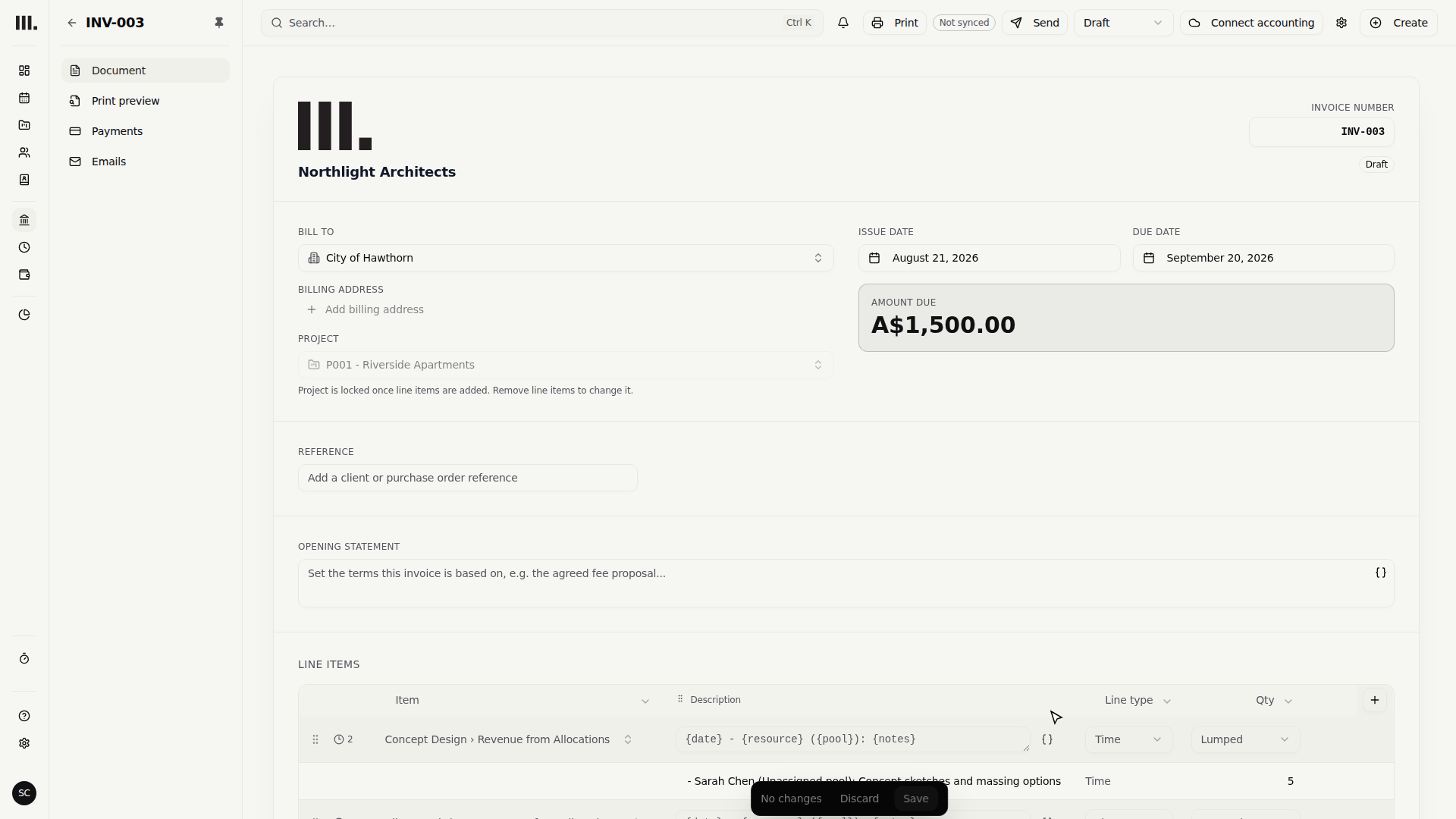
Read the generated Time row beneath Concept Design's From Allocations line: it shows the logged hours, rate, and amount.
- 2
Change the line from Lumped to By resource to prove the draft remains editable without changing the original timesheet.
Generated Time detail gives you a strong starting point without locking the invoice. Changing its grouping, filters, or invoice rate changes this draft only; it does not rewrite the source timesheet.
The Billing Address pulls from the client's contact record automatically, and you can edit it here if this invoice needs something different, Monument saves that change back to the contact. An Opening Statement field above the lines lets you add a short note that prints on the PDF. The draft shows a temporary label such as Draft 12 instead of a number. Monument assigns the real number, using the pattern set in Settings, when you approve the invoice, and the approval step shows the number it will use ("Will be: INV-042") and lets you type a different one instead.
Sending is a deliberate, separate step
Creating the invoice already saved it as a draft, there's nothing further to save. What turns it into something the client can see is sending, and that only happens when you choose to do it.
- 1
The invoice sits as a private, editable draft. Head back to the list and open the one you raised.
- 2
Click Send invoice in the header. Monument warns you that sending also approves the invoice, freezing its lines and allocating the time and expenses behind them.
- 3
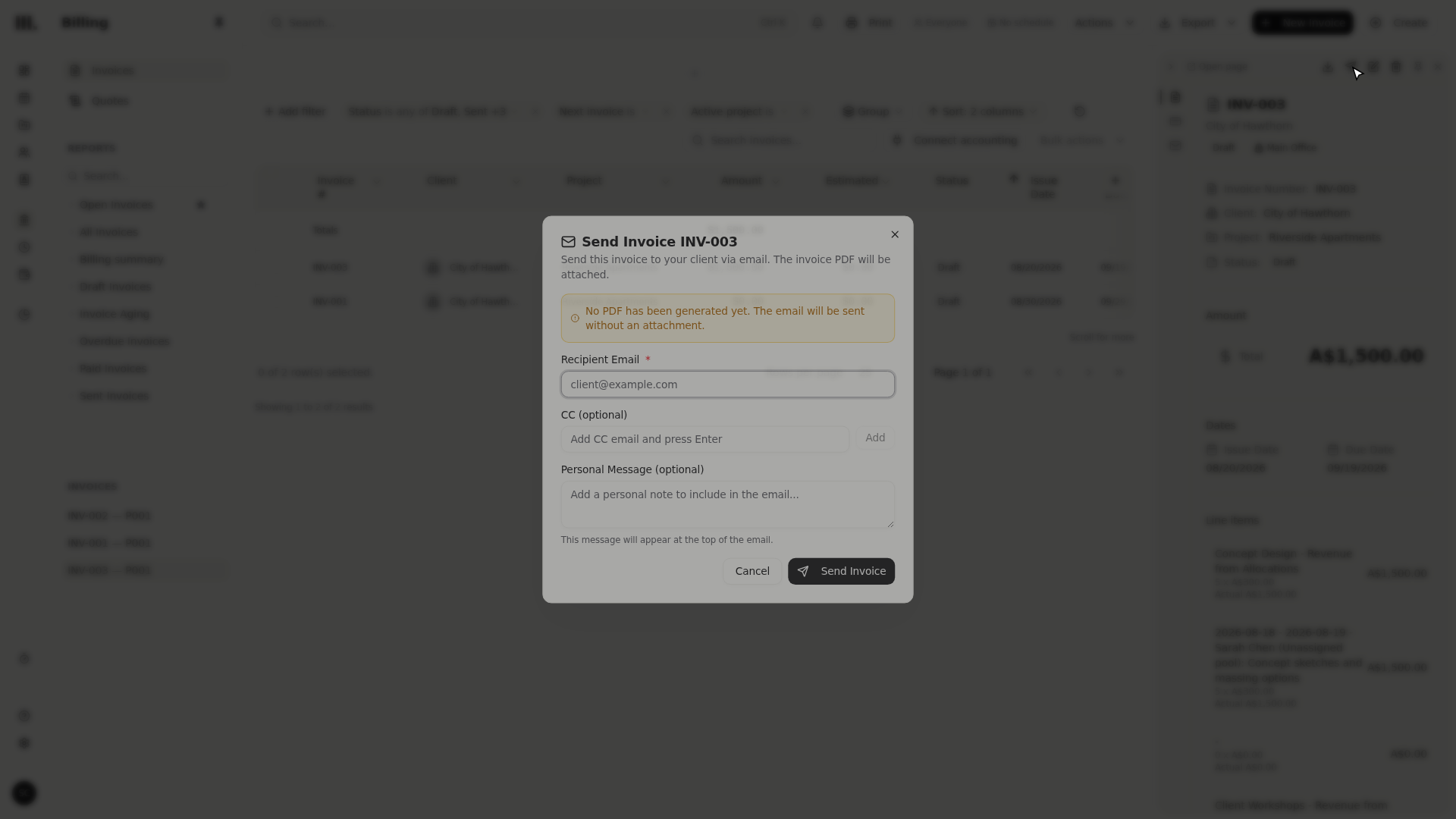
Type the client's email into Recipient Email, add a CC if needed, and write a short message if you'd like.
- 4
Click Send Invoice. Monument approves the invoice, freezing its lines, and queues the email; once delivery succeeds, the invoice moves to issued.
A draft invoice is private to Monument. Sending it approves it first, freezing its lines, then moves it to issued once the email actually delivers, so issued is the lifecycle you'll see afterwards, never sent. Whether the email delivered is tracked separately on the Emails tab.
When there's nothing to draft from
A template can only draft lines from work that already exists. If a project has no progress yet, or you want to build every line yourself, choose Start blank invoice from the New Invoice window instead. It opens the full editor with the project and client already set, but no lines. From there, Add Line Item opens a window that asks what you're billing rather than a raw line type: pick a task and Monument shows its revenue, plus any unbilled time or expenses, and you tick what you want on the invoice. For anything that doesn't come from the schedule, Custom or out of scope adds a plain line you fill in by hand.
Whichever way a line gets there, it remains reviewable. Time lines expose their generated hours and rates, while other revenue sources can produce progress, fixed, expense, or periodic lines.
Troubleshooting
- A newly drafted invoice has no lines. Nothing on the project is far enough along yet, no stage is in progress, or the ones that are have no revenue, time, or expenses behind them. Bill against a milestone instead, or build the lines by hand with Start blank invoice.
- A line shows no amount. It's pointing at a task with nothing to bill, or its source is empty. Check that task actually has revenue, time, or expenses recorded.
- Changing a line's type reset its fields. Switching type clears settings that only applied to the old type, and Monument warns you before it happens. Settle on the type before you fine-tune a line.
- "No PDF has been generated yet." The send dialog is telling you the invoice needs to be saved before a PDF can build. A guided invoice is already saved, so this shouldn't come up unless you're working from an unsaved draft.
- A voided invoice won't send. Voiding is final for that invoice specifically. Raise a fresh one instead.
Where this fits next
The invoice is out, and a few things follow naturally from here. Pull logged hours onto a line cleanly with Bill time on an invoice, track what the client actually pays in Payments and status, and pass costs on with a markup using Recording expenses.
Search Monument help
Search help articles and open a result.