
Browse articles
- Getting started
- Project finances
- Billing by the hour
- Practice finances
- Grouping fees
- Budgeting project costs
- Claim an expense
- Recording revenue entries
- Recording project expenses
- Purchase orders
- Approving expenses
- Going further
- Construction cost fees
- Recurring fees
- Billing expenses
- Contingencies and discounts
- Billing progress claims
- Project templates
- Overheads
- Getting started
- Billing milestones
- Sending an invoice
- Billing logged time
- Month-end invoicing
- Fee proposal templates
- Writing a fee proposal
- Getting a proposal signed
- Link invoices that are already in Xero
- Going further
- Payments and overdue invoices
- Connect your accounting system
- Fee groups on invoices
- Tax codes and accounts
Payments and overdue invoices
Record what a client pays, in part or in full, and watch an invoice's payment state move to Part paid, Paid, or overdue on its own.
What you'll achieve
Always know what's been paid and what's still owed, without ever setting an invoice's status by hand.
You'll end up with: Payments recorded against the right invoice, with its payment state reading Part paid, Paid, or overdue automatically.
Before you start
You record payments, and status is what falls out of them
Once an invoice goes out, the question stops being what do we bill and becomes what have we actually been paid. Monument's answer is a status badge, but the important thing to understand before you touch anything is that you almost never set that badge directly. You record the payments that actually arrive, and Monument works out what the status should be from them.
Northlight Architects issued the Riverside Apartments invoice to City of Hawthorn. The client pays half now and the remainder later, so this example shows both states rather than taking the full-payment shortcut.
Three independent facts, not one status badge
An invoice doesn't carry a single status. It carries three separate facts, and conflating them is where confusion starts:
- Lifecycle: draft, approved, issued, or void. This is the only one you set directly, by approving, issuing, or voiding. Issuing a draft approves it first.
- Payment: Unpaid, Part paid, Paid, or Overpaid. Computed from the payments you record against the total. Nobody picks this; it falls out of the numbers.
- Email delivery: whether and when an email actually went out. Tracked separately again, on the invoice's Issue step, under Emails, and it never changes lifecycle or payment.
Overdue isn't a fourth fact stored anywhere. It's a read-time check: an approved or issued invoice, with a positive balance still owing, whose due date has passed.
Because payment and overdue are computed, not hand-picked, they can't drift from reality the way a single status field could. Paid only appears once recorded payments actually cover the total, and overdue only appears once a real balance has genuinely aged past its due date. Keep the payment records accurate and the rest just works.
Chase it, then record the deposit and the balance
- 1
Point at Invoices and choose Unpaid invoices. Click the City of Hawthorn invoice. Its peek shows what is owed and reads Issued. Waiting for payment.
- 2
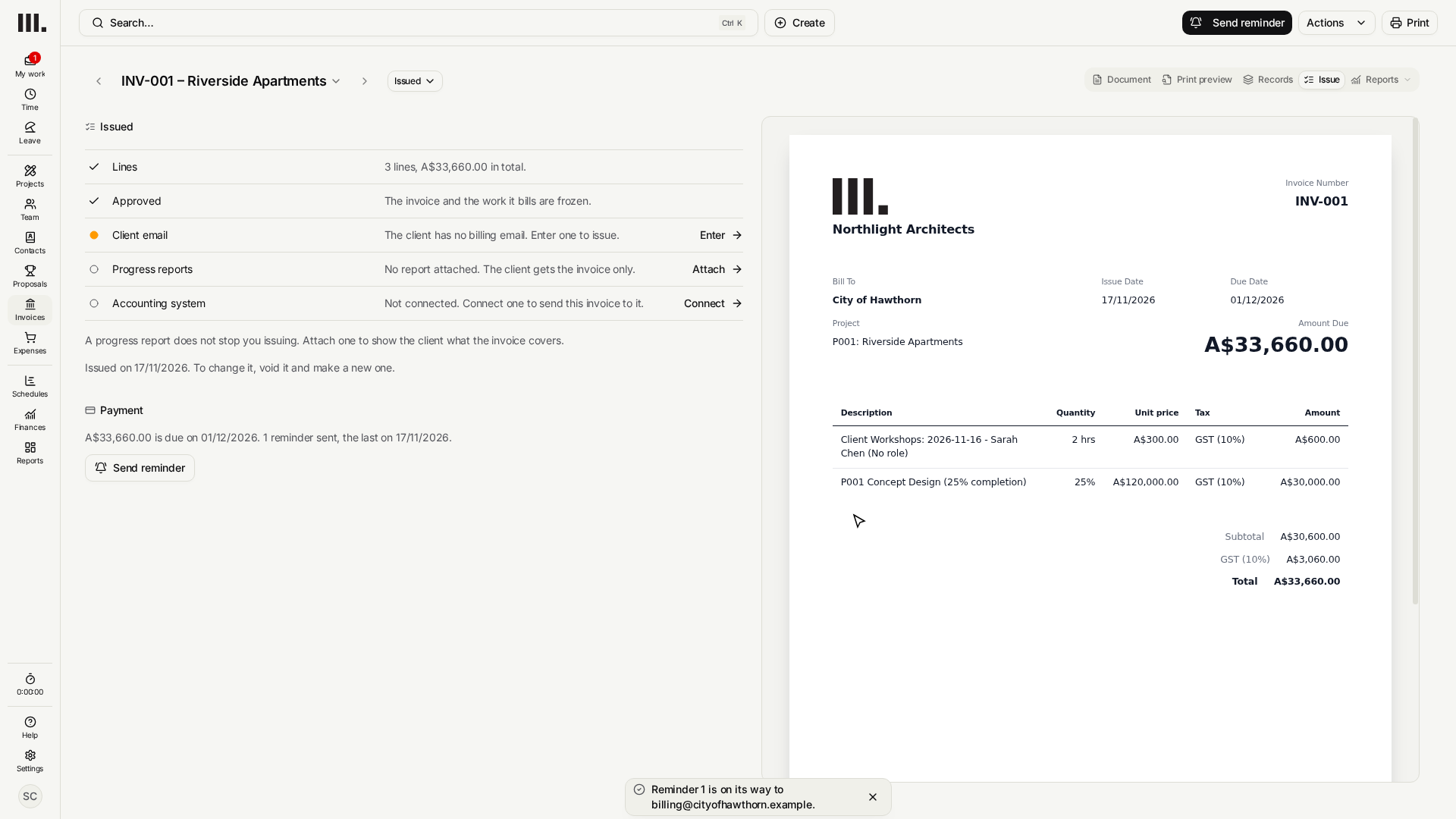
Click Open the Issue view. Under Payment, Monument shows what is still owed and when it is due, and how many reminders you've sent.
- 3
Click Send reminder, check Send to and the Message, and click Send reminder. The client gets the invoice again with your note and the PDF. Payment now counts one reminder.
- 4
Under Payments on the Issue step, click Record payment; the window shows what's due.
- 5
Click Full amount, then halve it, and check the Payment date.
- 6
Pick a Payment method, Bank transfer, Check, Credit card, Cash, or Other, and add a Reference like the transfer ID.
- 7
Click Record payment. The status at the top of the invoice reads Part paid, while the invoice stays Issued.
- 8
Click Record payment again, click Pay remaining, and record the balance. The status reads Paid.
Each payment is recorded as its own entry, so a client can pay in installments without you doing anything special. Record a deposit today and the invoice sits at Part paid with the remaining amount shown; record the rest later and it flips to paid automatically. There's no manual switch between those two states.
Where to actually look for what's outstanding
The status, at the top of the invoice and in the invoice list, is the fast answer to what's outstanding. The peek in the invoice list shows what is still owed, the Issue view says when the rest is due, and Payments on the Issue step lists every payment with its method and reference attached.
Nothing but time turns an invoice overdue: an approved or issued invoice with an amount still owing past its due date reads overdue automatically, and there's no button that causes it. The only way to clear it is the same way you'd expect, collect the payment and record it, and the badge corrects itself.
Deleting or voiding an invoice
Any invoice can be deleted, whatever its status. Deleting an approved or issued invoice makes its time and expenses unbilled again, so they can go on another invoice, and its recorded payments are removed. If the invoice is in Xero or another accounting system, that copy is not changed: void or delete it there yourself. Deleting can't be undone in Monument.
If you want to keep a record that the invoice existed, void it instead, once any recorded payments are removed or reversed.
Once voided, an invoice can't be reactivated, approved, or issued, so if that work still needs billing, raise a fresh invoice for it. Never void something just to edit it, edit the draft directly, or issue a corrected invoice instead.
Troubleshooting
- Status doesn't move after recording a payment. Check the amount actually equals the balance. Even a small shortfall keeps the invoice at Part paid rather than Paid.
- An invoice still reads overdue after being paid. Confirm the payment was recorded against that specific invoice, with the right date. The overdue badge only clears once recorded payments actually close the balance.
- Record payment isn't available. Manual payments need an issued invoice with an outstanding balance. A draft, an approved-but-not-yet-issued invoice, or a voided one can't take a manual payment. If you sent the invoice to the client another way, use Issue outside Monument from the invoice's Actions menu, then record the payment.
- A payment already landed in your accounting system. You may not need to type it in here at all, payments can be pulled back automatically from Xero, QuickBooks, or MYOB. See Accounting sync.
Where this fits next
This is step 6, the last step of Bill clients and get paid. With an accounting system connected, payments recorded there come back on their own: see Connect your accounting system. Next, control costs.
Related articles
Search Monument help
Search help articles and open a result.