
Browse articles
- Getting started
- How Monument models finance
- Revenue from resourcing
- Fixed fees
- Budgeting costs
- Recording expenses
- Recording revenue entries
- Going further
- Formula based pricing and construction cost
- Recurring and periodic fees
- Revenue from expenses
- Modifiers: contingencies and discounts
- Progressive billing
- Pricing templates
- Operational expenses
- Control access to business finances
- Control access to rates
- Control who can create projects
- Control project administration
- Control staff and team management
- Control expenses and claims
- Control report definition editing
- Control access to contacts
- Give full project control with Owner
- Manage project work without changing money
- Let project members edit tasks safely
- Share a project safely with Viewer
- Let a team lead coordinate shared work
- Share teammate profiles without management access
- Keep team members focused on their own work
Edit a saved report
Change a saved report's columns, see exactly what will change before it saves, and overwrite the version everyone already has open.
What you'll achieve
Change what a saved report shows, and know exactly what you're about to overwrite before you commit to it.
You'll end up with: The saved Project Margins report shows Description instead of Planned expenses, and the change is live for everyone who opens it.
Before you start
A saved report isn't yours alone to change
Build a custom report covers starting fresh: a new table, built up column by column. Most of the time you're not starting fresh, you're changing a report the studio already relies on, because the question shifted slightly and last month's columns aren't quite this month's columns anymore. Project Margins, the report that tutorial saved, is a good example: it was built to compare revenue against expenses, but now scope notes matter more than the expense figure did.
Editing a saved report is different from editing a scratch one specifically because other people already have it open. Monument doesn't hide that: it makes you look at exactly what's about to change before it commits.
Open the report instead of building it again
- 1
Open Project Margins from the Reports sidebar, the same saved report Build a custom report created.
- 2
It opens exactly as it was last saved: grouped by Status, sorted by Margin.
Nothing here is a new report waiting to be shaped. Every column, filter, group, and sort is already the version everyone else sees when they click the same sidebar entry.
Add and remove columns the same way you built the report
Editing columns on a saved report uses the exact same controls as building one: the Add Column menu to bring a field on, and a column header's own menu to take one off.
- 1
Open Add Column, search for Description, and select it. Description sits among the Properties, the plain fields every project has, so it needs no formula.
- 2
Open the Total Expenses header's menu and choose Remove column. Removing a column only takes it off this report, the underlying data isn't touched anywhere else.
Adding and removing columns updates the table in front of you immediately, the same live feedback as building a report from scratch. Nothing reaches the saved definition, or anyone else's screen, until you explicitly save it.
The change summary is your last look before it saves
- 1
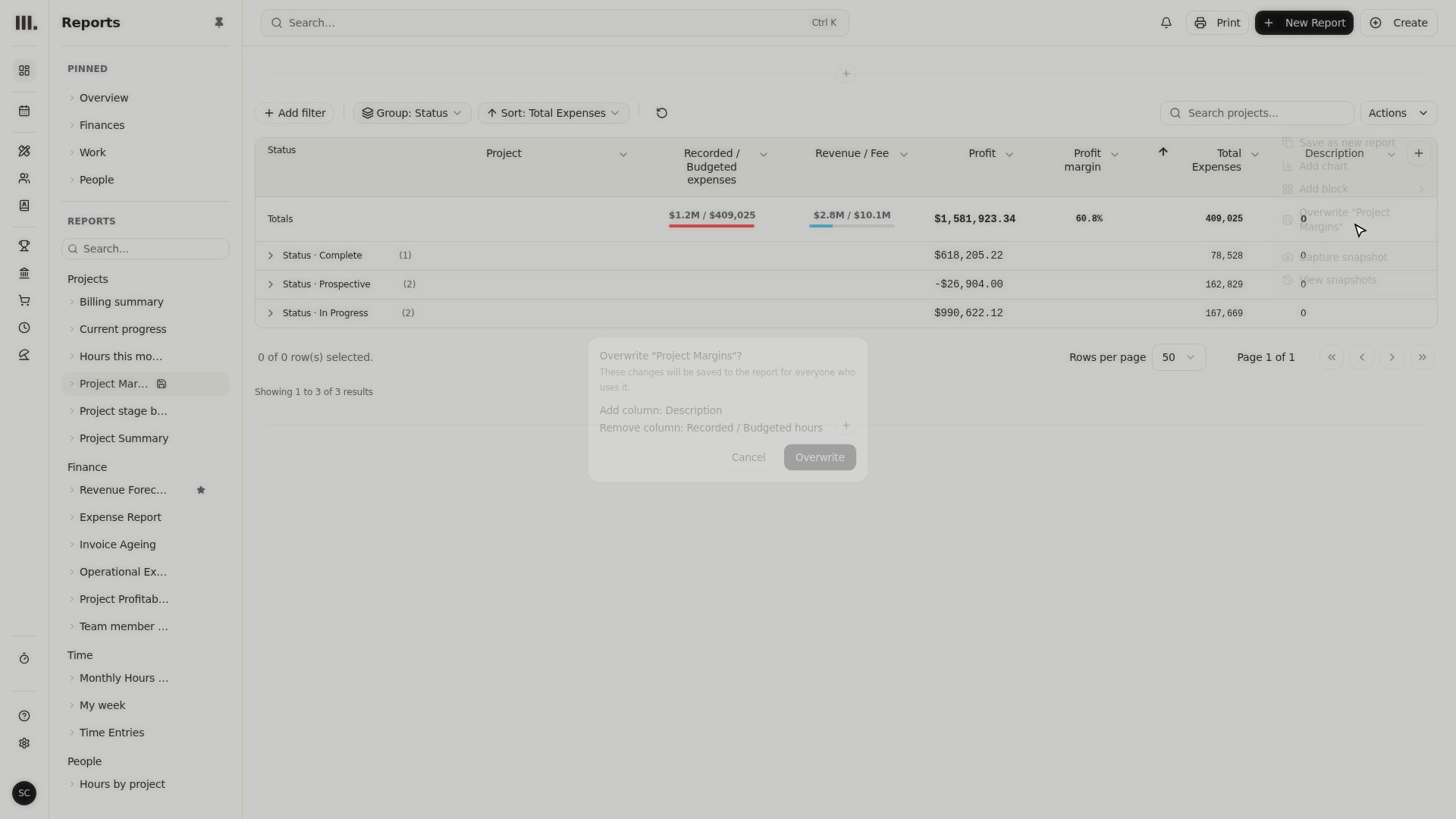
Open Actions and choose Overwrite Project Margins.
- 2
The summary lists what changed in plain terms: Add column: Description, Remove column: Total Expenses. Nothing else on the report changed, so nothing else is listed.
- 3
Click Overwrite. The dialog closes and the report now shows Description in place of Total Expenses, for you and for everyone else who opens it.
That summary exists because Overwrite touches a report other people already trust. Reading two lines before confirming costs a second; discovering a wrong change after the whole studio already opened the report costs a lot more.
Some reports, the seeded defaults Monument ships with, don't offer Overwrite at all. Editing one of those always routes through Save as new report instead, so your changes become your own copy rather than silently changing everyone's shared default. A report you built and saved yourself, like Project Margins, doesn't have that restriction, you're the one who owns the edits.
Troubleshooting
- Overwrite is missing from Actions. That report is a built-in default, not one you saved. Use Save as new report instead, it produces your own editable copy without touching the shared original.
- The summary doesn't mention a change you expected. The summary only lists column changes, adds and removes. Filter, grouping, and sort edits save the same way through Overwrite, but they don't appear as separate line items in this particular summary.
- You removed the wrong column. Nothing is final until you click Overwrite. Add the column back from the Add Column menu before confirming, or close the overwrite dialog and start the edit again.
Where this fits next
You can now change a report you've already saved without guessing what you're about to overwrite. To narrow a report's rows instead of its columns, see Filter a report. To build a figure no column already offers, see Formula columns.
Related articles
Search Monument help
Search help articles and open a result.