
Browse articles
- Getting started
- Project finances
- Billing by the hour
- Practice finances
- Grouping fees
- Budgeting project costs
- Claim an expense
- Recording revenue entries
- Recording project expenses
- Purchase orders
- Approving expenses
- Going further
- Construction cost fees
- Recurring fees
- Billing expenses
- Contingencies and discounts
- Billing progress claims
- Project templates
- Overheads
- Getting started
- Billing milestones
- Sending an invoice
- Billing logged time
- Month-end invoicing
- Bill hours at different rates
- Fee proposal templates
- Writing a fee proposal
- Getting a proposal signed
- Link invoices that are already in Xero
- Going further
- Payments and overdue invoices
- Connect your accounting system
- Fee groups on invoices
- Tax codes and accounts
- Connect QuickBooks
- Set your accounting defaults
- Sync an invoice to QuickBooks
- Connect Xero
- Set your Xero accounting defaults
- Sync an invoice to Xero
Change a rate across your projects
Raise a role's charge-out rate, choose which running projects take the increase, and lock the project you quoted at the old rate so later changes leave it alone.
What you'll achieve
Raise a role's charge-out rate, decide which running projects take it, and lock the project that keeps its quoted rate.
You'll end up with: The role charges its new rate on the projects that should take it, and the project you quoted keeps its old rate, locked against later changes.
Before you start
A rate rise is a question for every running project
A practice raises its rates once a year, but its projects don't all start on the same day. Some were quoted last month on the new figures. Others were quoted a year ago, and the client agreed a fee built on the old ones. When the rate goes up, each running project needs an answer: take the new rate, or keep the one you quoted.
Monument asks that question when you change the rate, and lists the projects it would reach. You answer it once, in the same dialog. Then you can lock the projects that kept the old rate, so the next rise doesn't reach them either.
We'll raise Senior Architect at Northlight Architects from two hundred to two hundred and ten an hour, from the first of this month. Sarah Chen, a Senior Architect, is booked on two client projects: Riverside Apartments for City of Hawthorn, quoted at the old rate, and Hawthorn Library Fit-out, which takes the increase.
Dynamic and Locked
Every project is Dynamic or Locked, once for its charge-out rate and once for its cost rate:
- Dynamic (the default): the project takes each rate change from its start date.
- Locked: the project keeps the amounts it had on the day it was locked. Later rate changes never reach it.
Locking is about the next change. The Change dialog decides which projects take this one.
The practice's default answer
At the top of Team › Rates, When a rate changes sets which answer each Change dialog starts on: Every dynamic project or New projects only. You can still choose the other in each change. Most practices leave it on Every dynamic project, so a rise reaches running work unless someone says otherwise.
Raise the rate and choose the projects
- 1
On the Rates page, open Senior Architect and click Change beside Charge-out rate.
- 2
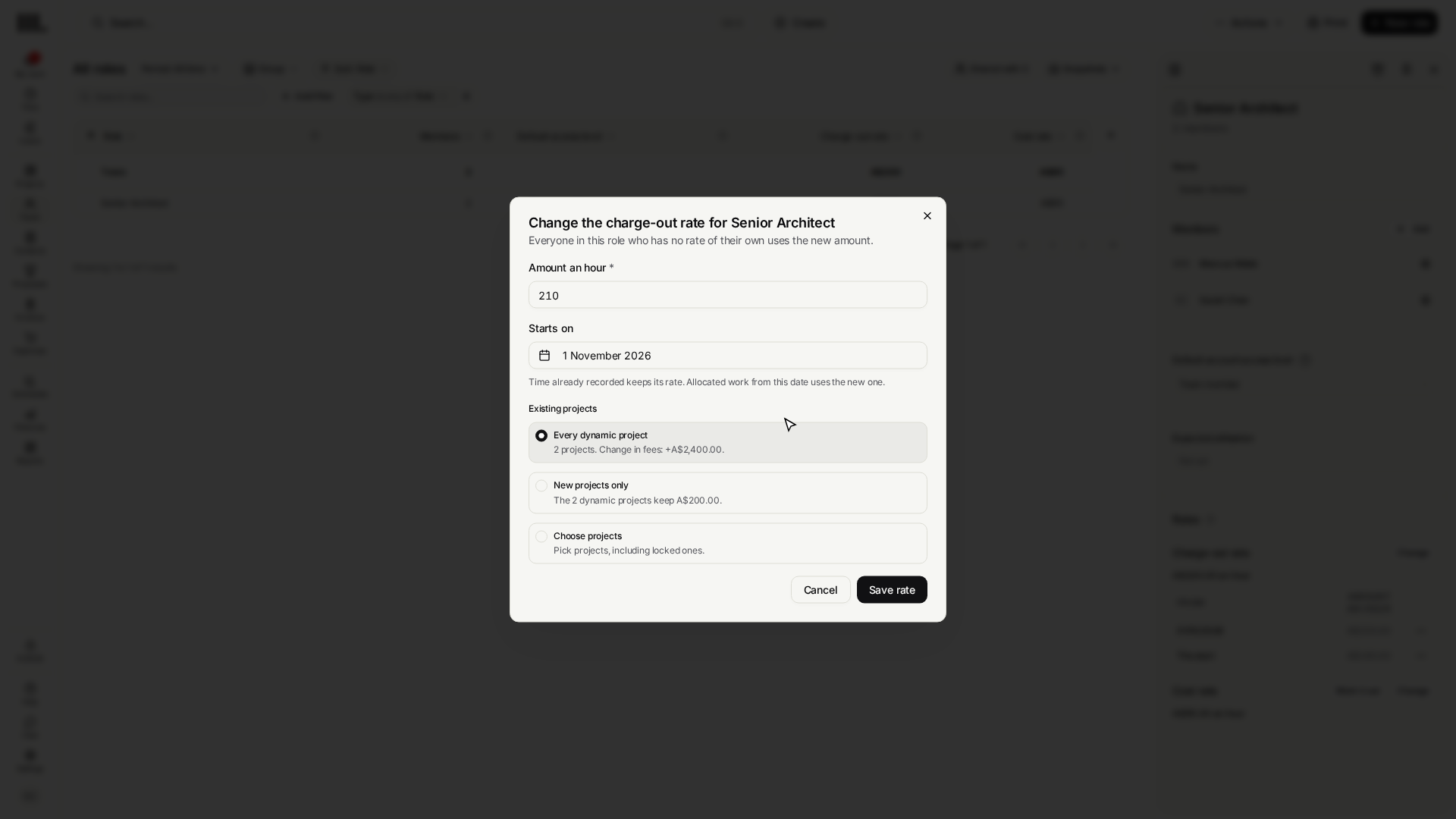
Type two hundred and ten in Amount an hour, and set Starts on to the first of this month.
- 3
Existing projects lists the running projects that use this rate: how many, and how much the increase adds to their fees.
- 4
Choose Choose projects and untick Riverside Apartments. Hawthorn Library Fit-out stays ticked and takes the increase.
- 5
Click Save rate. One Undo reverses the rate and the projects together.
The three answers in Existing projects:
- Every dynamic project takes the new amount. A locked project keeps its rates.
- New projects only: every dynamic project keeps today's amount for this rate.
- Choose projects lists each project with its change in fees. Untick the ones that keep the old amount. A locked project starts unticked; Override lock gives it this change anyway, and it stays locked for every other rate.
Lock the project that kept the old rate
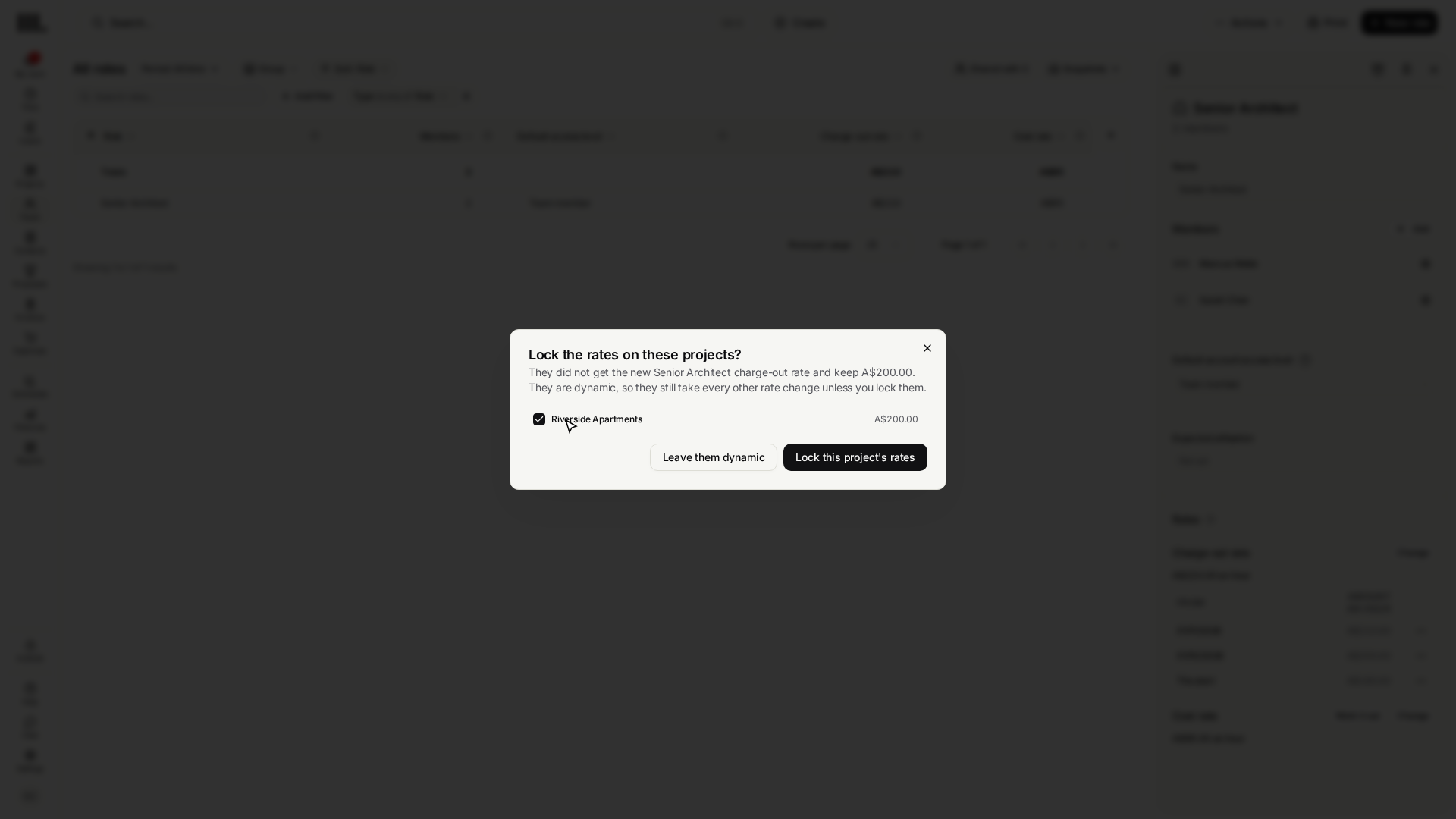
Riverside Apartments didn't take the increase, but it is still Dynamic. The next change to Senior Architect, or to anyone else's rate, would still reach it. So Monument asks straight away.
- 1
Lock the rates on these projects? lists Riverside Apartments, ticked, with the two hundred it keeps.
- 2
Click Lock this project's rates. Riverside locks as of the day before the new rate starts, with Undo.
- 3
Open Riverside Apartments' Brief. Under Rates, Charge-out rate reads Locked, and the Senior Architect row shows two hundred, with today's role rate of two hundred and ten in brackets.
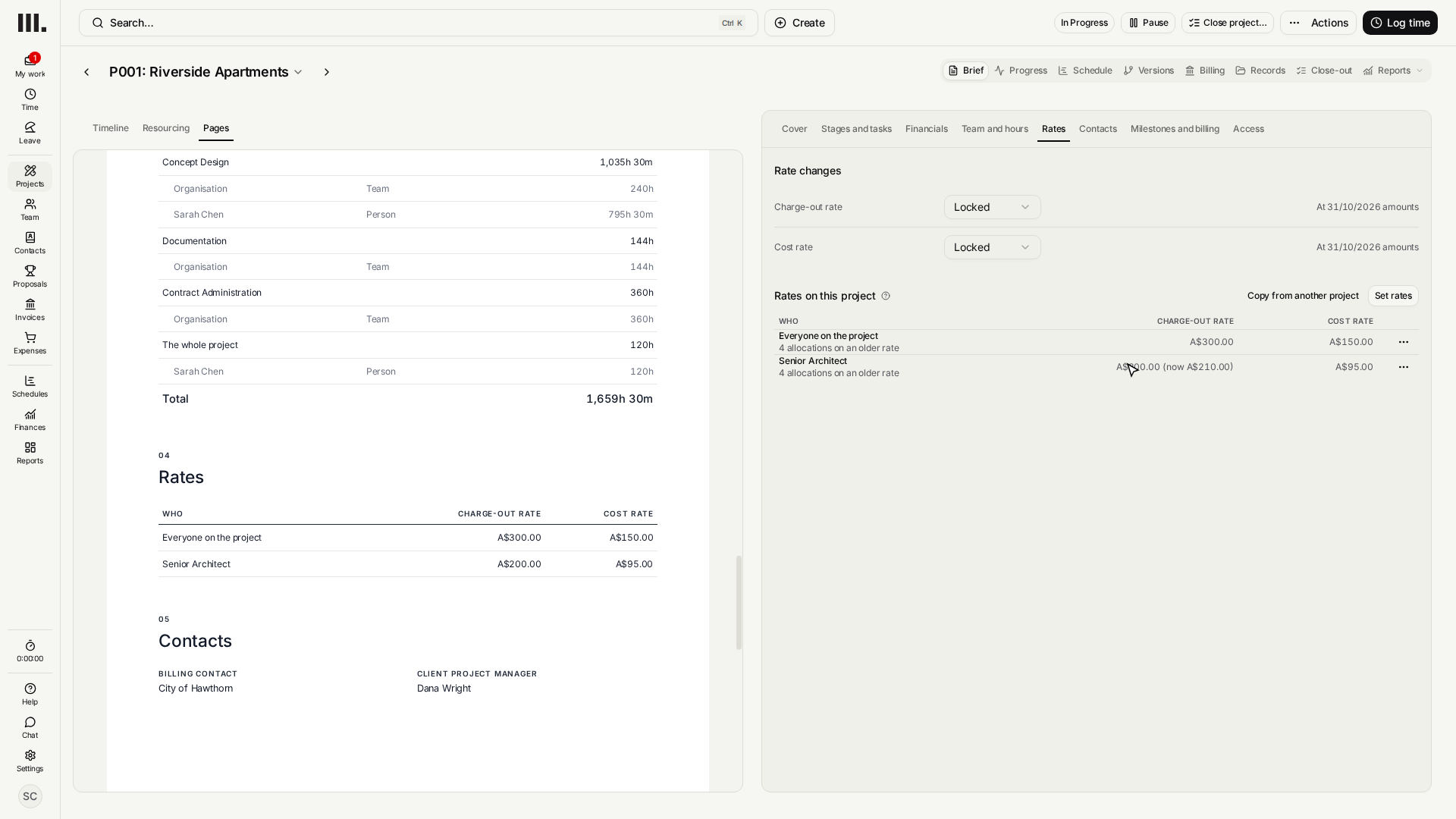
Locking from this question locks the project's charge-out rate and its cost rate. To keep cost moving with pay rises, set Cost back to Dynamic on the project's Brief, under Rate changes. Rates on a project shows how.
Click Leave them dynamic instead if those projects should keep taking every other change.
Troubleshooting
- The dialog has no Existing projects question. No open client project has work booked or recorded at this rate yet, so the change has nothing to ask about.
- A project took the increase by mistake. Use Undo on the change, or open the project's Brief: a project rate under Rates on this project wins on that project.
- A locked project should take this one rise. Choose projects and click Override lock beside it. It stays locked for every other change.
- Time already recorded changed price. It didn't. Recorded time keeps the rate it was worked at; only allocated work from the start date moves.
Where this fits next
To set rates for one project and choose Locked or Dynamic for each side, see rates on a project. For how a rate's history works, see charge-out and cost rates.
Related articles
Search Monument help
Search help articles and open a result.