
Browse articles
- Getting started
- How Monument models finance
- Revenue from resourcing
- Fixed fees
- Budgeting costs
- Recording expenses
- Recording revenue entries
- Going further
- Formula based pricing and construction cost
- Recurring and periodic fees
- Revenue from expenses
- Modifiers: contingencies and discounts
- Progressive billing
- Pricing templates
- Operational expenses
- Control access to business finances
- Control access to rates
- Control who can create projects
- Control project administration
- Control staff and team management
- Control expenses and claims
- Control report definition editing
- Control access to contacts
- Give full project control with Owner
- Manage project work without changing money
- Let project members edit tasks safely
- Share a project safely with Viewer
- Let a team lead coordinate shared work
- Share teammate profiles without management access
- Keep team members focused on their own work
Reports on a project
Every project starts with five ready-made reports already scoped to it, and you can add more, blank or copied, shared across every project or kept to just this one.
What you'll achieve
Read the reports a project already comes with, and know how to add your own without leaving the project page.
You'll end up with: You know where a project's reports live, what the five defaults cover, and how to add a report of your own to one project or to all of them.
A project doesn't wait for you to build its first report
Everywhere else in this journey, a report starts from the main Reports area, an entity picked from every row across the whole firm. A project's own Reports tab works the other way around: Monument seeds every project with five ready-made reports the moment it exists, already scoped to that one project, nothing to build first.
Open the tab and the five defaults are already there
- 1
Open Cedar Row Apartments and go to its project page.
- 2
Choose Reports on the project page.
- 3
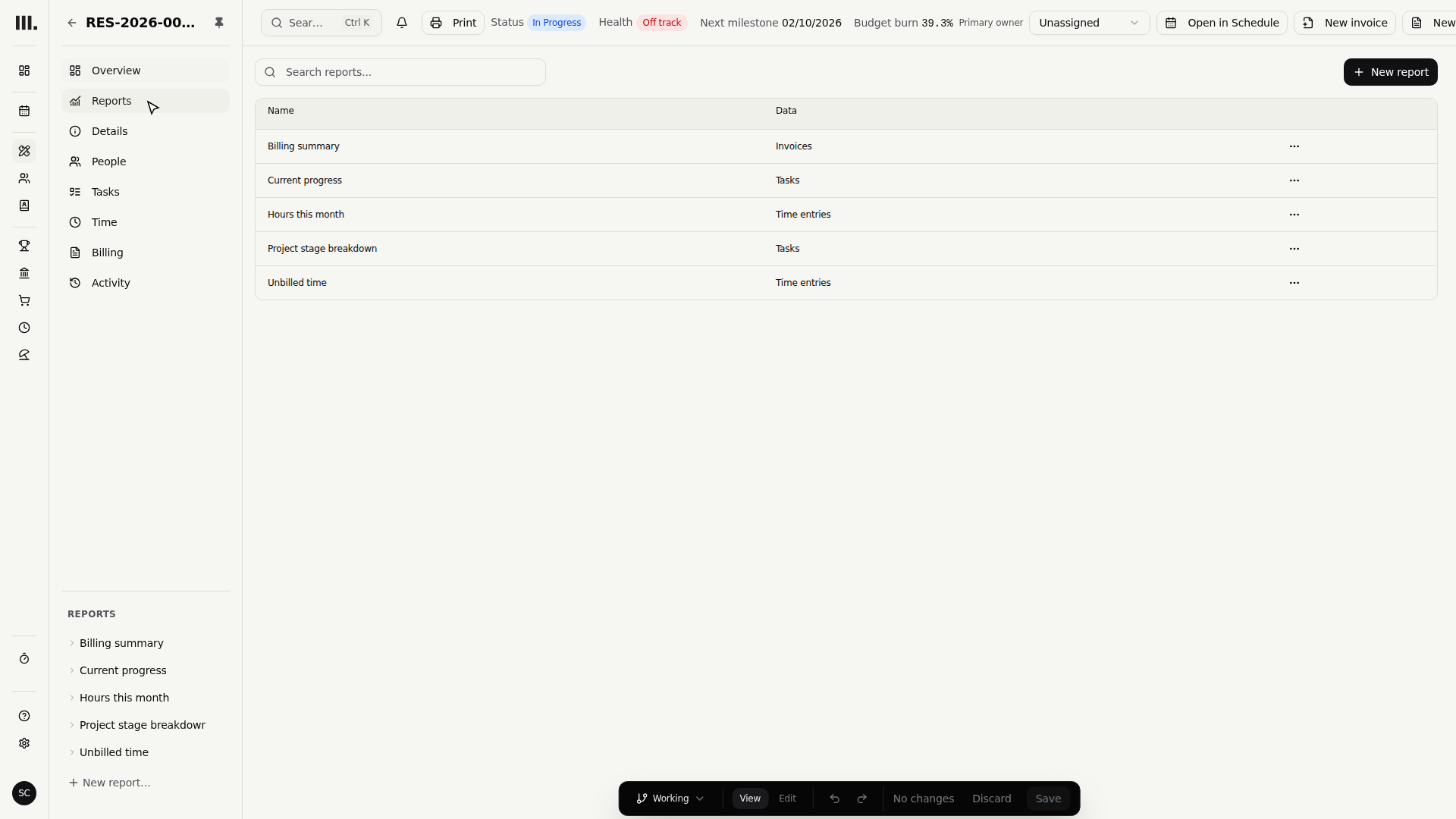
Five reports are already listed: Hours this month, Current progress, Billing summary, Unbilled time, and Project stage breakdown.
Those five cover the questions almost every project needs answered without anyone building anything: how much time has gone in recently, where the work stands, what's been invoiced, what hasn't, and how fee, progress and billing break down stage by stage. They're ordinary reports underneath, editable the same way any saved report is, Monument just seeds them for you so a brand-new project isn't a blank slate.
Opening one keeps you on the project, live
- 1
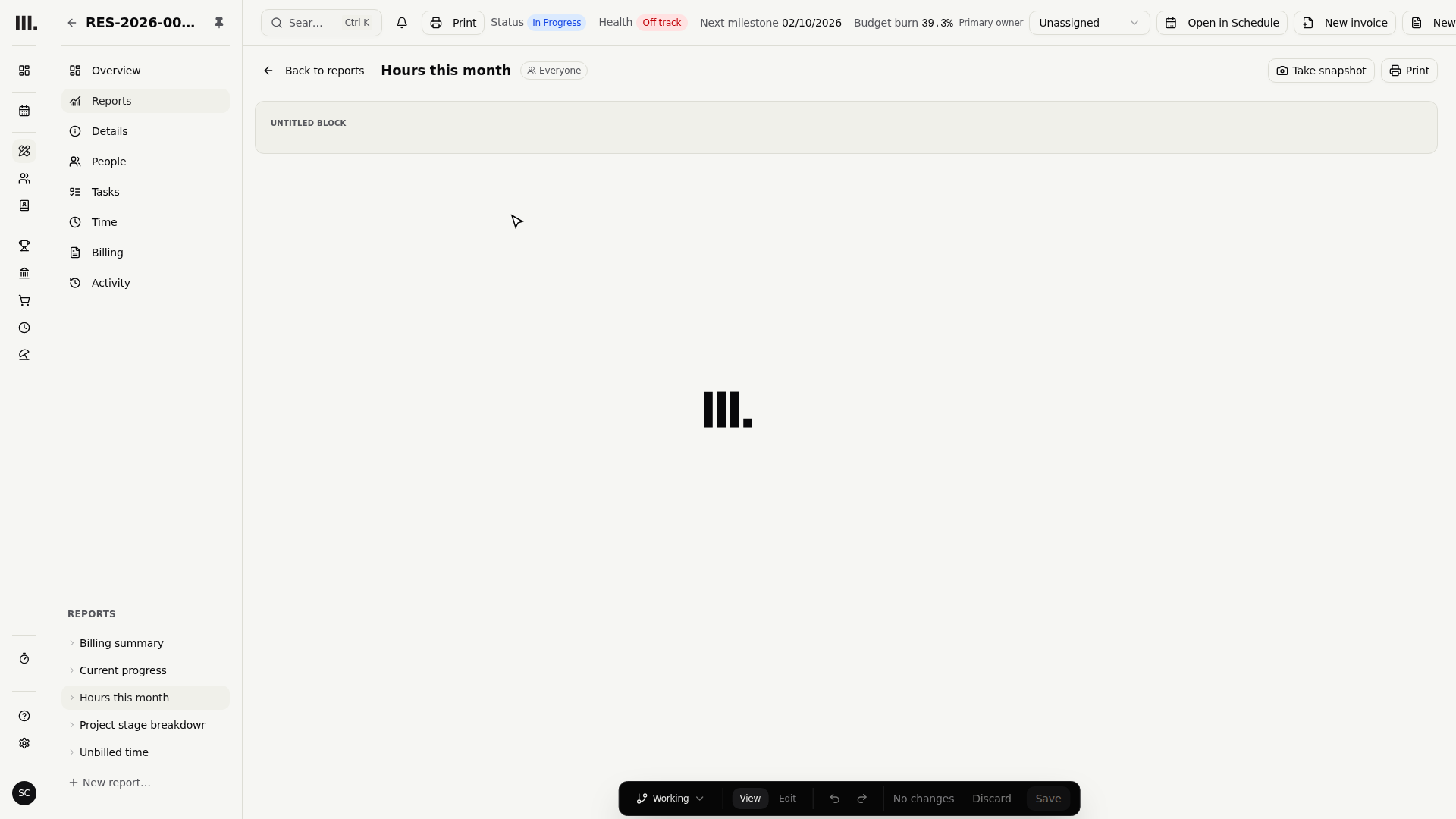
Click Hours this month. It opens as an embedded report, still on Cedar Row Apartments, filtered automatically to just this project's time entries.
- 2
Click Back to reports to return to the list without leaving the project.
This isn't a static snapshot copied out for this one project, it stays live and recalculates the same way any saved report does. The project scope doesn't show up as a filter chip you could accidentally remove either, it's built into being on this project's own Reports tab, the same way a hidden structural scope works for other item-page filters in Monument.
Opening a report here adds it to the page's URL. Share that link or use your browser's back button and it returns to the same report, still scoped to the same project.
New report: blank or copied, this project or every project
A project's Reports tab isn't limited to the five defaults. New report opens the same builder from Build a custom report, with two choices specific to starting it from a project page:
- Blank or copied: start from nothing, or duplicate an existing saved report as your starting point instead of rebuilding columns you already have elsewhere.
- This project or every project: show the new report only on Cedar Row Apartments, or make it appear on every project's Reports tab from now on, the same way the five defaults do.
Duplicating an existing report as your starting point keeps its columns, grouping, and sort, you're only changing what needs to change for this project, not rebuilding a report you already trust elsewhere.
Troubleshooting
- A default report is missing from a project. The five defaults, Hours this month, Current progress, Billing summary, Unbilled time, and Project stage breakdown, seed automatically for every project. If one's missing, check whether it was deleted rather than assuming it never existed.
- A new report doesn't appear on other projects. Check which option New report was set to. This project only shows it here; every project adds it to every project's Reports tab, including ones created after you saved it.
- The report looks like it's showing firm-wide numbers. A default project report scopes to its project automatically and isn't shown as a removable filter. If numbers look too broad, confirm you're actually inside the project's own Reports tab and not the main Reports area.
Where this fits next
You now know where a project's own reports live and how to add to them. To build a report from the main Reports area instead, covering every project at once, see Build a custom report. To change a saved report's columns later, see Edit a report.
Related articles
Search Monument help
Search help articles and open a result.