
Browse articles
- Getting started
- How Monument models finance
- Revenue from resourcing
- Fixed fees
- Budgeting costs
- Recording expenses
- Recording revenue entries
- Going further
- Formula based pricing and construction cost
- Recurring and periodic fees
- Revenue from expenses
- Modifiers: contingencies and discounts
- Progressive billing
- Pricing templates
- Operational expenses
- Control access to business finances
- Control access to rates
- Control who can create projects
- Control project administration
- Control staff and team management
- Control expenses and claims
- Control report definition editing
- Control access to contacts
- Give full project control with Owner
- Manage project work without changing money
- Let project members edit tasks safely
- Share a project safely with Viewer
- Let a team lead coordinate shared work
- Share teammate profiles without management access
- Keep team members focused on their own work
Model your project
Draw a project's span and its stages on the timeline, then link them so the schedule reschedules itself.
What you'll achieve
Turn a newly created project into a staged work programme with linked stages on the timeline.
You'll end up with: A project broken into three linked stages, Concept Design, Documentation, and Contract Administration, that reschedule together whenever one of them moves.
Before you start
The schedule is drawn, not filled in
A new project in Monument starts as a single empty row on the timeline: a name and nothing else. The create form offers optional start and end dates, but if you leave them blank you can set the project dates and add its stages directly on the timeline, the same surface you use later to check progress and move dates around. Drawing on the timeline updates the same task dates you can edit in the property panel, so both surfaces show the actual plan.
A typical work programme starts with two levels. The project itself is a single bar spanning the whole commission: Northlight Architects' Riverside Apartments (RA) runs July through December 2026. Underneath it, once you expand the row, live the stages, the phases of work a practice actually plans around, like Concept Design, Documentation, and Contract Administration. Each stage is its own bar, drawn inside the project's span, and each can later hold its own tasks, resourcing, and revenue. Getting this structure right up front is what everything else on the schedule, allocations, invoicing milestones, reporting, hangs off.
Set the project's span
Before you can draw anything, unlock the timeline with Edit, then switch the view to Monthly. A six-month project like Riverside Apartments is hard to place precisely at a daily or weekly zoom; Monthly gives you enough room on screen to drag one confident stroke across the whole span.
- 1
Click Edit to unlock the timeline.
- 2
Switch the view to Monthly.
- 3
Drag across the Riverside Apartments row from July to December to set the project's overall span.
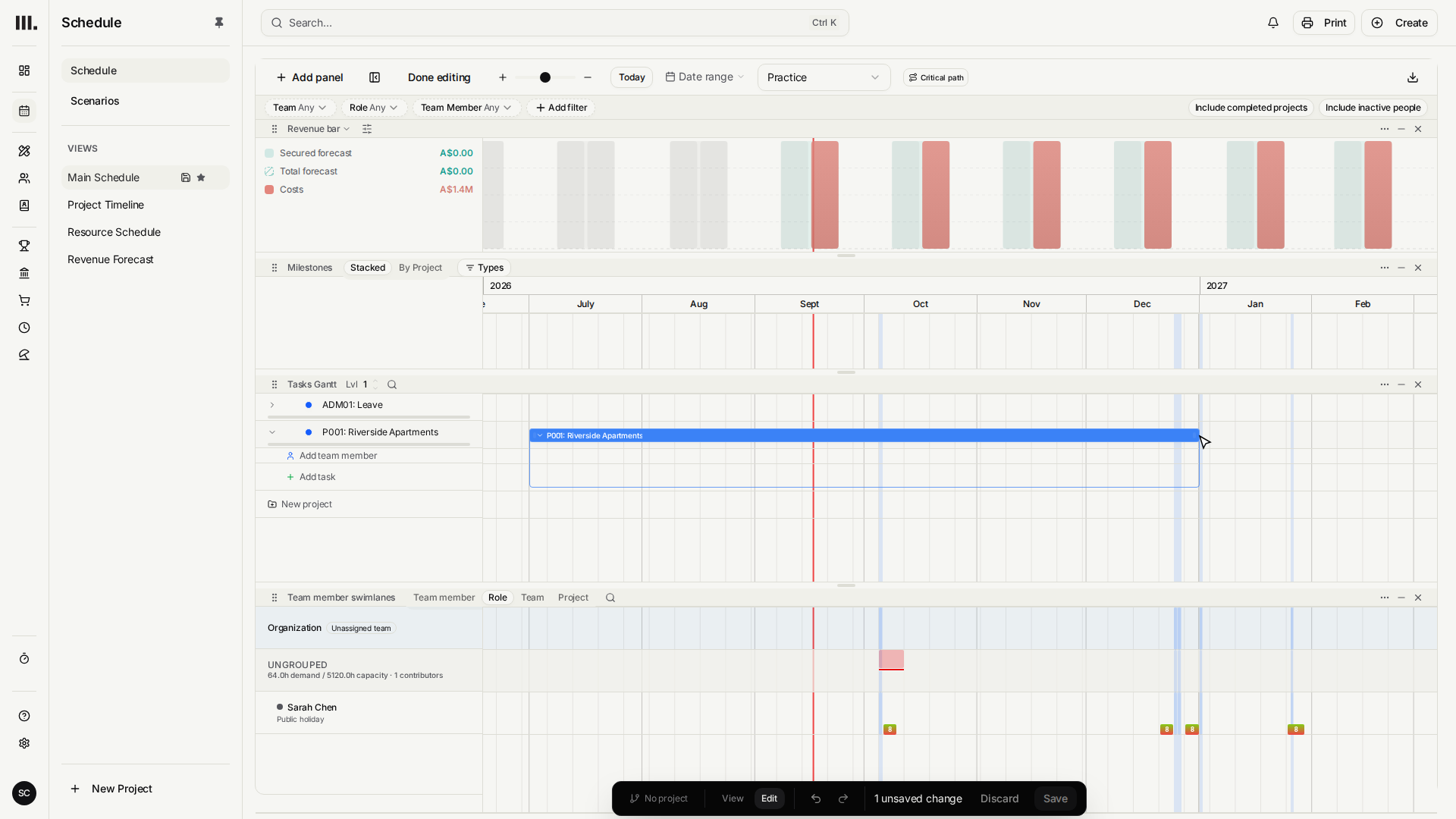
That drag is the entire "create a schedule" step for the project. There's no dialog to confirm dates afterward; the bar you drew is the record.
Draw the stages
Expand the project row and an empty lane appears underneath it, ready for stages. Each stage gets its own drag, the same motion you just used for the project, but this time inside the project's lane rather than across the whole schedule. Riverside Apartments breaks into three: Concept Design across July and August, Documentation across September and October, and Contract Administration across November and December.
- 1
Expand the project row to reveal its stage lane.
- 2
Drag a bar across July and August for the first stage.
- 3
Drag a second bar across September and October.
- 4
Drag a third bar across November and December.
Every new stage arrives as New Task. Naming comes next, and Monument sorts child tasks by start date, so work from earliest to latest when you rename them.
Name the stages
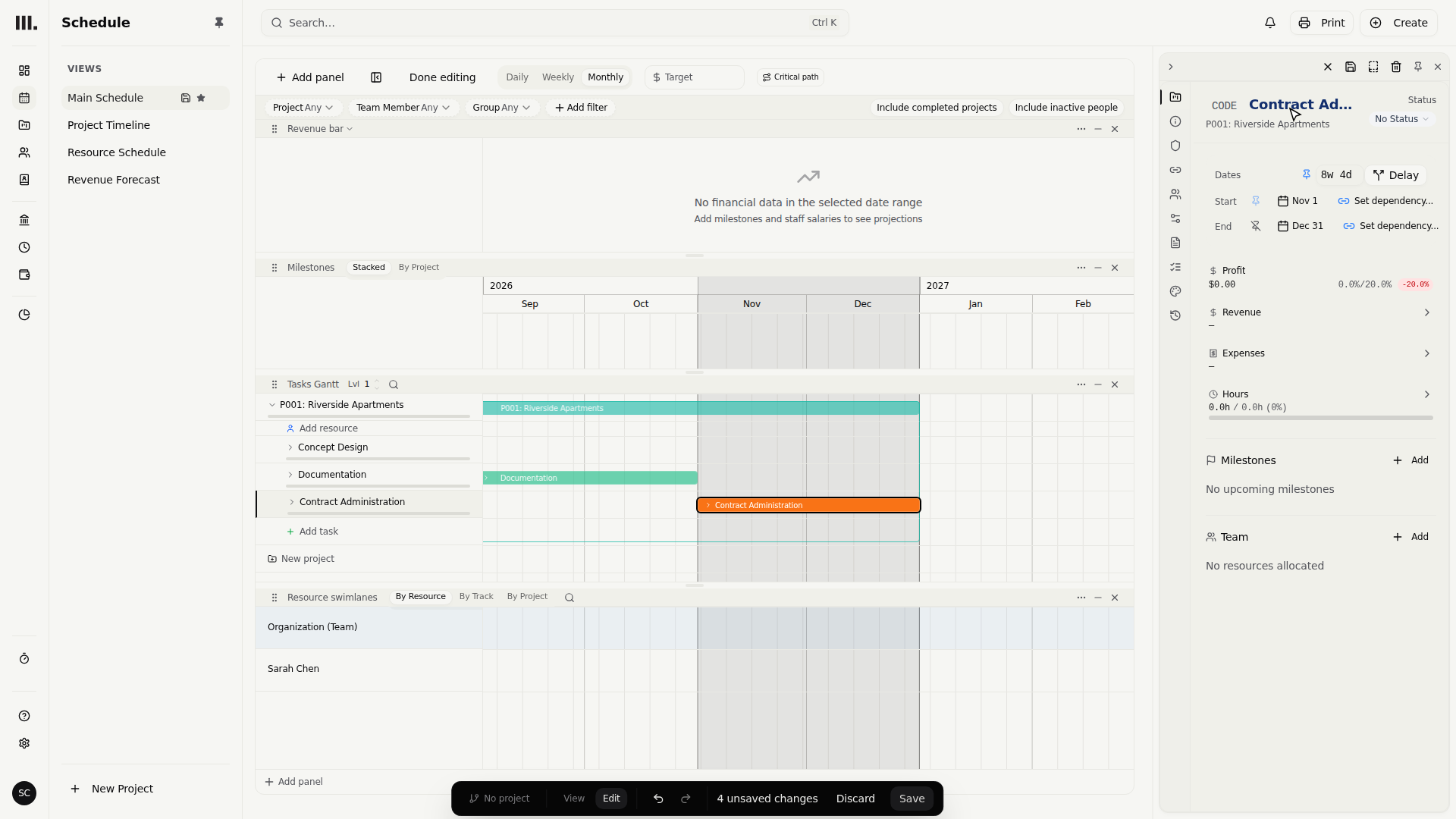
Select each new bar and rename it from the property panel. Do this in date order, earliest stage first, so each name lands on the bar you intend rather than the one you drew last.
- 1
Select the earliest stage and rename it Concept Design.
- 2
Select the next stage and rename it Documentation.
- 3
Select the last stage and rename it Contract Administration.
Link the stages so they move together
Three separate bars aren't yet a work programme; they're just three tasks that happen to sit end to end. What makes them a programme is the dependency: Concept Design has to finish before Documentation can start, and Documentation before Contract Administration. Draw that relationship by dragging from the end of one stage into the start of the next.
Once stages are linked end-to-start, they stop behaving as independent entries and start behaving as a chain. Move the first one and Monument recalculates every stage downstream of it, because the whole point of the dependency is that a delay in Concept Design is a delay in everything Concept Design feeds.
- 1
Drag a dependency handle from the end of Concept Design into Documentation.
- 2
Drag a dependency handle from the end of Documentation into Contract Administration.
See it work
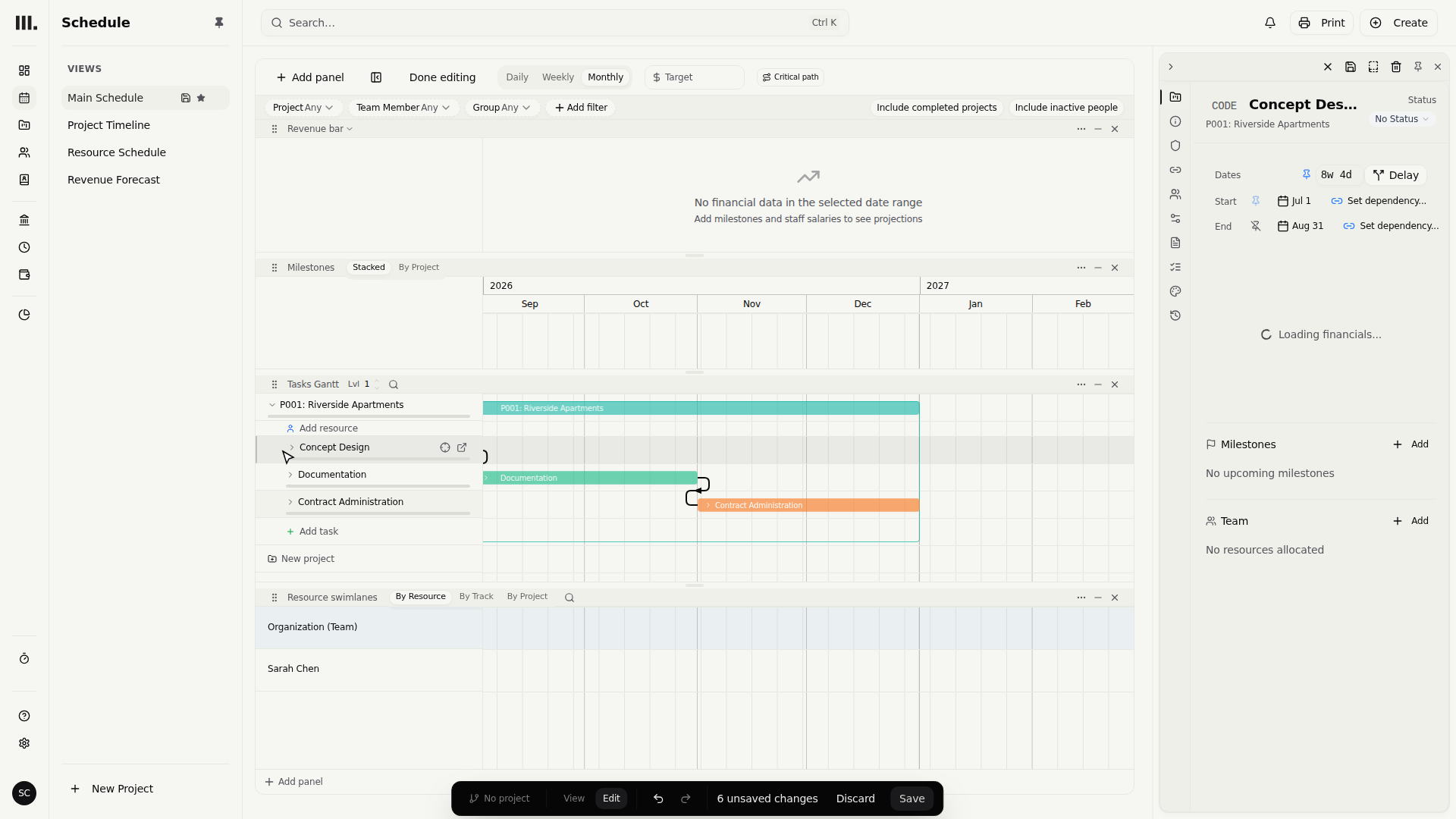
The payoff of linking stages is that you don't have to manually push every downstream date every time something slips. Drag Concept Design later and watch Documentation and Contract Administration slide with it, then drag it back and watch the whole chain settle to where it started.
- 1
Drag Concept Design forward and confirm Documentation and Contract Administration move with it.
- 2
Drag it back and confirm the chain settles into its original position.
This is also the moment to notice what dependencies don't do: they reschedule dates, not scope or resourcing. If Concept Design slips two months, the practice still has to decide whether Documentation absorbs the delay or the whole commission's deadline moves; Monument only guarantees the stages stay in the right relative order once you've told it they're linked.
Save
Click Save once the programme looks right. Save updates the project's working version in place. To keep a rollback point, open the version selector and save the working version as a baseline.
- 1
Click Save.
Troubleshooting
If dragging does nothing, you're probably still in read-only mode: the stage lane and the dependency handles only exist once you've clicked Edit. It's the single most common "the schedule's broken" report, and the fix is one click.
A bar in the wrong place doesn't need to be deleted and redrawn. Drag its middle to shift it in time, or drag either edge to make it longer or shorter. Treat every bar as adjustable, not disposable.
Drew a dependency by accident? Select the link line and delete it. The two stages keep their current dates and simply stop moving together, so undoing a link never undoes the dates you've already set.
Wide drags get fiddly at a tight zoom. Riverside Apartments' six months fit comfortably at Monthly, the zoom this article uses throughout; drop to Daily on a project this size and the programme runs off the edge of the screen, turning one confident drag into several careful ones.
Where this fits next
This picks up right after creating a project: Riverside Apartments already exists as an empty row before any of this begins. From here, the programme's stages are ready to carry actual work. The natural next step is resourcing, allocating staff time against each stage so the programme turns into a plan the practice can deliver against, not just a shape on the timeline.
Search Monument help
Search help articles and open a result.