
Browse articles
- Getting started
- Project finances
- Billing by the hour
- Practice finances
- Grouping fees
- Budgeting project costs
- Claim an expense
- Recording revenue entries
- Recording project expenses
- Purchase orders
- Approving expenses
- Going further
- Construction cost fees
- Recurring fees
- Billing expenses
- Contingencies and discounts
- Billing progress claims
- Project templates
- Overheads
- Getting started
- Billing milestones
- Sending an invoice
- Billing logged time
- Month-end invoicing
- Fee proposal templates
- Writing a fee proposal
- Getting a proposal signed
- Link invoices that are already in Xero
- Going further
- Payments and overdue invoices
- Connect your accounting system
- Fee groups on invoices
- Tax codes and accounts
Approving expenses
Check each pending claim against its receipt, approve or return it from Waiting for you, then mark what's been paid back.
What you'll achieve
Decide every expense waiting for you, and keep track of what the practice still owes people.
You'll end up with: No claim waiting on you, and every approved claim marked once it's reimbursed.
Before you start
Approving a claim is the practice agreeing to the cost. It doesn't pay anyone. Keeping the two steps apart is how you see what the practice has agreed to but not yet paid back.
At Northlight Architects, Sarah Chen has claimed $86 for taxi and parking on a site visit to Riverside Apartments, and $140 for client presentation prints with no receipt. You approve the first and return the second.
Who approves
Approving needs Approve expense claims on your access level, with Expense claims Edit. Marking claims paid needs Mark claims paid. Someone who can approve claims can approve their own, so give these switches with care. See What each access switch controls.
Check, then decide
- 1
Open Sarah's site visit claim from the Expenses list. Check the amount, the project and task, and that the receipt matches.
- 2
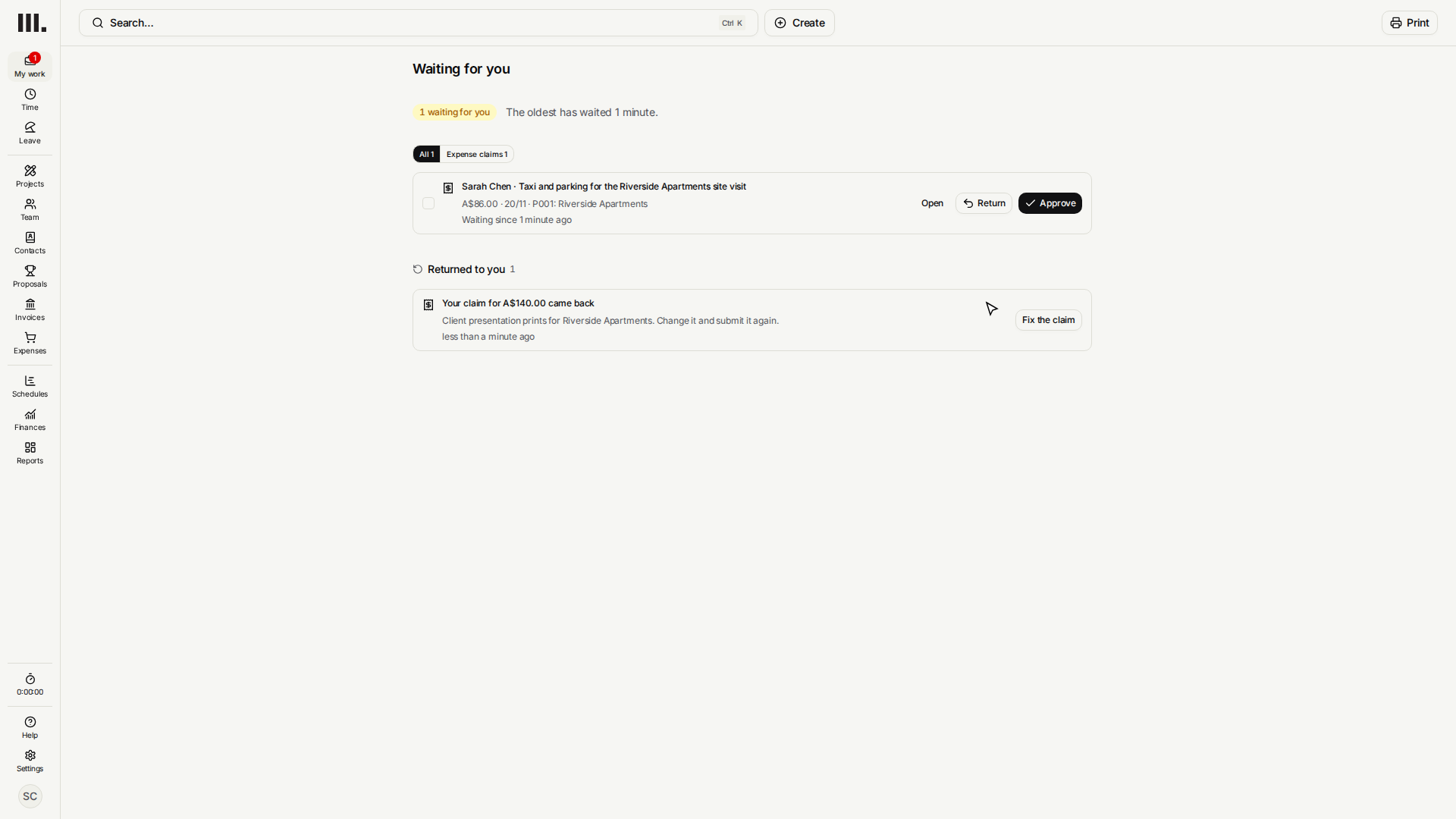
Under Approval, a pending claim shows Waiting for approval. Click Open Waiting for you. Expenses › Claims to approve opens the same list.
- 3
Each row shows who claimed, the amount and the project, with Return and Approve beside it.
- 4
The presentation prints claim has no receipt, so click Return. It goes straight back to Sarah, who can fix it and send it again. A claim's Return asks for no reason, so tell her what to fix.
- 5
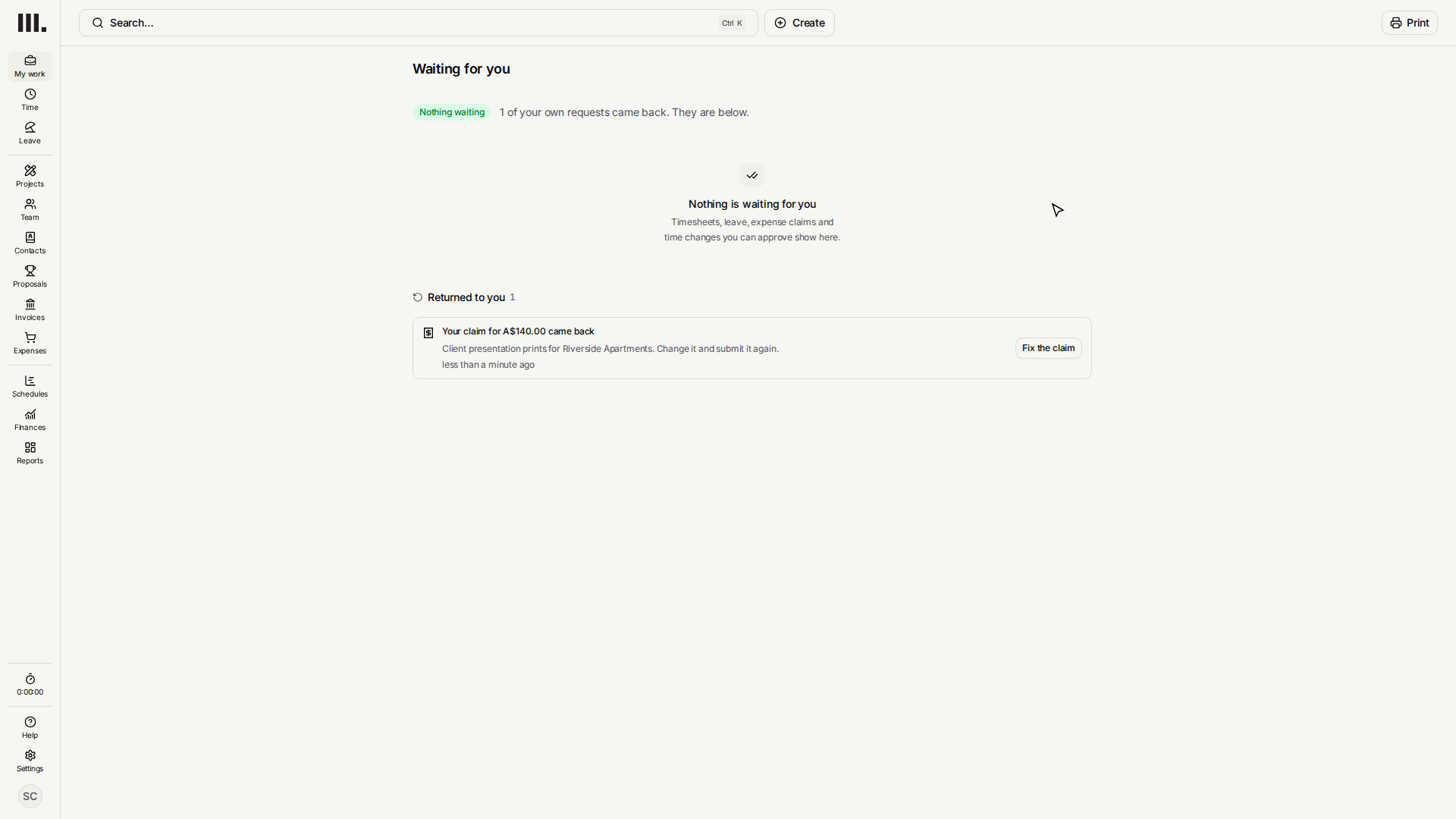
Click Approve on the site visit claim. Monument sends each decision when its Undo notice closes.
- 6
Open Expenses again and open each claim. The site visit claim reads Approved; the prints claim reads Returned.
- 7
Open Expenses › Unreimbursed claims. It lists approved claims nobody has paid back yet.
An approved claim is a cost the practice has agreed to. It becomes Reimbursed only when someone with Mark claims paid sets it, once the money has gone out. Expenses, then Unreimbursed claims, lists what's still owed.
Mark claims paid back
Once you've paid people back, select their approved claims in the Expenses list and set their reimbursement status to Reimbursed in one go.
Troubleshooting
- There's no Open Waiting for you link on a claim. It only shows on a pending claim, and only for someone who can approve claims.
- You can't mark a claim reimbursed. You need Mark claims paid on your access level.
- A returned claim came back unchanged. Tell the person exactly what to fix; a claim's Return carries no reason of its own.
Where this fits next
This is step 3 of Control costs. Next, set up overheads and keep their amounts current.
Related articles
Search Monument help
Search help articles and open a result.