
Browse articles
- Getting started
- Start your first project
- Model your project
- Critical path and automatic dates
- Read and rebalance the swimlanes
- Get oriented on the schedule
- Going further
- Give overhead a home with admin projects
- Structure large projects
- Baselines and versions
- Change Gantt bar colours
- Set a revenue target on the schedule
- Getting started
- How Monument models finance
- Revenue from resourcing
- Fixed fees
- Budgeting costs
- Recording expenses
- Recording revenue entries
- Going further
- Formula based pricing and construction cost
- Recurring and periodic fees
- Revenue from expenses
- Modifiers: contingencies and discounts
- Progressive billing
- Pricing templates
- Operational expenses
- Getting started
- Read your Dashboard
- Build a custom report
- Edit a saved report
- Filter a report
- Formula columns
- Freeze a report into a snapshot
- Reports on a project
- Definitions: how each figure is worked out
- Going further
- Time-Series Columns
- Organise your work with tags
- Break reports and accounting down by office
- Control access to business finances
- Control access to rates
- Control who can create projects
- Control project administration
- Control staff and team management
- Control expenses and claims
- Control report definition editing
- Control access to contacts
- Give full project control with Owner
- Manage project work without changing money
- Let project members edit tasks safely
- Share a project safely with Viewer
- Let a team lead coordinate shared work
- Share teammate profiles without management access
- Keep team members focused on their own work
Security and API keys
Create and revoke the API keys integrations use, see where account security is heading, and connect your accounting system.
What you'll achieve
Protect the account with two-factor authentication and session visibility, and create an API key for an external integration.
You'll end up with: Two-factor authentication and session visibility ready to turn on, and an API key minted for an integration, shown once and revocable any time.
Before you start
Data living safely in Monument is only half the job; it also has to be protected and, when useful, connected outward. The Security tab covers both sides of protecting the account, two-factor auth and session visibility, and the credentials integrations use to talk to Monument. Connecting your accounting system lives a tab over, under Integrations, linking Monument's invoices to the ledger you actually keep books in.
This is the last setup step for Northlight Architects: mint a key for a reporting integration, connect Xero, and see where two-factor auth and session control are headed.
Three jobs, one tab plus one
Prove it's actually you. Two-factor authentication and session management protect people, not software: a second factor and visibility over active sessions mean a leaked password alone isn't enough to get in.
Let trusted software in. An API key is how something external, a custom dashboard, a script, talks to Monument's Public REST API on your behalf. It's a credential you create on purpose and can kill the instant it's unwanted.
Bridge to your books. Connecting Xero, QuickBooks or MYOB lets invoices and payment status flow between Monument and your ledger, so nothing gets keyed in twice.
Like the rest of Settings, this is restricted to admins. Decide who holds the keys before you start handing out access.
Two-factor authentication and sessions
At the top of the Security tab sit the two controls that harden the account itself. Two-Factor Authentication adds a second step to signing in, so a leaked password alone can't get into Northlight's books. Session Management shows everywhere the account is currently signed in, useful for signing out a laptop left logged in at a client's office.
Both rows show on the tab today, but Enable and View Sessions aren't wired up yet; that's coming soon. Everything from API keys down is fully live right now.
Create an API key
Further down the Security tab, API Keys is where credentials for integrations get created. Each key gets a name (and an optional expiry), and there's one moment that matters more than the rest: the full key is shown exactly once, immediately after creation. Copy it then, because Monument never displays it again.
- 1
On the Security tab, in API Keys, click Create Key.
- 2
Give it a clear name, like Reporting Dashboard, and a description so future-you knows what it's for.
- 3
Optionally set an expiration date, then create the key.
- 4
Copy the full key from the success dialog and store it somewhere safe, since it won't show again.
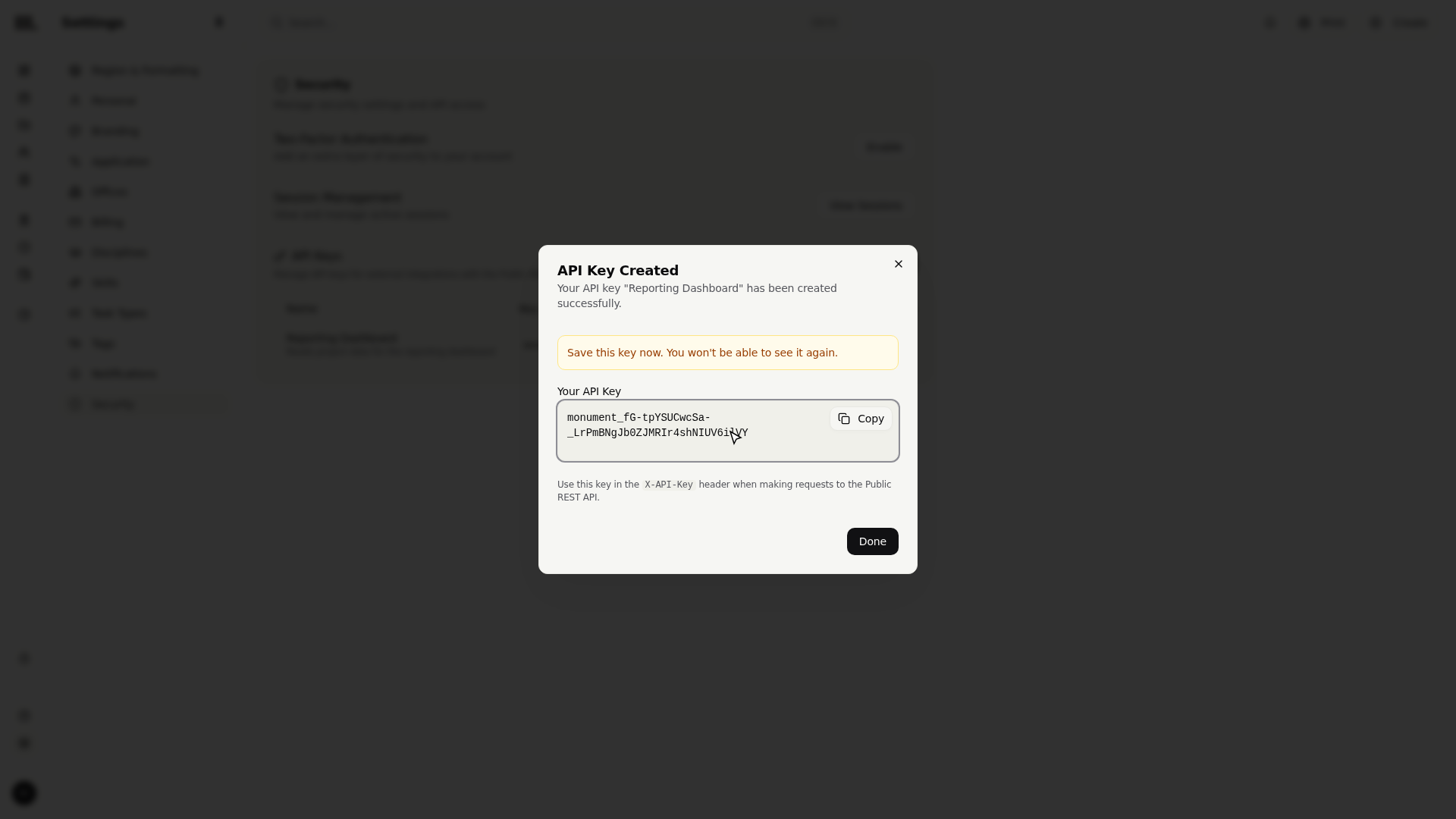
Integrations send the key in the X-API-Key header on every call to the Public REST API. The keys table lists each key's prefix, creation date, last-used date and expiry, so stale keys are easy to spot. Revoking one cuts off whatever's using it immediately, which is why naming keys per integration keeps that blast radius small.
Whoever holds the full key can act through your firm's API. Don't paste it into chat or commit it to a repository. If one leaks, revoke it and mint a new one; that's exactly what revoke exists for.
Connect your accounting system
Connecting your ledger turns Monument's invoices into entries in the books without double entry, and it lives on the Integrations tab. Pick Xero, QuickBooks or MYOB, authorise through the provider's own sign-in, then set a default sales account and tax type and decide whether payment status syncs back.
- 1
Go to Settings, then Integrations, and find Accounting Integration.
- 2
Choose your system, Xero, QuickBooks or MYOB, and click Connect to authorise through the provider.
- 3
Once connected, set the Default Sales Account and Default Tax Type used when invoices sync.
- 4
Decide whether payment status syncs back into Monument, and you're done.
An accounting connection can need re-authorising over time, which Monument flags as "Needs Reconnection". Refresh pulls the latest accounts and tax types; Disconnect unlinks entirely. What actually syncs is covered in the accounting sync guide.
Troubleshooting
- The key really is shown once. There's no "reveal" screen afterward; only the prefix persists for display. Miss the copy, and revoking and recreating is the only fix.
- Revoke is instant and total. It doesn't pause a key, it kills it: any integration using it loses access the moment you click. Have the replacement ready first.
- Accounting isn't on the Security tab. Two-factor, sessions and API keys sit under Security; the accounting connection sits under Integrations. Same job, two tabs.
Where this fits next
Northlight is set up, secured and connected. To see the accounting bridge actually carry invoices across, read Accounting sync for how invoices and payments flow between Monument and your ledger.
Search Monument help
Search help articles and open a result.