
Browse articles
- Getting started
- Project finances
- Billing by the hour
- Practice finances
- Grouping fees
- Budgeting project costs
- Claim an expense
- Recording revenue entries
- Recording project expenses
- Purchase orders
- Approving expenses
- Going further
- Construction cost fees
- Recurring fees
- Billing expenses
- Contingencies and discounts
- Billing progress claims
- Project templates
- Overheads
- Getting started
- Billing milestones
- Sending an invoice
- Billing logged time
- Month-end invoicing
- Fee proposal templates
- Writing a fee proposal
- Getting a proposal signed
- Link invoices that are already in Xero
- Going further
- Payments and overdue invoices
- Connect your accounting system
- Fee groups on invoices
- Tax codes and accounts
Public holidays and closures
Fetch your region's public holidays and add the practice's own closures, so nobody is planned to work on a day the office is shut.
What you'll achieve
Put this year's public holidays and the practice's own closures on the calendar.
You'll end up with: Public holidays and closures that lower everyone's available hours on the right days.
Before you start
A person's available hours are their working week minus public holidays, practice closures and approved leave. Those hours are the capacity line that project leads plan against on the schedule. If the holidays aren't in, the schedule books people on Christmas Day.
At Northlight Architects, the practice is based in Australia and closes for a Studio Retreat each year.
Public holidays come from your location
Monument fetches this year's and next year's public holidays for your organisation's country and region as soon as its location is set, in the setup wizard or in firm-wide settings. You only need to fetch them again after you change the location.
- 1
Point at Leave on the rail and choose Holidays.
- 2
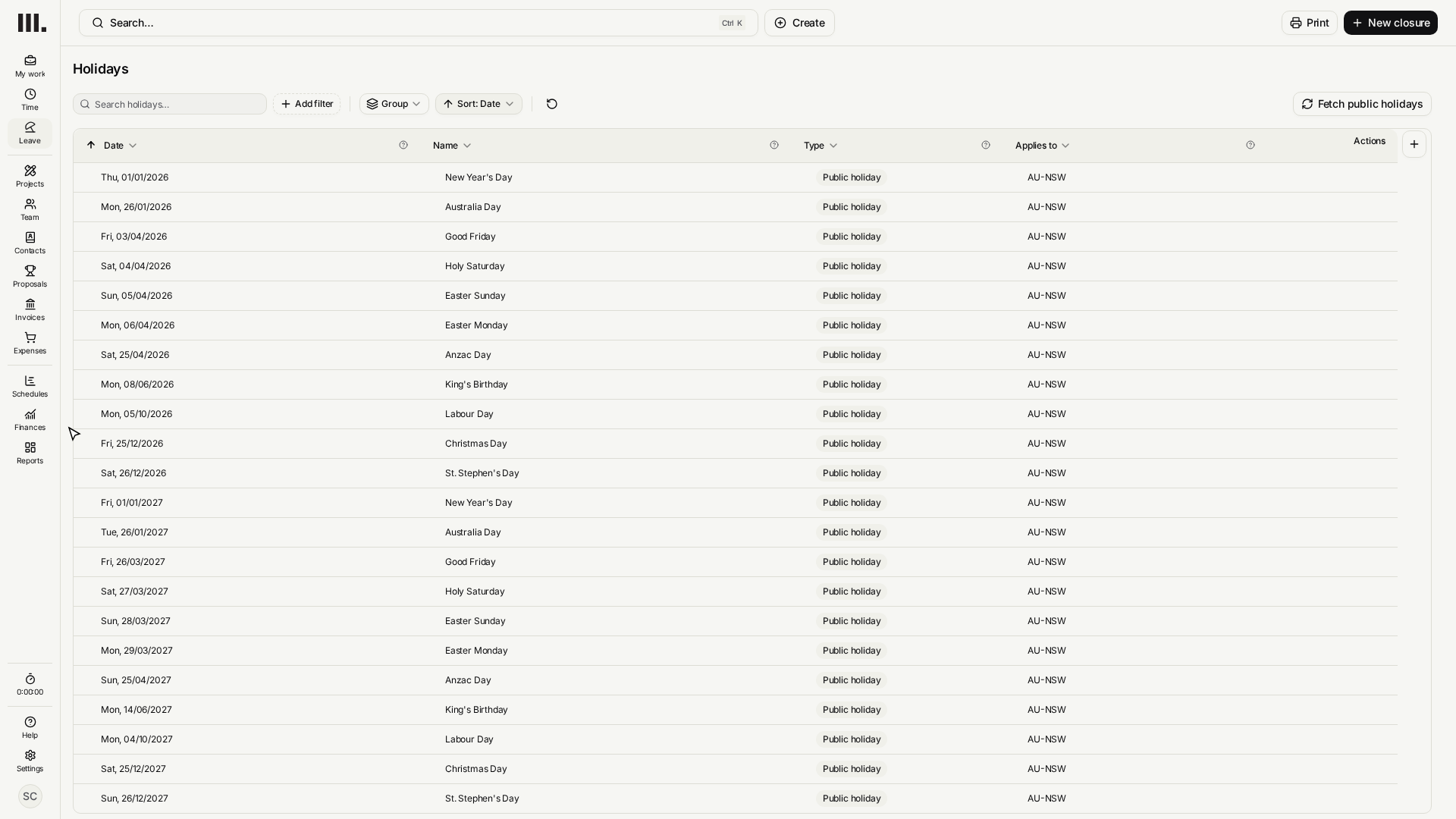
Check that this year's public holidays are listed. If you changed the practice's location, click Fetch public holidays to fetch them again.
- 3
Check the list. Each date now lowers everyone's available hours on that day.
Add the practice's own closures
A closure is anything outside the public-holiday calendar: a retreat, a shutdown week between Christmas and New Year, a local event.
- 1
On the Holidays page, click New closure.
- 2
Enter a Holiday name, Studio Retreat, and set its Date range.
- 3
Leave Applies to everyone switched on for a closure that shuts the whole practice.
- 4
Click Create closure. Studio Retreat joins the list as a practice closure.
Switch Applies to everyone off to choose groups instead, under Holiday visibility filters. Use it for a closure that only affects one studio, team or office.
Troubleshooting
- Fetch public holidays does nothing. Your organisation has no country set. Add it in Settings, then fetch again.
- Some people still look available on a closure. The closure is limited to groups. Edit it and check its visibility filters, or switch Applies to everyone back on.
- A healthy week turned red. A holiday or closure lowered capacity that week. The work didn't grow; the line dropped. Rebalance against it on the schedule.
Where this fits next
Next, give overhead time a home with admin projects, so time spent on running the practice has somewhere to go.
Related articles
Search Monument help
Search help articles and open a result.