
Browse articles
- Getting started
- Start your first project
- Model your project
- Critical path and automatic dates
- Read and rebalance the swimlanes
- Get oriented on the schedule
- Going further
- Give overhead a home with admin projects
- Structure large projects
- Baselines and versions
- Change Gantt bar colours
- Set a revenue target on the schedule
- Getting started
- How Monument models finance
- Revenue from resourcing
- Fixed fees
- Budgeting costs
- Recording expenses
- Recording revenue entries
- Going further
- Formula based pricing and construction cost
- Recurring and periodic fees
- Revenue from expenses
- Modifiers: contingencies and discounts
- Progressive billing
- Pricing templates
- Operational expenses
- Getting started
- Read your Dashboard
- Build a custom report
- Edit a saved report
- Filter a report
- Formula columns
- Freeze a report into a snapshot
- Reports on a project
- Definitions: how each figure is worked out
- Going further
- Time-Series Columns
- Organise your work with tags
- Break reports and accounting down by office
- Control access to business finances
- Control access to rates
- Control who can create projects
- Control project administration
- Control staff and team management
- Control expenses and claims
- Control report definition editing
- Control access to contacts
- Give full project control with Owner
- Manage project work without changing money
- Let project members edit tasks safely
- Share a project safely with Viewer
- Let a team lead coordinate shared work
- Share teammate profiles without management access
- Keep team members focused on their own work
Change Gantt bar colours
Give one stage its own colour on the schedule so it stands out from every other bar at a glance.
What you'll achieve
Give Concept Design a distinct Gantt bar colour that stays on the schedule once saved.
You'll end up with: Concept Design keeps its new colour on the schedule, saved with the rest of that version.
Before you start
One bar, made recognisable
A busy schedule can carry a dozen stages across a dozen projects, each with a default colour derived from its task. When one stage matters more than the rest, the client's priority milestone, the stage your team keeps asking about in standup, giving its bar a colour of its own is the fastest way to make it findable without changing anything about the plan underneath. This is a display choice on the task itself, not a project-wide setting, so it travels with the stage wherever it appears on the schedule.
The colour lives on the Display tab, per task
Every task, a stage or a smaller item beneath it, carries its own Gantt bar colour on its Display tab. Pick a swatch there and only that bar changes; nothing else on the schedule moves or recolours. Because the setting sits on the task itself, it stays attached to that stage across every view of the schedule, whether you're looking at the whole firm or the project alone.
Recolour Concept Design on Riverside Apartments
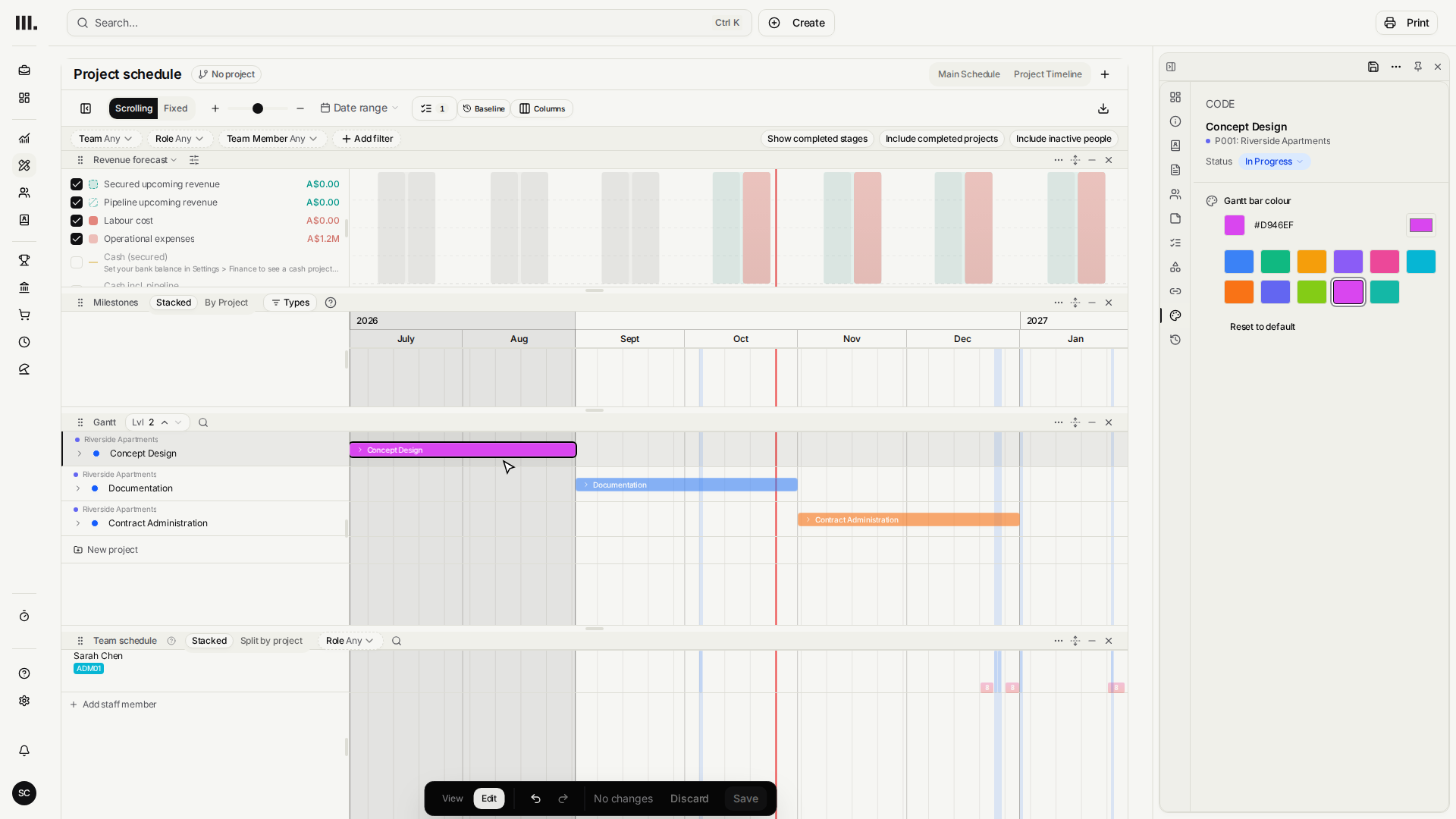
Riverside Apartments' Concept Design still has its default colour on the schedule. Enter Edit mode, open the stage, and switch its bar to something that stands out.
- 1
Click Edit to unlock changes, including which colour each Gantt bar shows.
- 2
Select Concept Design to open its settings in the panel.
- 3
Open the Display tab, where the Gantt bar colour setting lives.
- 1
Pick one of the swatches under Gantt bar colour. Concept Design's bar updates on the schedule right away.

- 2
Click Save to keep this colour with the schedule version.
The bar updates the instant you pick a swatch, behind the panel, before you've saved anything. That immediate feedback is deliberate: you're choosing a colour by how it actually looks next to the surrounding bars, not from a static preview.
Save makes it part of the version
The colour only sticks around after you click Save. Saving carries the new colour with the same schedule version everything else on that Gantt belongs to, so it survives a reload and shows up for anyone else looking at the same version.
- 1
Concept Design now stands out on the Gantt in its new colour, clearly distinct from the other stages.
Troubleshooting
- The colour picker is on Display, not the main task fields. If you don't see swatches on the panel that first opens, you're still on the task's default tab; open Display to find Gantt bar colour.
- Picking a colour that matches the current one does nothing visible. Choose one of the other swatches if the bar doesn't appear to change.
Where this fits next
Now that Concept Design stands out, keep the schedule readable as it grows: use schedule views and filters to focus on what matters.
Related articles
Search Monument help
Search help articles and open a result.