
Browse articles
- Getting started
- Start your first project
- Model your project
- Critical path and automatic dates
- Read and rebalance the swimlanes
- Get oriented on the schedule
- Going further
- Give overhead a home with admin projects
- Structure large projects
- Baselines and versions
- Change Gantt bar colours
- Set a revenue target on the schedule
- Getting started
- How Monument models finance
- Revenue from resourcing
- Fixed fees
- Budgeting costs
- Recording expenses
- Recording revenue entries
- Going further
- Formula based pricing and construction cost
- Recurring and periodic fees
- Revenue from expenses
- Modifiers: contingencies and discounts
- Progressive billing
- Pricing templates
- Operational expenses
- Getting started
- Read your Dashboard
- Build a custom report
- Edit a saved report
- Filter a report
- Formula columns
- Freeze a report into a snapshot
- Reports on a project
- Definitions: how each figure is worked out
- Going further
- Time-Series Columns
- Organise your work with tags
- Break reports and accounting down by office
- Control access to business finances
- Control access to rates
- Control who can create projects
- Control project administration
- Control staff and team management
- Control expenses and claims
- Control report definition editing
- Control access to contacts
- Give full project control with Owner
- Manage project work without changing money
- Let project members edit tasks safely
- Share a project safely with Viewer
- Let a team lead coordinate shared work
- Share teammate profiles without management access
- Keep team members focused on their own work
Log time on the calendar
Fill a working week from your work list: drag the tasks you're booked on straight onto the days, draw entries onto the grid, and shape them to fit.
What you'll achieve
Fill a working week on the time calendar straight from your work list, without hunting for tasks.
You'll end up with: A week of time entries logged against the right tasks, with daily totals and a weekly total tracking toward your target.
Before you start
The calendar makes timesheets visual: drag a task onto a day or draw a time block, then use the entry dialog when you need precise details. Open the Time page and you get a week grid: seven day columns laid out like a diary, with your work list sitting right beside it, the tasks you're actually booked on. Filling the week is mostly a matter of dragging one onto the other. We'll follow Sarah Chen at Northlight Architects logging her week on Riverside Apartments.
How Monument thinks about logged time
Every entry hangs off a task. There's no logging "three hours" into thin air. Hours go against a task like Concept Design, and that link is what lets them flow into the project's actual cost, its budget burn, and eventually its invoices. No task, no entry.
Monument already has a sense of what you're doing. When your project lead staffed the schedule, those allocations became your work list, sorted by urgency in the sidebar:
- Active Work: allocations covering today, each with a small budget bar tracking hours logged against hours booked.
- Coming Up: work starting within the next fortnight, counting down to its start.
- Milestones: deadlines in the next two weeks on tasks you're allocated to.
- Favorites and Recent: shortcuts, tasks you've starred and tasks you've logged against in the last month.
The calendar tracks the score for you. Every day column runs a live total, and the header tracks the whole week against your target with a progress bar. A thin Thursday, or a missing afternoon, jumps out immediately.
Drag a task onto a day
The fastest way to log a block is straight from the work list: no hunting for the task, just a quick note confirming what you did.
- 1
Open Time from the navigation. Concept Design waits under Active Work because you're booked on it.
- 2
Drag the card onto Tuesday and release at nine. A Log Time dialog opens, already set to Concept Design, Tuesday, nine o'clock, one hour.

- 3
Add a short note on what you did, then click Log Time. A one-hour entry appears on the day, coloured by its project.
- 4
It lands as one hour on purpose. Place it fast, then stretch the bottom edge to noon. Blocks snap in 15-minute steps.
Draw an entry straight onto the grid
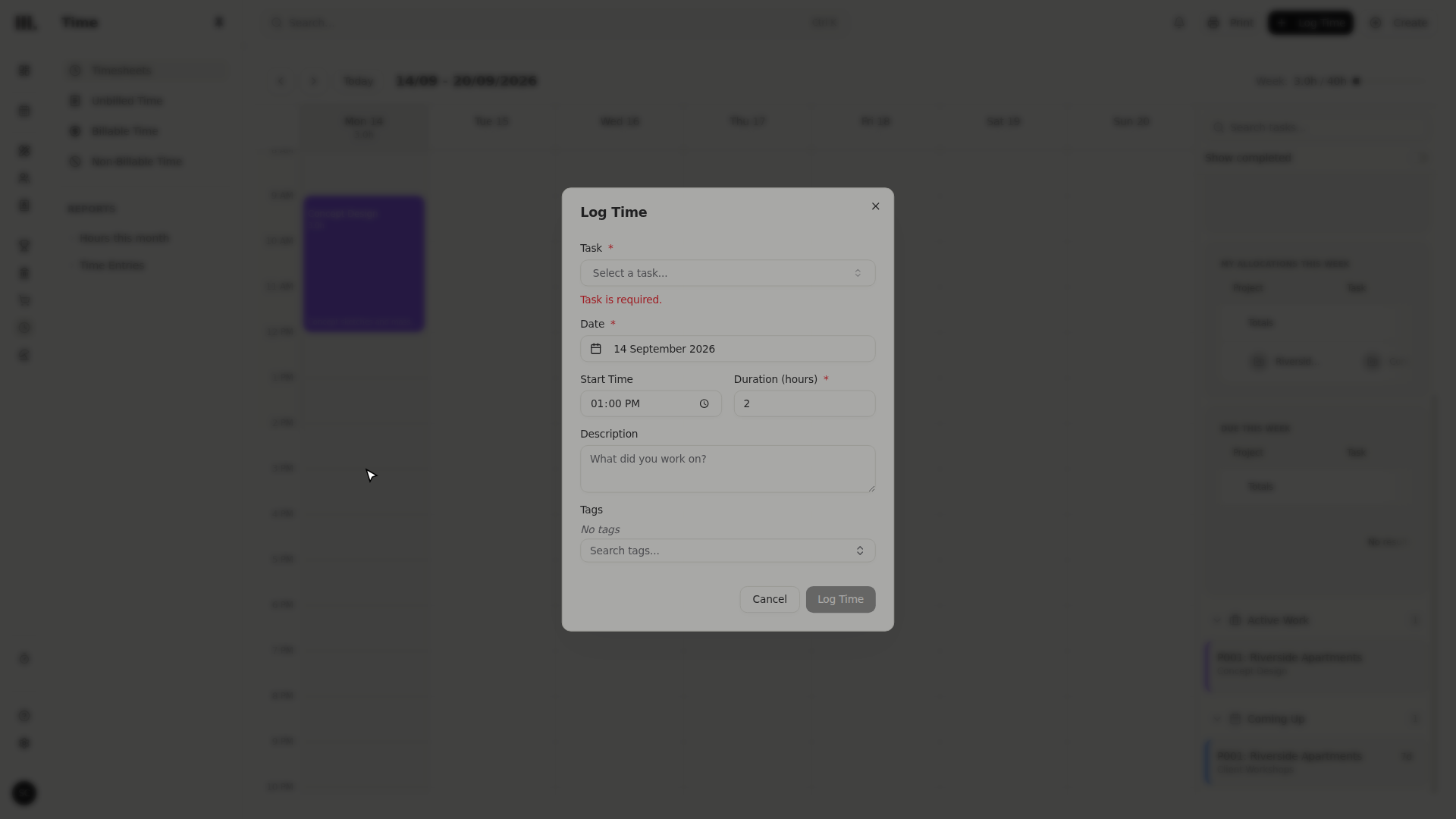
For work that isn't in your list, or when the length matters more than speed, draw the entry instead. Press on empty space in a day column and drag down; the further you drag, the longer the block. Releasing opens a dialog pre-filled with the day, start time, and duration you drew.
- 1
On Wednesday, press on the grid at nine and drag down to eleven. A preview block grows as you drag.
- 2
Release. The Log Time dialog opens already set to Wednesday at nine, for two hours.
- 3
Search for Client Workshops, pick it, and click Log Time. Billability follows the selected task; there is no per-entry Billable switch in this dialog.
Shape the week to fit reality
Plans rarely match the day exactly, so every block adjusts right on the grid. No delete-and-redo.
- Resize: grab a block's top or bottom edge to change when it starts or ends.
- Move: drag a block by its middle to a different time on the same day. To change the day, open the block and edit Date.
- Edit: single-click any block to change its task, date, start time, duration, notes, or tags. Billability still follows the task.
As you place, resize and move blocks, the daily totals update and the weekly bar climbs toward your target. Treat it as a checklist: Friday reading four hours on a full working day means something's still missing.
A block goes read-only once it's been invoiced, has aged past your organisation's edit window, or has been approved; it shows a lock message instead of opening for editing. There's nothing to submit to get an entry reviewed: if your organisation reviews time, whoever does that sees it as soon as you log it. See Time entry locks and overrides for what each lock message means and who can do anything about it.
Troubleshooting
- Your work list is empty. Nothing's booked to you on the schedule for the next fortnight. Ask whoever runs the programme to allocate you, or search for any task by name at the top of the sidebar and drag it from the results.
- Dragging a card always gives one hour. That's the starting size, not a limit. Resize to the real duration rather than dropping the same task five times to reach five hours.
- A block won't move when you grab its edge. Edges resize; the middle moves. Drag the body of the block to reposition it.
- You can only see your own week. The calendar is a personal timesheet. To review across the whole firm, use the Reports tab on the Time page.
Where this fits next
You can fill a week straight from what's booked to you now. When you'd rather capture time as it happens, start the timer. When those hours are ready to bill, turn them into an invoice line in Bill time on an invoice. And the work list itself traces back to the schedule: first plan with roles and tracks, then hand role work to staff.
Search Monument help
Search help articles and open a result.