
Browse articles
- Getting started
- Start your first project
- Model your project
- Critical path and automatic dates
- Read and rebalance the swimlanes
- Get oriented on the schedule
- Going further
- Give overhead a home with admin projects
- Structure large projects
- Baselines and versions
- Change Gantt bar colours
- Set a revenue target on the schedule
- Getting started
- How Monument models finance
- Revenue from resourcing
- Fixed fees
- Budgeting costs
- Recording expenses
- Recording revenue entries
- Going further
- Formula based pricing and construction cost
- Recurring and periodic fees
- Revenue from expenses
- Modifiers: contingencies and discounts
- Progressive billing
- Pricing templates
- Operational expenses
- Getting started
- Read your Dashboard
- Build a custom report
- Edit a saved report
- Filter a report
- Formula columns
- Freeze a report into a snapshot
- Reports on a project
- Definitions: how each figure is worked out
- Going further
- Time-Series Columns
- Organise your work with tags
- Break reports and accounting down by office
- Control access to business finances
- Control access to rates
- Control who can create projects
- Control project administration
- Control staff and team management
- Control expenses and claims
- Control report definition editing
- Control access to contacts
- Give full project control with Owner
- Manage project work without changing money
- Let project members edit tasks safely
- Share a project safely with Viewer
- Let a team lead coordinate shared work
- Share teammate profiles without management access
- Keep team members focused on their own work
Modifiers: contingencies and discounts
Stack named adjustments on top of any fee's base value, like a contingency or a client discount, and read back exactly how each one changed the number.
What you'll achieve
Adjust any fee or cost with stackable, reorderable named modifiers, and understand the order they apply in.
You'll end up with: An item whose base value is adjusted by named modifiers in a predictable, reorderable sequence you can audit.
Before you start
Almost nothing prices out at its base value. A contingency gets added for risk, a discount gets negotiated away, a rush fee gets tacked on at the last minute. Monument calls these modifiers: named adjustments that sit on top of an item's calculated value, whether that item is revenue or cost. You name each one, stack as many as you need, and arrange them in whatever order the deal actually happened in.
We'll take a two hundred thousand dollar fixed fee on Riverside Apartments' Concept Design stage and put it through both a contingency and a discount.
An item is a source, then whatever you adjust it with
This picks up the model from how Monument models money: an item is its calculation type first, its modifiers second. The calculation type decides where the number starts; modifiers only ever change what happens to it after that.
A modifier itself is small, just three things:
- a type, percent or a flat dollar amount,
- a value, positive to raise the total or negative to lower it,
- a name, "Contingency", "Client Discount", "Rush Fee", whatever makes the breakdown legible to someone who wasn't in the room when it was priced.
Modifiers stack, and each one acts on whatever the running total is at that point, not on the original base. That detail matters the moment you mix a percentage with a flat amount: a fifteen percent uplift calculated before a five thousand dollar fee lands differently than the same uplift calculated after it, because a percentage always multiplies the number in front of it. You can drag a modifier row up or down to change that order, and the totals recalculate the instant you drop it.
Your modifiers aren't the very last word. Monument runs a short, fixed tail after them that you can't reorder: any progressive-billing deduction, then floor and cap bounds, then a final clamp so nothing lands below zero. Floor and cap aren't exposed in the item panel yet, so for everyday pricing, your own stack is what you're actually controlling.
Build the stack
Start from the two hundred thousand dollar fixed fee, add a fifteen percent contingency, then a five percent discount.
- 1
Open the Concept Design stage's Revenue breakdown and add a Fixed Amount item named Design Fee, set to two hundred thousand dollars.
- 2
In the Modifiers section, click Add. Name it Contingency, set the type to percent, and enter fifteen. The running total becomes two hundred and thirty thousand dollars.
- 3
Add another modifier. Name it Client Discount, set the type to percent, and enter minus five. The total settles at two hundred and eighteen thousand, five hundred dollars.
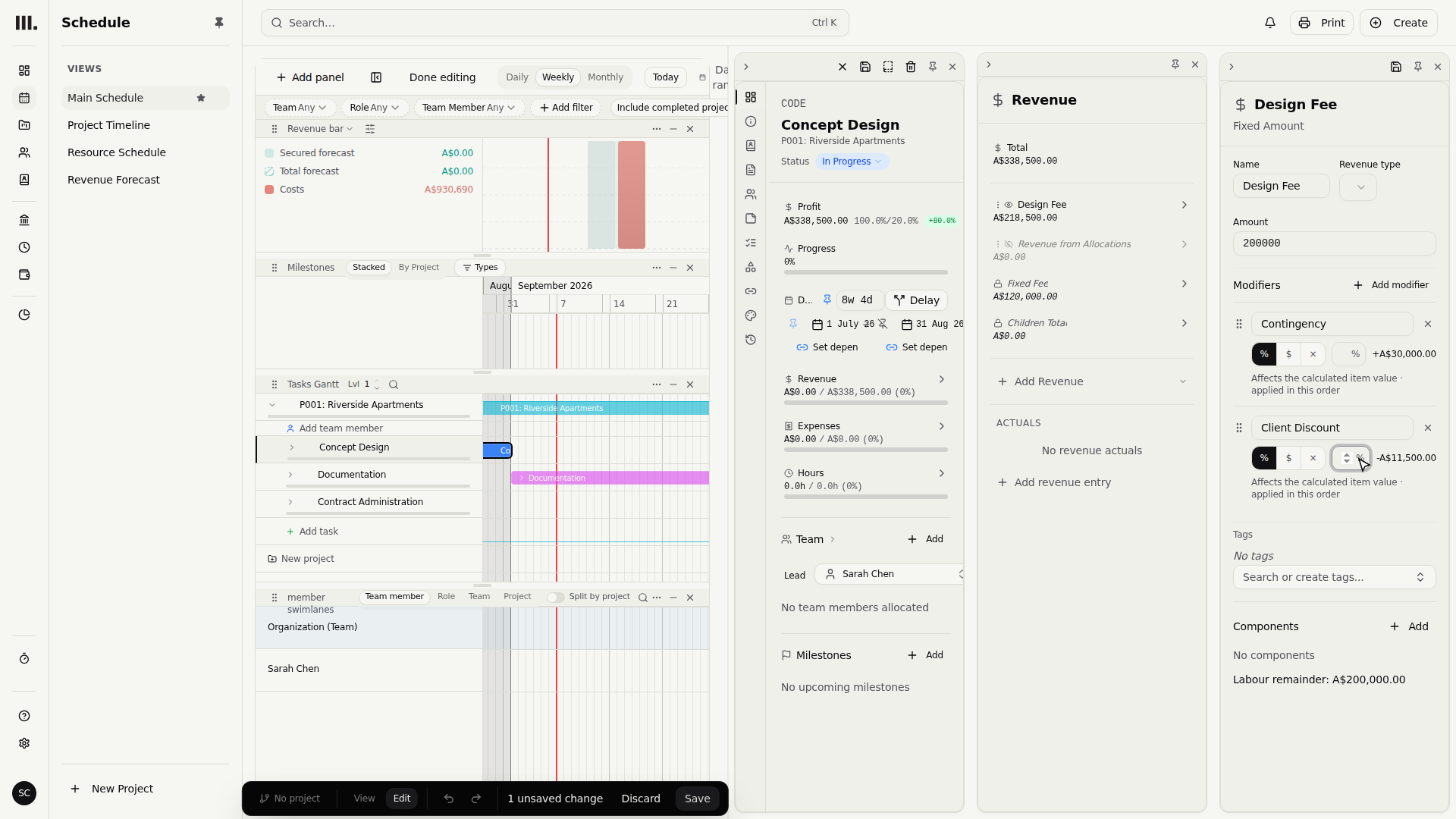
The breakdown lists every step of that math on its own line, base two hundred thousand, a thirty thousand dollar contingency, an eleven thousand, five hundred dollar discount, down to a final two hundred and eighteen thousand, five hundred dollars, so anyone reading the fee later can see exactly how it was built, not just what it landed on. If every modifier in the stack happens to be a percentage, the editor also shows a single combined net effect. And if a negotiation changes the order things actually happened in, say a flat rush fee needs to apply before the contingency percentage rather than after, you don't rebuild the fee: drag the rows into the order you mean and the stack recalculates as you drop them.
Troubleshooting
- Reordering two modifiers changed the total. That's expected whenever you mix a percentage with a fixed amount, since a percentage always multiplies whatever total is running at that point in the stack. Order the rows the way the pricing conversation actually went.
- A modifier doesn't seem to be doing anything. A modifier left at zero is skipped entirely rather than shown as a no-op line. Give it a real value or remove it.
- A discount can't push the fee negative. The final clamp never lets the total drop below zero, so an oversized discount just floors out at zero rather than going negative. A genuine credit belongs on a different item, not a discount sized past what it can adjust.
Where this fits next
Modifiers work on any item, whatever produced its base value: a fixed fee, a recurring retainer, or resourcing-based revenue. One particular use of the stack, a negative modifier that nets off what earlier claims already billed, gets its own article next: progressive billing.
Related articles
Search Monument help
Search help articles and open a result.