
Browse articles
- Getting started
- Project finances
- Billing by the hour
- Practice finances
- Grouping fees
- Budgeting project costs
- Claim an expense
- Recording revenue entries
- Recording project expenses
- Purchase orders
- Approving expenses
- Going further
- Construction cost fees
- Recurring fees
- Billing expenses
- Contingencies and discounts
- Billing progress claims
- Project templates
- Overheads
- Getting started
- Billing milestones
- Sending an invoice
- Billing logged time
- Month-end invoicing
- Fee proposal templates
- Writing a fee proposal
- Getting a proposal signed
- Link invoices that are already in Xero
- Going further
- Payments and overdue invoices
- Connect your accounting system
- Fee groups on invoices
- Tax codes and accounts
Fee proposal templates
Write your covering letter, exclusions, payment terms and engagement wording once, so every fee proposal starts from the practice's own words.
What you'll achieve
A default fee proposal template that every new proposal starts from.
You'll end up with: New fee proposals open with your practice's letter, terms and stages already in place.
Before you start
Most of a fee proposal is the same every time: the covering letter, what you exclude and assume, how you're paid, and how the engagement works. A fee proposal template holds that wording, so each proposal only needs the parts that change: the client, the project and its fees.
At Northlight Architects, Sarah Chen sets up the template the practice uses for residential jobs like Riverside Apartments.
Where the stages come from
A fee proposal's scope of services and fees come from stages. The template's Stages from setting decides which:
- The project you choose: each proposal takes its stages and fees from the project it's written for. This suits most practices, because the fees already sit on the project.
- A project template: the proposal takes the stages and fees of that template. Use it for standard work you price the same way every time.
Create the template
- 1
Point at Settings, choose Templates, then Fee proposals. Click New fee proposal template.
- 2
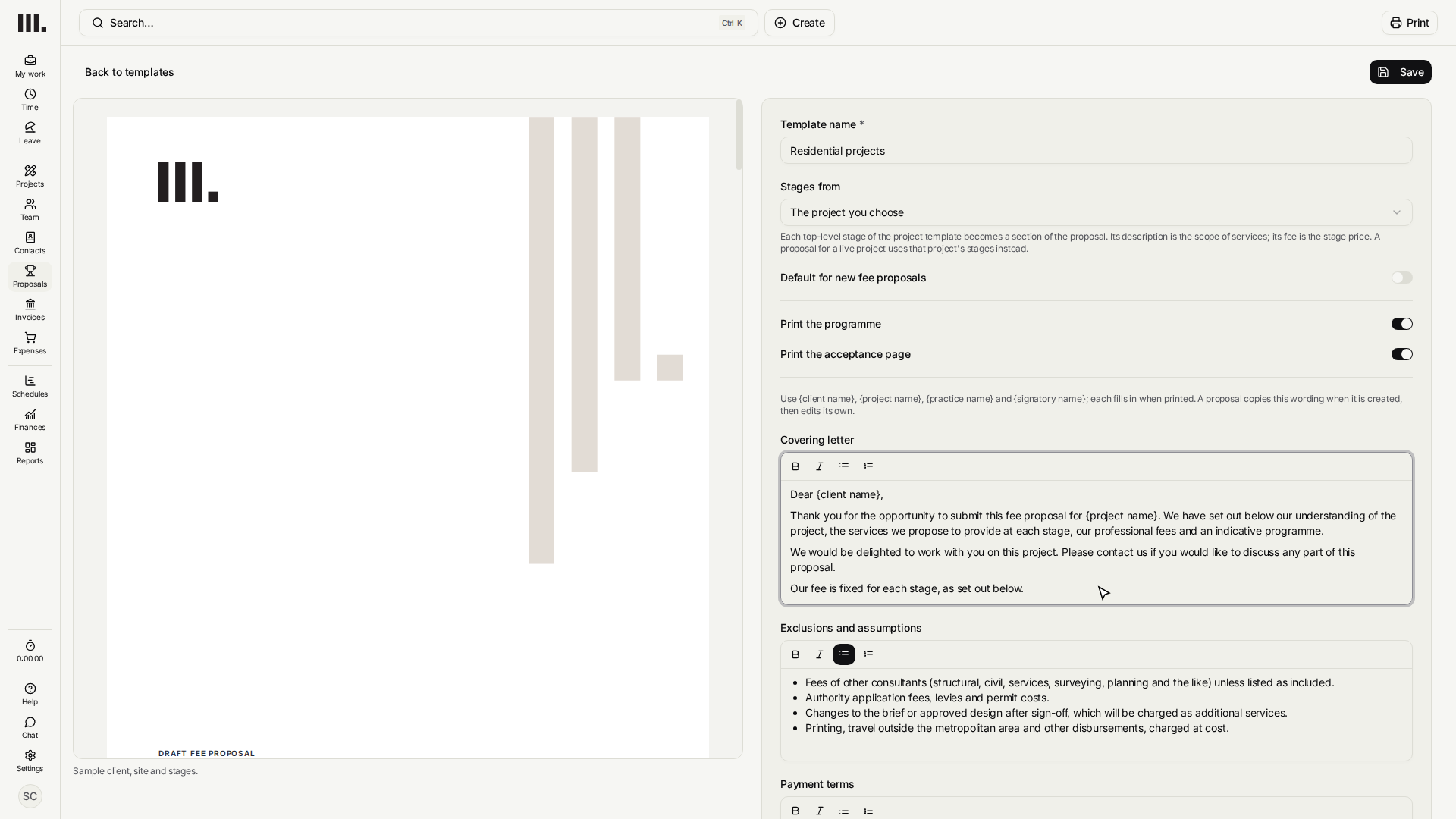
Enter a Template name, for example Residential projects.
- 3
Keep Stages from on The project you choose, unless you price this kind of work from a project template.
- 4
Write the Covering letter. Words in braces, such as {client name} and {project name}, fill in when the proposal prints. The preview beside the fields shows a sample client, site and stages.
- 5
List what your fee doesn't cover under Exclusions and assumptions, then check Payment terms and Engagement.
- 6
Keep Print the programme on to include the stage dates, and Print the acceptance page on to give the client a page to sign.
- 7
Switch on Default for new fee proposals, then click Save.
- 8
Open Fee proposals again. Residential projects is marked Default, so every new fee proposal starts from it.
- 9
Click New fee proposal template again, name the second one Small works, and save it.
- 10
Both templates are listed. When you write a fee proposal, Wording from lets you pick either one.
You'll know it worked when Settings › Templates › Fee proposals lists your template as the Default.
Keep one template per kind of work if your wording differs, for example residential and public buildings. The default is the one a new fee proposal starts from; you can pick another when you write it.
Troubleshooting
- The preview shows no stages. The linked project template has no top-level stages yet. Add them on its schedule, or choose The project you choose.
- A stage prints with no scope text. Give that stage a description on the schedule.
- Save does nothing. Enter a template name.
Where this fits next
Related articles
Search Monument help
Search help articles and open a result.