
Browse articles
- Getting started
- Project finances
- Billing by the hour
- Practice finances
- Grouping fees
- Budgeting project costs
- Claim an expense
- Recording revenue entries
- Recording project expenses
- Purchase orders
- Approving expenses
- Going further
- Construction cost fees
- Recurring fees
- Billing expenses
- Contingencies and discounts
- Billing progress claims
- Project templates
- Overheads
- Getting started
- Billing milestones
- Sending an invoice
- Billing logged time
- Month-end invoicing
- Bill hours at different rates
- Fee proposal templates
- Writing a fee proposal
- Getting a proposal signed
- Link invoices that are already in Xero
- Going further
- Payments and overdue invoices
- Connect your accounting system
- Fee groups on invoices
- Tax codes and accounts
- Connect QuickBooks
- Set your accounting defaults
- Sync an invoice to QuickBooks
- Connect Xero
- Set your Xero accounting defaults
- Sync an invoice to Xero
Connect QuickBooks
Connect QuickBooks Online to Monument once, so invoices cross into your books and payments come back without retyping.
What you'll achieve
Connect the practice's QuickBooks Online company to Monument, so invoices can sync to it and payments can come back.
You'll end up with: QuickBooks Online connected to Monument, with its tax codes imported and the card ready for a default sales account.
Before you start
Why connect
Northlight Architects keeps its books in QuickBooks Online. Without a connection, every invoice sent from Monument is typed into QuickBooks a second time, and the two copies drift apart the first time either one changes. Connecting once lets each invoice cross to QuickBooks as it is, and lets payments your bookkeeper records in QuickBooks come back to Monument.
You need to be able to sign in to the QuickBooks company yourself, with access to its invoices. Monument never sees your Intuit password: you sign in on Intuit's own page and approve access there.
Connect QuickBooks Online
- 1
Open Settings and choose Invoices & accounting.
- 2
In the Accounting card, click Connect and choose QuickBooks. If the practice has several entities, choose the entity tab first.
- 3
Click Connect in the window. Intuit's sign-in opens. Sign in with your Intuit account and its verification code.
- 4
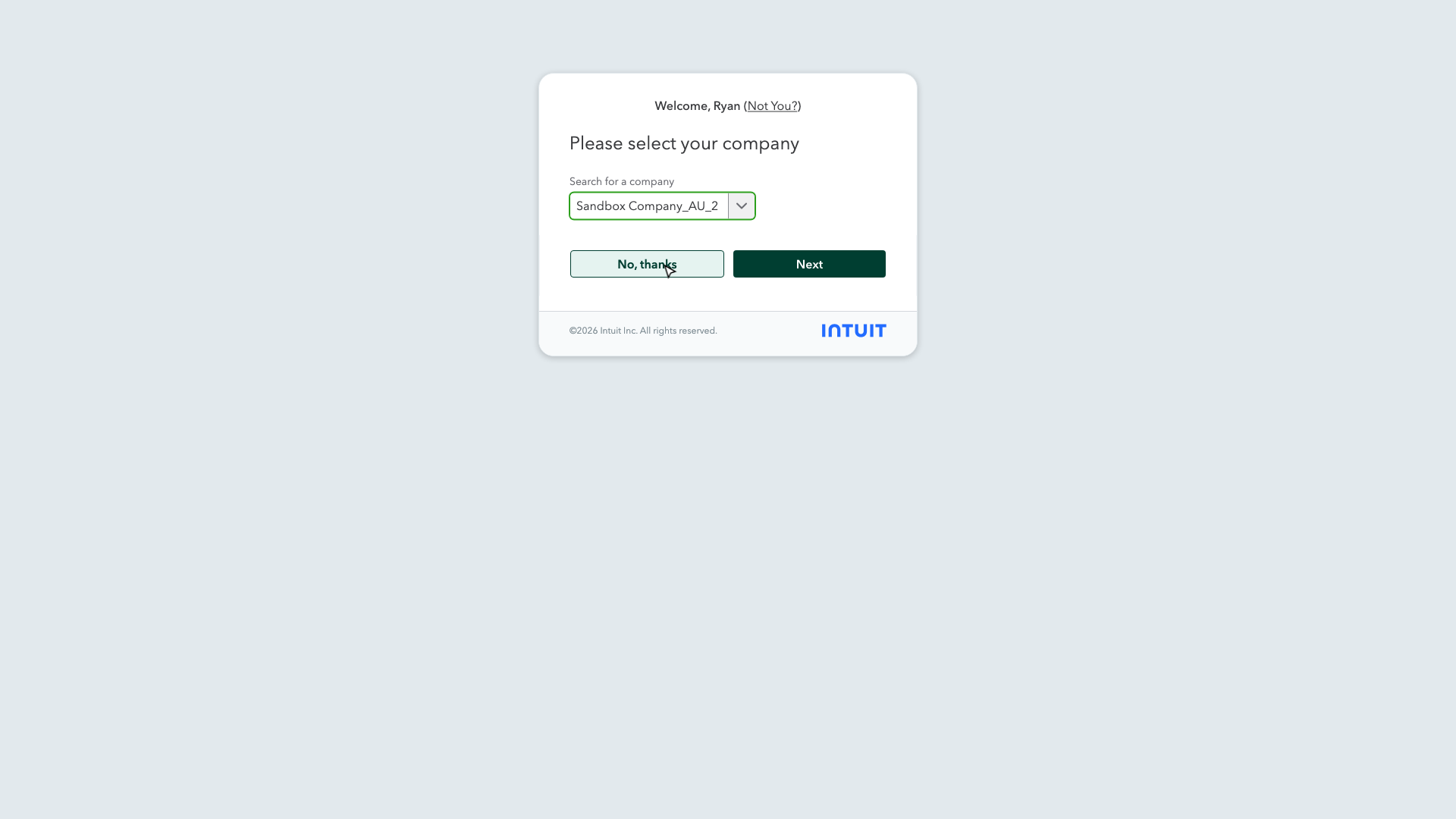
Pick the practice's company from the list. A firm with more than one company picks the one this entity bills from.
- 5
Click Next to let Monument create invoices in that company and read their payments. Intuit sends you back to Monument.
- 6
The Accounting card shows QuickBooks and the company it sends to.
What the connection brings in
When the connection is made, Monument imports QuickBooks' tax codes for an Australian company: GST at 10 percent, GST Free and the rest. GST replaces the starting GST code Monument created for the practice, so it stays the default and lines carry on as before.
Sales accounts are not imported for you. QuickBooks does not post invoice lines to an account directly: each line names one of your Products and Services items, and the item decides the income account. So the card says Not set up correctly until you pick at least one item as a default sales account. Set your accounting defaults does that next.
Each entity connects to one company. A firm that bills from two companies, for example two offices with their own ABNs, connects each entity separately from its own tab. See Reports by office.
Troubleshooting
- Intuit says the app is not allowed, or the page is blank. Ask whoever administers your QuickBooks company to sign in and approve the connection. Only a QuickBooks user with access to invoices can allow it.
- The wrong company is connected. Click Disconnect on the Accounting card, then Connect again and pick the right company. Invoices already synced stay in the old company.
- The card says Not set up correctly. That is expected straight after connecting: it needs a default sales account. See the next article.
Where this fits next
Next, set your accounting defaults so every invoice line has a tax code and a sales account. Then sync an invoice to QuickBooks.
Search Monument help
Search help articles and open a result.