
Browse articles
- Getting started
- Project finances
- Billing by the hour
- Practice finances
- Grouping fees
- Budgeting project costs
- Claim an expense
- Recording revenue entries
- Recording project expenses
- Purchase orders
- Approving expenses
- Going further
- Construction cost fees
- Recurring fees
- Billing expenses
- Contingencies and discounts
- Billing progress claims
- Project templates
- Overheads
- Getting started
- Billing milestones
- Sending an invoice
- Billing logged time
- Month-end invoicing
- Fee proposal templates
- Writing a fee proposal
- Getting a proposal signed
- Link invoices that are already in Xero
- Going further
- Payments and overdue invoices
- Connect your accounting system
- Fee groups on invoices
- Tax codes and accounts
Purchase orders
Order from a supplier on a project, issue the order, then receive goods and record the supplier's invoices against it, so the cost shows before the bill arrives.
What you'll achieve
Commit a supplier cost on the project the moment you order, and track it until the order is closed.
You'll end up with: An issued purchase order whose committed cost shows on the project, with its deliveries and invoices recorded against it.
Before you start
Without a purchase order, a project's costs only show what has already been billed. A stage can look healthy right up until a consultant's invoice lands. A purchase order records the commitment when you place the order, so the project's numbers are honest the whole way through.
At Northlight Architects, the Riverside Apartments needs structural engineering for its concept stage from Stride Structural Engineers.
Raise the order
- 1
Point at Expenses on the rail and choose Purchase orders. Click New purchase order.
- 2
Under Start from, keep Nothing: a blank order, or copy an earlier order to the same supplier.
- 3
Choose the Supplier, Stride Structural Engineers, and the Project, Riverside Apartments. An order with no project is a practice overhead order.
- 4
Monument fills in the Order number. Set the Issue date and, if it matters, Needed by. Add delivery details in Notes and conditions in Terms.
- 5
Click Add line and describe the work: Structural engineering, concept stage, with a quantity and unit price. Link the line to a planned expense item to start from its budgeted amount.
- 6
Click Create purchase order. It starts as a draft and opens on its document.
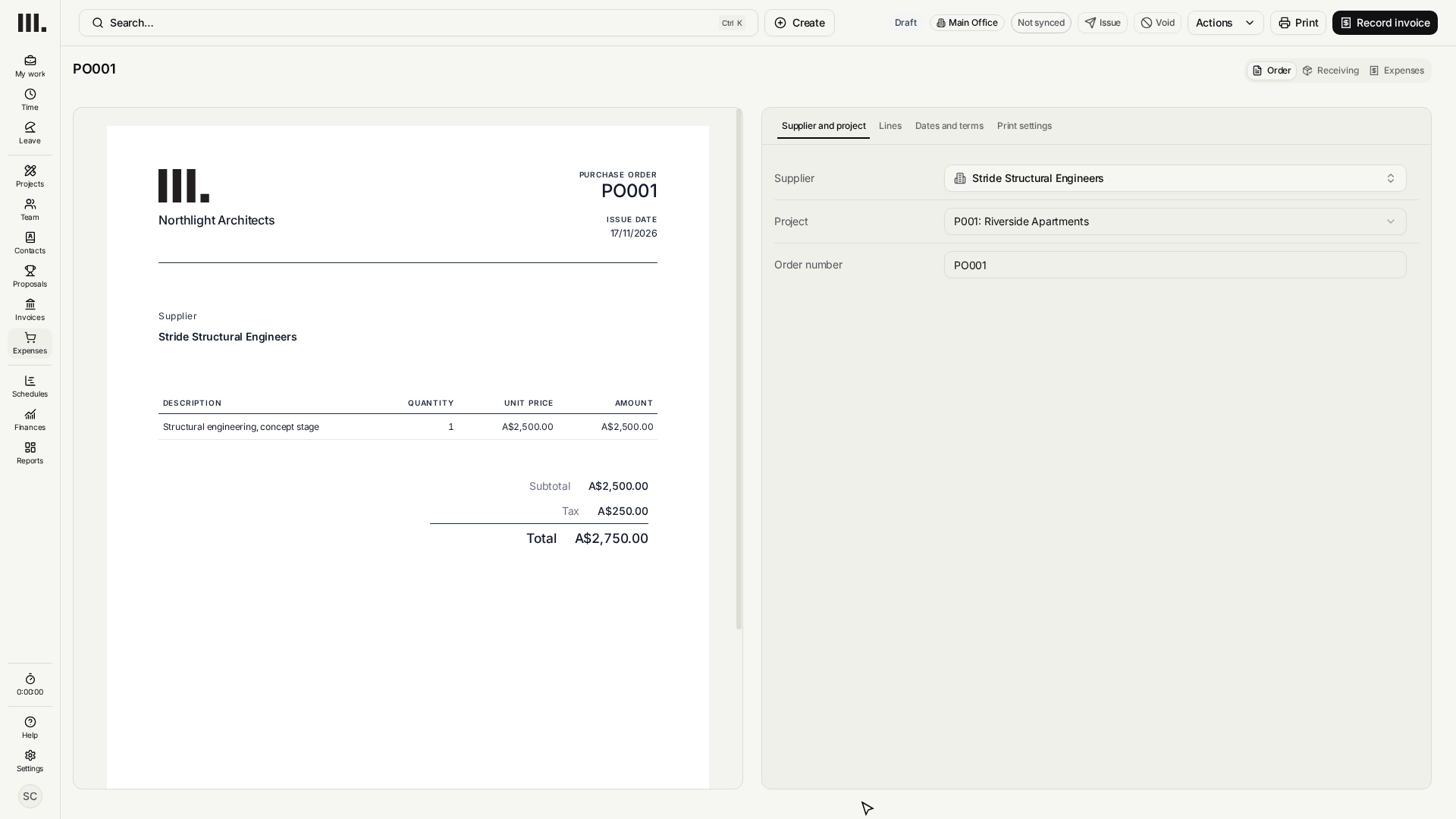
Issue it
A draft can still change. When it's right, click Issue. The order goes to the supplier as issued, and its lines can no longer change. Print or download it from Print to send it.
After issue, you don't edit the order. You record what happens against it: goods received, and supplier invoices. If the scope changes, raise a new order.
Track it to the end
The order's page shows three figures against its total: Received, Supplier invoiced and Billed to client.
- 1
On the Receiving tab, enter the quantity received on each line as it arrives, and click Update.
- 2
When the supplier's invoice arrives, record it as an expense and choose this order and its line. It then shows on the order's Expenses tab.
- 3
When nothing more is expected, click Close. Invoices already recorded stay on it.
- 4
If the order falls through, click Void instead. No more invoices can be recorded against it.
Close and Void can't be undone.
Troubleshooting
- Issue is greyed out. Add a supplier and at least one line first, and save any changes.
- You can't change the order. It's issued, or you need Expenses edit access on its project.
- The cost doesn't show on the project. The order has No project. Choose the project while it's still a draft.
Where this fits next
This is step 2 of Control costs. Next, approve expenses and staff claims.
Related articles
Search Monument help
Search help articles and open a result.