
Browse articles
- Getting started
- Start your first project
- Model your project
- Critical path and automatic dates
- Read and rebalance the swimlanes
- Get oriented on the schedule
- Going further
- Give overhead a home with admin projects
- Structure large projects
- Baselines and versions
- Change Gantt bar colours
- Set a revenue target on the schedule
- Getting started
- How Monument models finance
- Revenue from resourcing
- Fixed fees
- Budgeting costs
- Recording expenses
- Recording revenue entries
- Going further
- Formula based pricing and construction cost
- Recurring and periodic fees
- Revenue from expenses
- Modifiers: contingencies and discounts
- Progressive billing
- Pricing templates
- Operational expenses
- Getting started
- Read your Dashboard
- Build a custom report
- Edit a saved report
- Filter a report
- Formula columns
- Freeze a report into a snapshot
- Reports on a project
- Definitions: how each figure is worked out
- Going further
- Time-Series Columns
- Organise your work with tags
- Break reports and accounting down by office
- Control access to business finances
- Control access to rates
- Control who can create projects
- Control project administration
- Control staff and team management
- Control expenses and claims
- Control report definition editing
- Control access to contacts
- Give full project control with Owner
- Manage project work without changing money
- Let project members edit tasks safely
- Share a project safely with Viewer
- Let a team lead coordinate shared work
- Share teammate profiles without management access
- Keep team members focused on their own work
Track time live with the timer
Capture time as you work. Start, pause, resume and stop a running timer that survives refreshes and tabs, then saves itself straight onto your timesheet.
What you'll achieve
Capture time as you work with a running timer that turns into a time entry the moment you stop.
You'll end up with: Accurate entries created from a live timer, billed to the right task, even when you work across a refresh, another tab, or past midnight.
Before you start
Reconstructing a week from memory always means rounding and guessing. The timer removes both: start it when a piece of work begins, stop it when it's done, and Monument writes the exact hours onto the timesheet. We'll follow Sarah Chen timing an afternoon on Concept Design for Riverside Apartments.
How the timer thinks
It's just a faster way to build the same time entry. Stopping it produces an ordinary entry against a task, the kind you'd otherwise draw on the calendar, except the hours are measured rather than typed. It records itself as timer-sourced, so timed work stays distinguishable from hand-entered work later.
One running clock, tied to you and your task. Pick a task, optionally add notes or a Billable Rate override, then start. The timer does not provide a Billable on-or-off switch. The clock tracks the actual windows you were running, so pausing for a meeting genuinely subtracts that meeting instead of you estimating it after the fact.
The running timer lives outside the page, scoped to you and your organisation. That's what lets it survive a browser refresh, stay in sync across a second tab, and keep counting overnight if you forget to stop it. There's no need to keep the tab pinned and untouched for the clock to count.
Start the timer
Open it from its button in the navigation, and it drops down as a small panel. The one thing it needs before starting is a task; everything else is optional.
- 1
Open the timer from the navigation button. The panel shows 00:00:00 and 'Ready to start'.
- 2
Choose the task, Concept Design on Riverside Apartments. Start stays disabled until a task is set.
- 3
Optionally add notes ('reviewing survey data') or a Billable Rate override, then click Start Timer.

Pause when you step away, resume when you're back
Real afternoons get interrupted. Pause for the interruption, resume after, and the gap gets excluded from the total, so the saved entry reflects time actually worked, not wall-clock time elapsed.
- 1
When a meeting pulls you away, open the timer and click Pause. The display freezes and reads 'Paused'.
- 2
Back at your desk, click Resume. The clock picks up from where it stopped, ignoring the paused time.
- 3
Pause and resume as many times as the afternoon demands. Each stretch is measured, the gaps are not.
Stop and save
Stopping is what creates the entry. Monument totals the time actually run, writes it onto today against the task, and clears the timer for whatever's next.
- 1
When the work's done, open the timer and click Stop & Save.
- 2
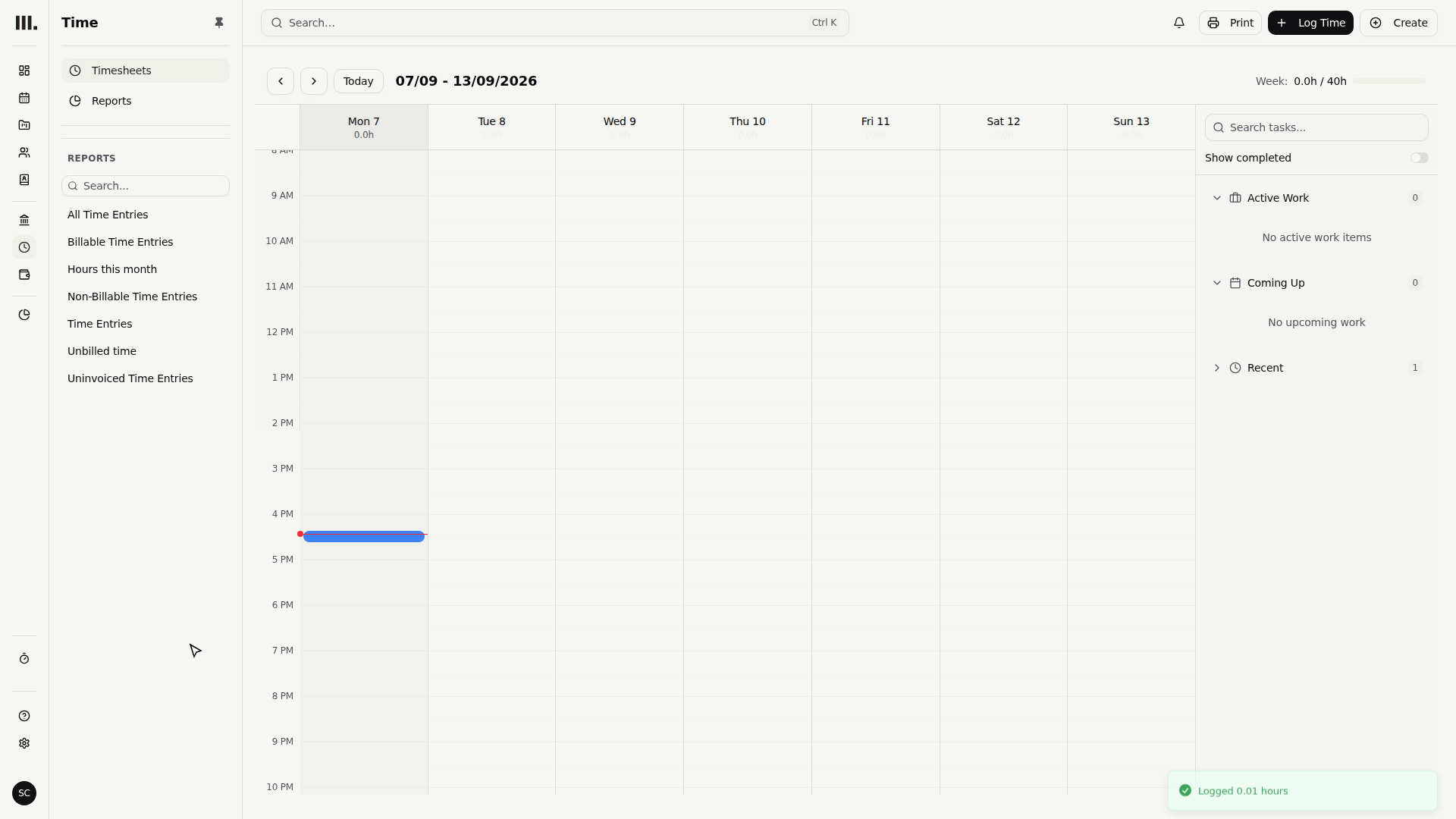
A confirmation reports how many hours were logged. The entry now sits on the calendar for today, tagged as a timer entry.
- 3
Need to throw a session away instead? Use the discard (trash) control. It asks first, since the time on the clock would be lost.
Stop & Save commits the entry, and once it's on the calendar it can be resized or edited like any other. Discard throws away the running clock without creating anything, exactly right when work was started against the wrong task and a clean slate is needed instead.
Working across a refresh, a tab, or midnight
This is where the timer earns its trust.
Refresh or reopen. Reload Monument or come back to it later, and the timer is still running with the right elapsed time. A page reload never resets it.
A second tab. Open Monument in another tab, and the same timer shows there too, in sync. Two clocks against the same work never happens by accident.
Past midnight. Leave a timer running overnight, and Stop & Save does the sensible thing: it splits the time at midnight into one entry per calendar day, so Tuesday's hours land on Tuesday and Wednesday's on Wednesday. The confirmation reports logging across more than one day.
See your logged time in reports
Timed entries and hand-drawn ones land in the same place, so reviewing them together is easy. At the top of the Time page, switch from Timesheets to the Reports tab. It lists every time entry in a single table, filterable by project or task, showing at a glance which hours are billable. Reach for this view when checking a week before it goes to billing, or pulling the hours a client wants to see.
Troubleshooting
- Start is greyed out. No task is selected. The timer always needs one before it can run; pick one and Start lights up.
- A long stretch became several entries. That's the midnight split working as intended: each calendar day gets its own entry, hours divided at midnight.
- The clock kept running while you were away. Only happens if Pause wasn't clicked. Pause excludes a gap from the total; leaving it running counts the whole window. Pause for meetings and breaks.
- Two tabs, one timer. By design. The timer is shared across tabs, not duplicated, so stopping it in one stops it everywhere.
Where this fits next
Timed entries land on the same calendar as everything else, so shaping them works identically to hand-drawn ones, and the same locks apply once one ages out, gets invoiced, or moves through approval; see Time entry locks and overrides. For drawing, resizing, and moving blocks by hand, see log time on the calendar. When costs as well as hours matter for a job, start recording them in recording expenses.
Related articles
Search Monument help
Search help articles and open a result.