
Browse articles
- Getting started
- Project finances
- Billing by the hour
- Practice finances
- Grouping fees
- Budgeting project costs
- Claim an expense
- Recording revenue entries
- Recording project expenses
- Purchase orders
- Approving expenses
- Going further
- Construction cost fees
- Recurring fees
- Billing expenses
- Contingencies and discounts
- Billing progress claims
- Project templates
- Overheads
- Getting started
- Billing milestones
- Sending an invoice
- Billing logged time
- Month-end invoicing
- Bill hours at different rates
- Fee proposal templates
- Writing a fee proposal
- Getting a proposal signed
- Link invoices that are already in Xero
- Going further
- Payments and overdue invoices
- Connect your accounting system
- Fee groups on invoices
- Tax codes and accounts
- Connect QuickBooks
- Set your accounting defaults
- Sync an invoice to QuickBooks
- Connect Xero
- Set your Xero accounting defaults
- Sync an invoice to Xero
Set your accounting defaults
Choose the tax code and sales account every invoice line starts with after you connect QuickBooks, and see exactly how the defaults decide each line.
What you'll achieve
Set the default tax code and sales account for a newly connected QuickBooks company, and understand how a line's codes are chosen.
You'll end up with: A QuickBooks connection with a default tax code and a default sales account, ready to sync invoices, and a clear picture of where each line's codes come from.
Before you start
Why defaults matter
Every invoice line that reaches QuickBooks carries two things: a tax code, which decides how it is taxed, and a sales account, which decides where the income posts. QuickBooks refuses an invoice whose lines are missing either. Nobody wants to pick them on every line, so Monument gives each line a starting pick from the defaults. Set them once and most invoices sync with no choices at all.
Northlight Architects has connected QuickBooks. The Accounting card says Not set up correctly and asks for a default sales account, because QuickBooks needs one and none is set yet.
Set the defaults
- 1
Open Settings and choose Invoices & accounting. The Accounting card says Not set up correctly.
- 2
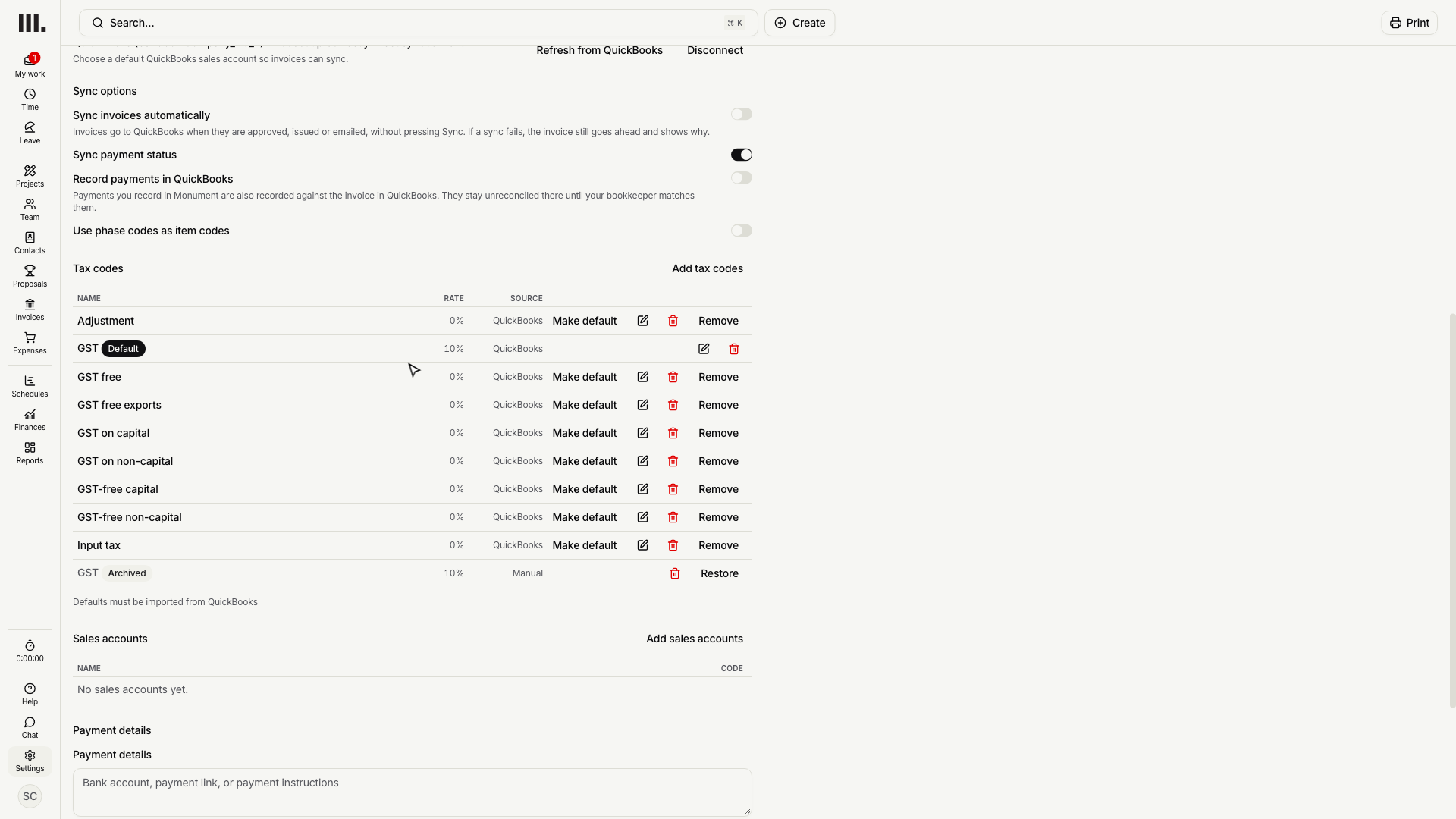
Check Tax codes. GST at 10% came across when you connected and is already the default. That is right for an Australian practice, so leave it.
- 3
Under Sales accounts, click Add sales accounts.
- 4
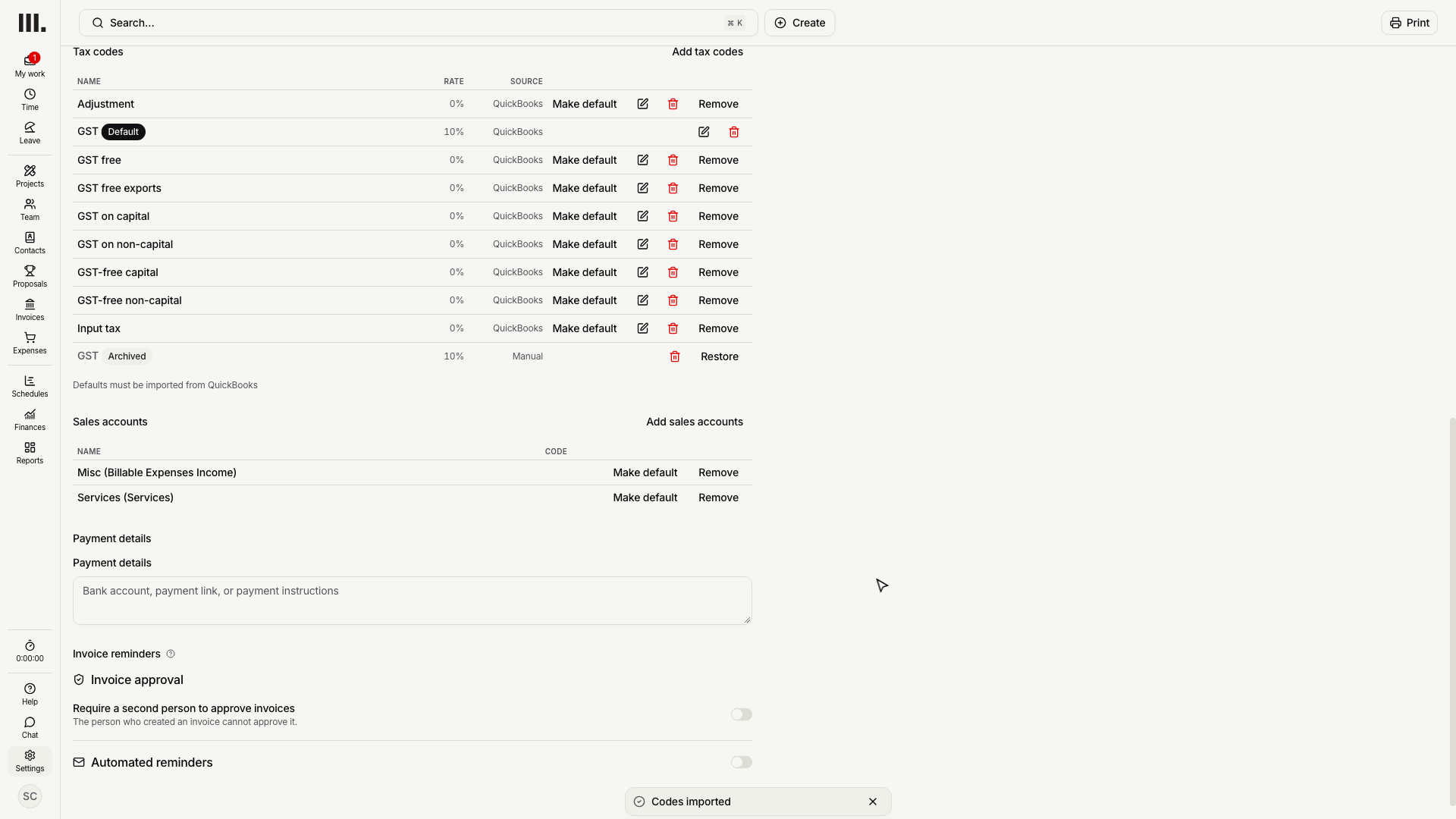
Tick Services for fee income and Misc (Billable Expenses Income) for costs passed on to clients, then click Import.
- 5
Click Make default beside Services. Most of what a practice bills is fees.
- 6
The card now reads Connected, and invoices can sync.
In QuickBooks, a "sales account" is one of your Products and Services items. Each item already names its income account, so choosing Services posts the line to whatever income account Services uses in your QuickBooks company. Import only the items you bill with; you can add more later.
How the defaults decide each line
A line's tax code and sales account are worked out from the closest pick, in this order:
- The line itself, if someone set it by hand. The line then says Set on this line.
- The invoice, under its lines. Every line that has no pick of its own follows it.
- The project, if it has its own Default tax code or Default sales account on its Brief's Cover section.
- The practice defaults you set here, marked Default in the Accounting card.
A new invoice starts on its project's codes if the project has its own, and on the practice defaults if not. Each line then follows the invoice. So changing the invoice's tax code moves every following line at once, while a line you set by hand keeps its own.
A worked example
Northlight raises one invoice for Riverside Apartments with three lines:
| Line | Set by hand? | Tax code | Sales account |
|---|---|---|---|
| Concept Design fee | No | GST (practice default) | Services (practice default) |
| Client Workshops hours | No | GST (practice default) | Services (practice default) |
| Council planning application fee | Yes | GST Free | Misc (Billable Expenses Income) |
If Riverside Apartments had its own Default sales account, the first two lines would take that instead. The council fee keeps its own picks whatever happens above it.
Make default changes what new lines start with. When draft invoices would be affected, Monument asks whether to apply the new default to them or skip. Issued and synced invoices never change.
Each entity's connection has its own defaults. A project uses the connection of its entity, and only that connection's codes and accounts are offered on its lines. See Tax codes and accounts.
Troubleshooting
- The card still says Not set up correctly. Check that one sales account carries the Default badge.
- An item is missing from Add sales accounts. Create it in QuickBooks under Products and Services, then click Refresh from QuickBooks and add it.
- A line has a tax code I didn't expect. Look at the line first: Set on this line means someone picked it. Otherwise it follows the invoice, then the project, then the practice default.
Where this fits next
Next, sync an invoice to QuickBooks and see it in your books. For setting a project's own defaults or changing one line, see Tax codes and accounts.
Search Monument help
Search help articles and open a result.