
Browse articles
- Getting started
- Start your first project
- Model your project
- Critical path and automatic dates
- Read and rebalance the swimlanes
- Get oriented on the schedule
- Going further
- Give overhead a home with admin projects
- Structure large projects
- Baselines and versions
- Change Gantt bar colours
- Set a revenue target on the schedule
- Getting started
- How Monument models finance
- Revenue from resourcing
- Fixed fees
- Budgeting costs
- Recording expenses
- Recording revenue entries
- Going further
- Formula based pricing and construction cost
- Recurring and periodic fees
- Revenue from expenses
- Modifiers: contingencies and discounts
- Progressive billing
- Pricing templates
- Operational expenses
- Getting started
- Read your Dashboard
- Build a custom report
- Edit a saved report
- Filter a report
- Formula columns
- Freeze a report into a snapshot
- Reports on a project
- Definitions: how each figure is worked out
- Going further
- Time-Series Columns
- Organise your work with tags
- Break reports and accounting down by office
- Control access to business finances
- Control access to rates
- Control who can create projects
- Control project administration
- Control staff and team management
- Control expenses and claims
- Control report definition editing
- Control access to contacts
- Give full project control with Owner
- Manage project work without changing money
- Let project members edit tasks safely
- Share a project safely with Viewer
- Let a team lead coordinate shared work
- Share teammate profiles without management access
- Keep team members focused on their own work
Set and preview a person's access
Save an account access level for a colleague, then preview Monument exactly as they see it.
What you'll achieve
Assign a person's account access level and verify its effect with truthful, read-only Preview.
You'll end up with: Priya Sharma has a saved Team member access level that has been verified through Preview.
Before you start
Start with the person, then verify the result
An account access level is the firm-wide part of a person's access. It controls eight capabilities: Business finances, Rates, Create projects, Project administration, Staff and team management, Expenses and claims, Reports, and Contacts. Project revenue and project expenses are separate. They come from project access levels, not directly from the account level.
This tutorial uses Priya Sharma and saves Contributor, the default account access level for new staff. Contributor can edit its own expense claim domain and view Reports, while Business finances, Rates, project creation, project administration, staff management, and Contacts stay Hidden. Its project visibility is Only assigned projects, so project rows still depend on an assignment or another valid grant.
Save the level before previewing
- 1
Open Priya Sharma from Resources, then choose the Access tab.
- 2
Click Edit, select Contributor from Account access level, and click Save Changes.
- 3
Confirm Contributor is shown on the saved Access tab.
Saving matters because Preview resolves the selected person's real server-side assignment. It does not inspect an unsaved dropdown value.
This sequence explicitly covers selecting Contributor and clicking Save Changes before the preview begins.
Preview the saved principal
- 1
Click Preview on Priya Sharma's Access tab.
- 2
Check that Invoicing is hidden while Projects remains reachable.
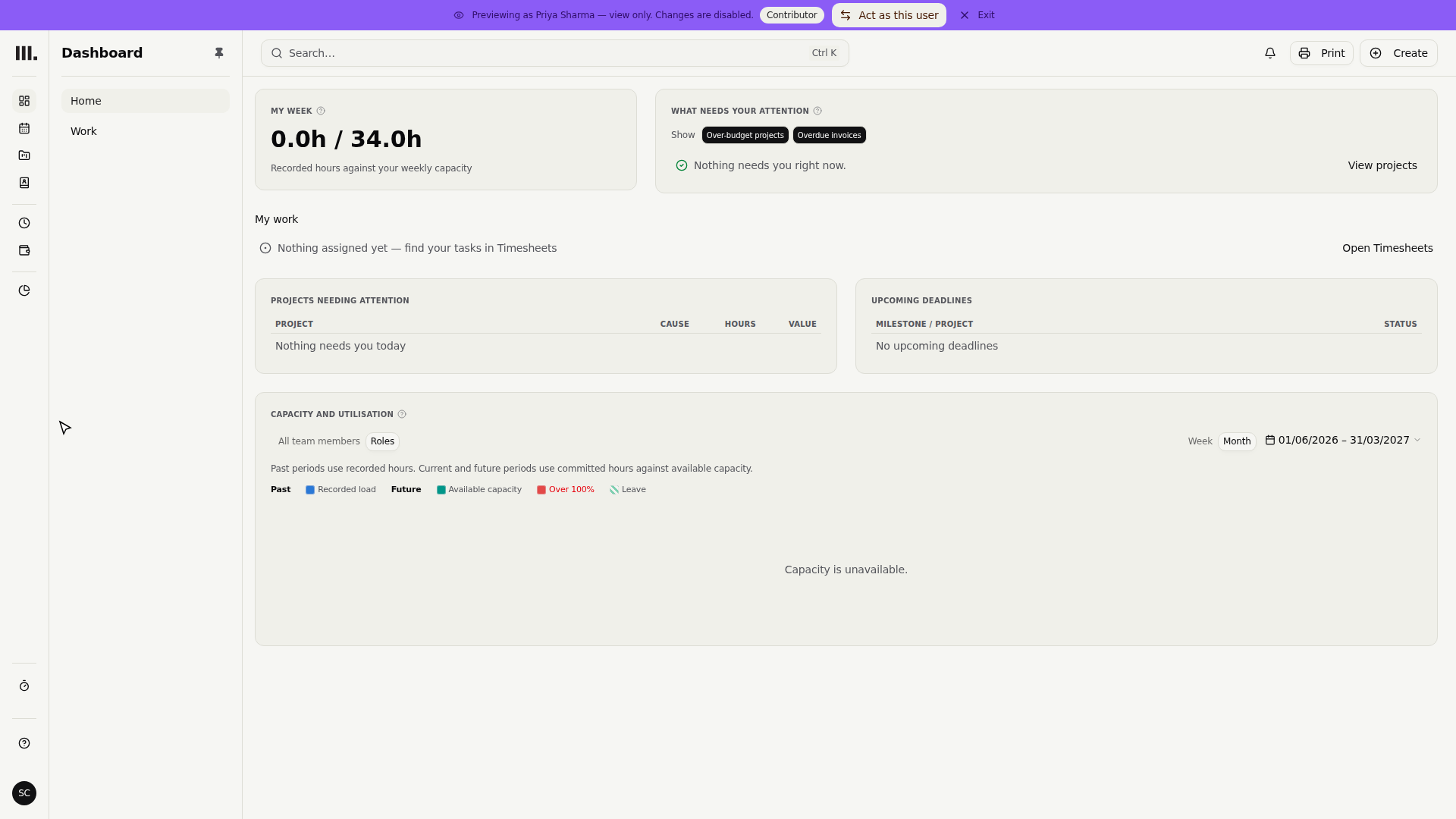
- 3
Click Stop Preview to return to your administrator view.
Preview uses Priya Sharma's server-resolved permissions, including project and team access. It is read-only. Monument rejects create, edit, and delete operations before they can have side effects.
Reachability is not row access
Projects remains in the navigation for every active permission-bearing member. That does not mean Priya can see every project. With Only assigned projects, each visible row still needs a grant from an explicit assignment, ownership, a matching rule, or an allocation-derived default.
Troubleshooting
- Preview does not match the dropdown. Save Changes first, then start Preview again.
- A project is missing. Check the person's project grants, assignments, matching rules, and account project visibility. Being a staff member alone opens no project row.
- You cannot change anything during Preview. This is expected. Stop Preview before editing.
Where this fits next
Continue with Business finances to see one account capability move from Hidden to View, or use the full permissions reference for all three permission domains.
Search Monument help
Search help articles and open a result.