
Browse articles
- Getting started
- Project finances
- Billing by the hour
- Practice finances
- Grouping fees
- Budgeting project costs
- Claim an expense
- Recording revenue entries
- Recording project expenses
- Purchase orders
- Approving expenses
- Going further
- Construction cost fees
- Recurring fees
- Billing expenses
- Contingencies and discounts
- Billing progress claims
- Project templates
- Overheads
- Getting started
- Billing milestones
- Sending an invoice
- Billing logged time
- Month-end invoicing
- Bill hours at different rates
- Fee proposal templates
- Writing a fee proposal
- Getting a proposal signed
- Link invoices that are already in Xero
- Going further
- Payments and overdue invoices
- Connect your accounting system
- Fee groups on invoices
- Tax codes and accounts
- Connect QuickBooks
- Set your accounting defaults
- Sync an invoice to QuickBooks
- Connect Xero
- Set your Xero accounting defaults
- Sync an invoice to Xero
Bill hours at different rates
Bill hours from before and after a rate rise on one invoice, each at the rate it was worked at, and see every rate on its own row.
What you'll achieve
Bill hours worked on both sides of a rate rise on one invoice, with each hour at the rate it was worked at.
You'll end up with: A draft invoice that bills earlier work at the old rate and later work at the new one, with every rate visible to the client.
Before you start
An hour keeps the rate it was worked at
Most practices raise their rates once a year, and most jobs run longer than a year's gap between rises. So the question comes up on almost every long commission: when the invoice goes out after the rise, what rate do the earlier hours bill at?
Monument's answer is the rate in force on the day the hour was worked. When someone logs time, the entry takes the charge-out rate for its date and keeps it. A rate rise from the 1st of the month changes what hours from that day bill at. It never reaches back to hours worked before it. The invoice reads each entry's own rate, so the client pays the old rate for earlier work and the new rate for later work, with no adjustment to make by hand.
The worked example
Northlight Architects raised the Senior Architect charge-out rate from A$180 to A$200 an hour, starting on the 1st of last month (see Charge-out and cost rates). Marcus Webb, a Senior Architect, has been meeting the council about the Riverside Apartments permit for City of Hawthorn, and none of his Planning Consultations hours are billed yet:
| Worked | Hours | Rate | Amount |
|---|---|---|---|
| Before the rise, month before last | 3 | A$180 | A$540 |
| Before the rise, month before last | 4 | A$180 | A$720 |
| After the rise, last month | 3 | A$200 | A$600 |
| After the rise, last month | 5 | A$200 | A$1,000 |
| Line total | 15 | A$2,860 |
Billed at today's A$200 for every hour, the same work would come to A$3,000. The A$140 difference is the seven hours Marcus worked before the rise.
Bill the hours
- 1
In Invoices, click New invoice and pick Riverside Apartments. City of Hawthorn fills in as the client, and the lines fill in with everything unbilled, including Marcus's Planning Consultations hours.
- 2
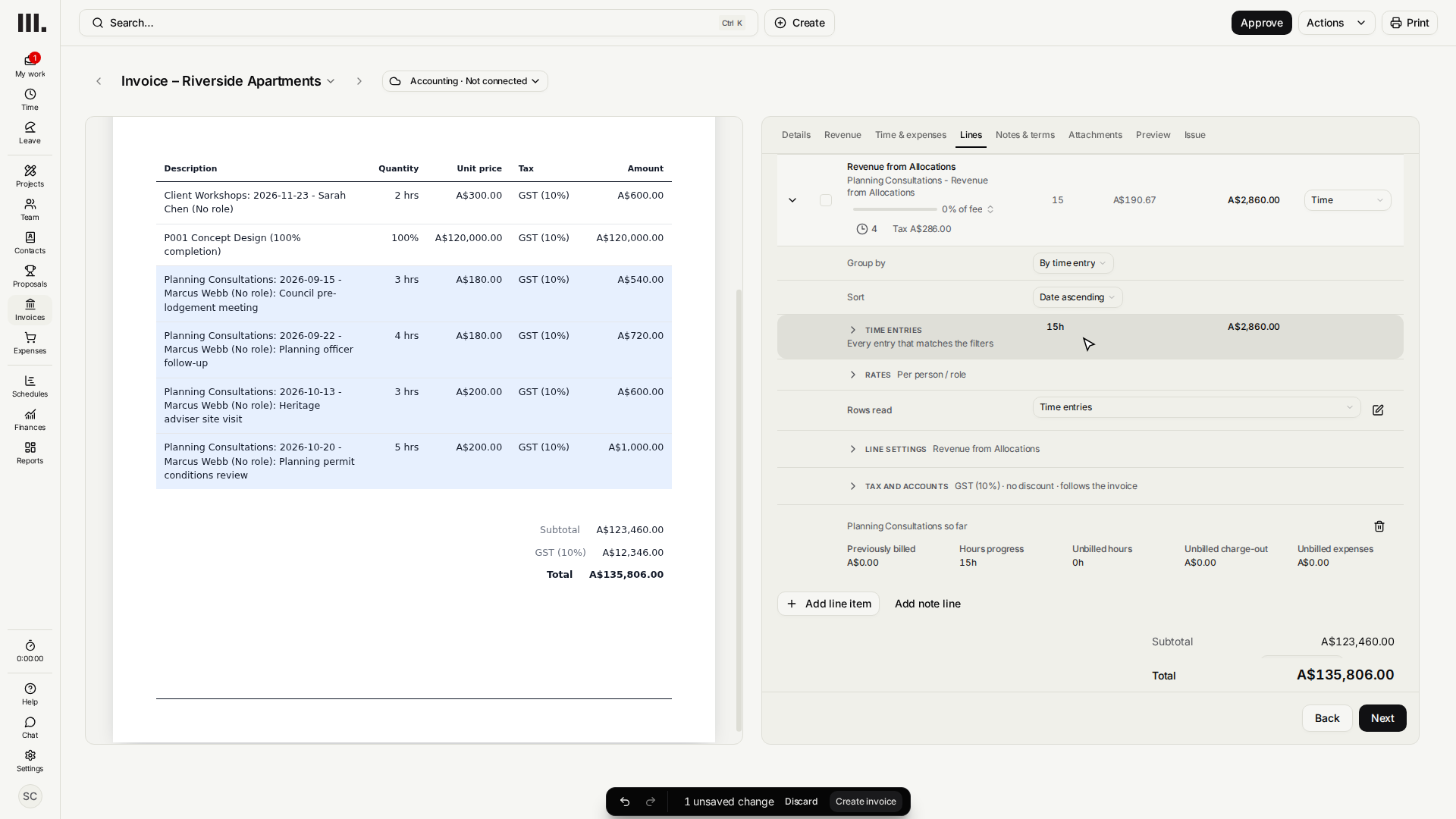
Open Lines, click the arrow beside the Planning Consultations line and set Group by to By time entry. Each entry prints on its own row.
- 3
Marcus's hours from before the 1st of last month bill at A$180, and his hours since at A$200.
- 4
Read the line's Amount: A$2,860 for 15 hours.
- 5
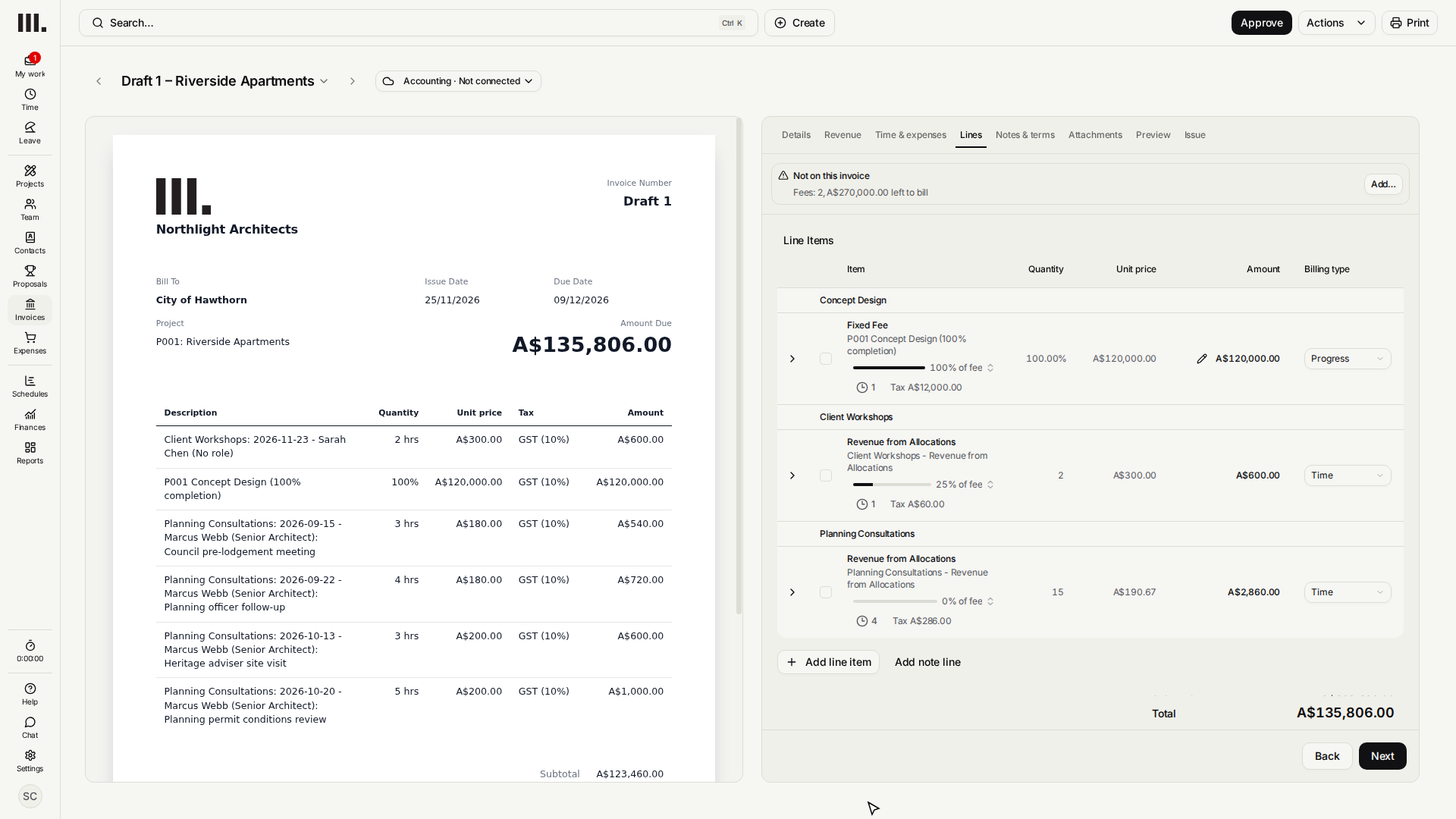
Click Create invoice to save the draft. It prints each entry at its own rate.
Why By time entry, not By person
Group by decides how many rows a Time line prints. By time entry prints every entry with its own hours, rate and amount, so the old and new rates each show. By person prints one row per person, and that row's rate is an average of the person's hours. For Marcus that is one row of 15 hours at A$190.67, a rate that matches neither the old one nor the new one, and a client who checks the figures will ask why. When a line spans a rate rise, use By time entry so every rate on the page is a real one.
Whichever grouping you pick, the line bills the same entries, and each entry keeps the rate it was worked at. See Billing logged time for what each Group by choice prints.
Troubleshooting
-
Hours from before the rise bill at the new rate. Check the rate's history on the role or person. A change whose Starts on is earlier than the hours covers them, and so does a first rate, which covers every date. The rise belongs on the day it took effect.
-
One row reads an odd rate such as A$190.67. The line is grouped By person or By role, which blend the rates of the hours on that row. Set Group by to By time entry.
-
Someone else's hours appear on the line. The line takes every unbilled hour on its task. Use the Resources filter under Time entries to bill one person's hours only, as shown in Billing logged time.
-
The client agreed to keep the old rate. Set a rate for this invoice only under Rates on the line.
Where this fits next
This builds on Charge-out and cost rates, which sets the rise from a date, and Billing logged time, which covers Time lines in full. Next, record payments and chase what is overdue.
Search Monument help
Search help articles and open a result.