
Browse articles
- Getting started
- Start your first project
- Model your project
- Critical path and automatic dates
- Read and rebalance the swimlanes
- Get oriented on the schedule
- Going further
- Give overhead a home with admin projects
- Structure large projects
- Baselines and versions
- Change Gantt bar colours
- Set a revenue target on the schedule
- Getting started
- How Monument models finance
- Revenue from resourcing
- Fixed fees
- Budgeting costs
- Recording expenses
- Recording revenue entries
- Going further
- Formula based pricing and construction cost
- Recurring and periodic fees
- Revenue from expenses
- Modifiers: contingencies and discounts
- Progressive billing
- Pricing templates
- Operational expenses
- Getting started
- Read your Dashboard
- Build a custom report
- Edit a saved report
- Filter a report
- Formula columns
- Freeze a report into a snapshot
- Reports on a project
- Definitions: how each figure is worked out
- Going further
- Time-Series Columns
- Organise your work with tags
- Break reports and accounting down by office
- Control access to business finances
- Control access to rates
- Control who can create projects
- Control project administration
- Control staff and team management
- Control expenses and claims
- Control report definition editing
- Control access to contacts
- Give full project control with Owner
- Manage project work without changing money
- Let project members edit tasks safely
- Share a project safely with Viewer
- Let a team lead coordinate shared work
- Share teammate profiles without management access
- Keep team members focused on their own work
Price hours with rates that keep their history
Set what an hour costs and charges, then raise a rate through a dated version so a mid-year increase never quietly re-prices work you already delivered.
What you'll achieve
Create billing and cost rates and change them over time as dated versions, keeping a full history of every amount that applied.
You'll end up with: A rate that drives cost and revenue, with a version timeline recording every change and the reason behind it.
Before you start
Why a rate can't just be a number you overwrite
Once a rate sits on a person, every hour anyone allocates against them turns straight into cost and revenue. That's exactly why editing a rate in place would be dangerous: bump the number and every project that has ever used it would silently re-price, this quarter's invoice and last quarter's closed report both moving to match a number that only became true today. Monument avoids that by keeping rates as a history instead of a single value, so an annual increase prices new work at the new figure while leaving what you already delivered costed correctly.
We'll set up a Senior Architect billing rate at Northlight Architects, then give it its annual increase without losing what came before.
A rate is a shell, its amount lives in versions
A rate's identity, its name, its type (Billable or Cost), its currency and period, stays fixed. What actually changes over time is the amount, and that lives inside dated versions, each with its own effective-from date. Changing the amount never means editing a field, it means adding a new version: the old figure becomes a past entry on the timeline, still correctly attached to whatever work happened while it applied.
A billing rate is what you charge the client for an hour. A cost rate is what that hour actually costs the firm. Multiplied by allocated hours, the two produce a stage's revenue and cost side by side, see revenue from resourcing for where those numbers flow next.
Create the rate
The first version you create doesn't have a date field at all. It applies for all time, the number this role has always charged out at, right up until the day you add a dated version to change it.
- 1
Click Add Rate and name it Senior Architect Charge-out.
- 2
Confirm Rate Type is Billable, since this is what gets charged to the client, not what the work costs internally.
- 3
Enter the amount, one hundred and eighty, at Per Hour.
- 4
Click Create Rate. There's no Effective From to set: this first amount covers all time until you create a later version.
When the rate changes, here's how you record it
- 1
Open the Senior Architect Charge-out rate. Instead of editing the amount directly, click Update Amount.
- 2
Enter the new figure, two hundred, and add a reason, Annual rate increase.
- 3
Click Create Version. The previous amount becomes a dated past version rather than disappearing.
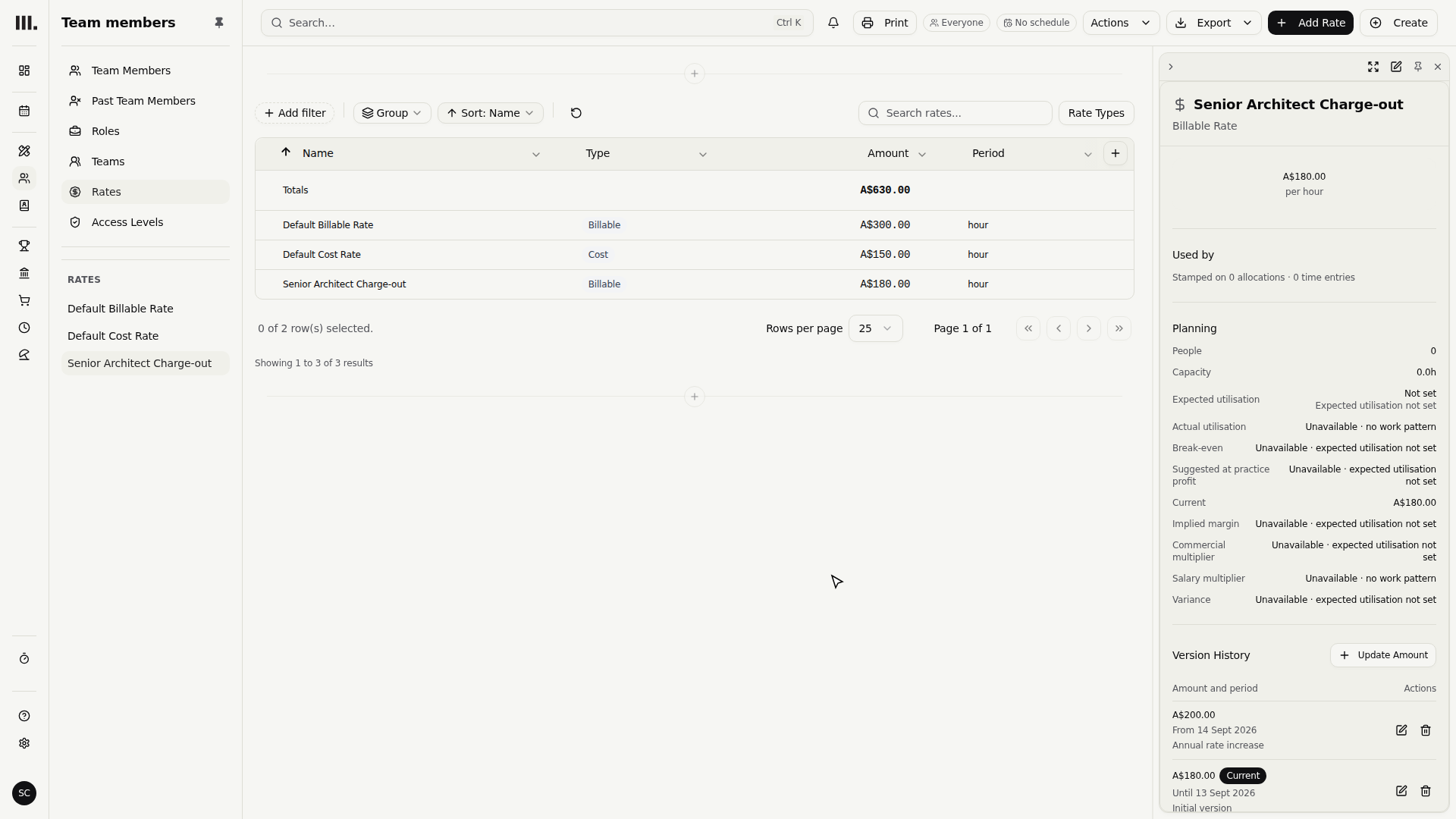
- 4
Click Show under Version History to see both amounts on one timeline, current and past, each with its own reason.
If the rate were simply overwritten, every past report and invoice costed against it would silently move too. A dated version means the opposite: last quarter's work stays priced at last quarter's rate, and this quarter's work picks up the new one automatically from its effective date.
A project can also hold its own copy of a rate rather than always reading the global one live. When that's the case, Update Amount tells you as much, flagging that projects use this rate and may need their own copies updated separately, a prompt to go check them, not something Monument has already done on your behalf.
Troubleshooting
- Worried the increase re-priced old work. It didn't. Versions are dated, so past allocations keep whatever rate applied when they were actually booked.
- An edit didn't produce a new version. Renaming a rate or changing its currency edits the shell directly and creates nothing new on the timeline. Only changing the amount, through Update Amount, adds a version.
- A project's numbers didn't move after the rate changed. That project likely holds its own copy of the rate rather than reading the global one live; a new global version doesn't reach into project-specific copies automatically.
Where this fits next
Rates are how hours become money, so make sure they actually reach everyone: confirm each person carries the right one in set up your team, and see the cost and revenue these rates produce on a live project in revenue from resourcing.
Search Monument help
Search help articles and open a result.