
Browse articles
- Getting started
- Start your first project
- Model your project
- Critical path and automatic dates
- Read and rebalance the swimlanes
- Get oriented on the schedule
- Going further
- Give overhead a home with admin projects
- Structure large projects
- Baselines and versions
- Change Gantt bar colours
- Set a revenue target on the schedule
- Getting started
- How Monument models finance
- Revenue from resourcing
- Fixed fees
- Budgeting costs
- Recording expenses
- Recording revenue entries
- Going further
- Formula based pricing and construction cost
- Recurring and periodic fees
- Revenue from expenses
- Modifiers: contingencies and discounts
- Progressive billing
- Pricing templates
- Operational expenses
- Getting started
- Read your Dashboard
- Build a custom report
- Edit a saved report
- Filter a report
- Formula columns
- Freeze a report into a snapshot
- Reports on a project
- Definitions: how each figure is worked out
- Going further
- Time-Series Columns
- Organise your work with tags
- Break reports and accounting down by office
- Control access to business finances
- Control access to rates
- Control who can create projects
- Control project administration
- Control staff and team management
- Control expenses and claims
- Control report definition editing
- Control access to contacts
- Give full project control with Owner
- Manage project work without changing money
- Let project members edit tasks safely
- Share a project safely with Viewer
- Let a team lead coordinate shared work
- Share teammate profiles without management access
- Keep team members focused on their own work
Get oriented on the schedule
Learn to move around a busy firm-wide schedule: focus on one project, regroup the resource swimlanes, open a project up to its stages, and change the zoom.
What you'll achieve
Move confidently around a busy firm-wide schedule instead of scrolling to find what you need.
You'll end up with: Confidence moving around the schedule: focusing on a project, regrouping the swimlanes, opening a stage, and changing the zoom.
Before you start
Every project, all at once, is the whole point and the whole problem
The schedule shows the firm's entire workload on one screen, which is exactly what you want when you're asking "what does everyone have on this month?" and exactly too much when your question is really just "where does Cedar Row Apartments stand?" Monument doesn't solve that by giving you a second, smaller schedule. It gives you ways to narrow, regroup, and drill into the same one. That's this tour: how to find the work you actually came for, look at it from a couple of angles, and step back out to the full picture when you're done.
We'll use Cedar Row Apartments as the project we zoom in on, on Meridian Studio's schedule.
Focus narrows the whole schedule, resource lanes included
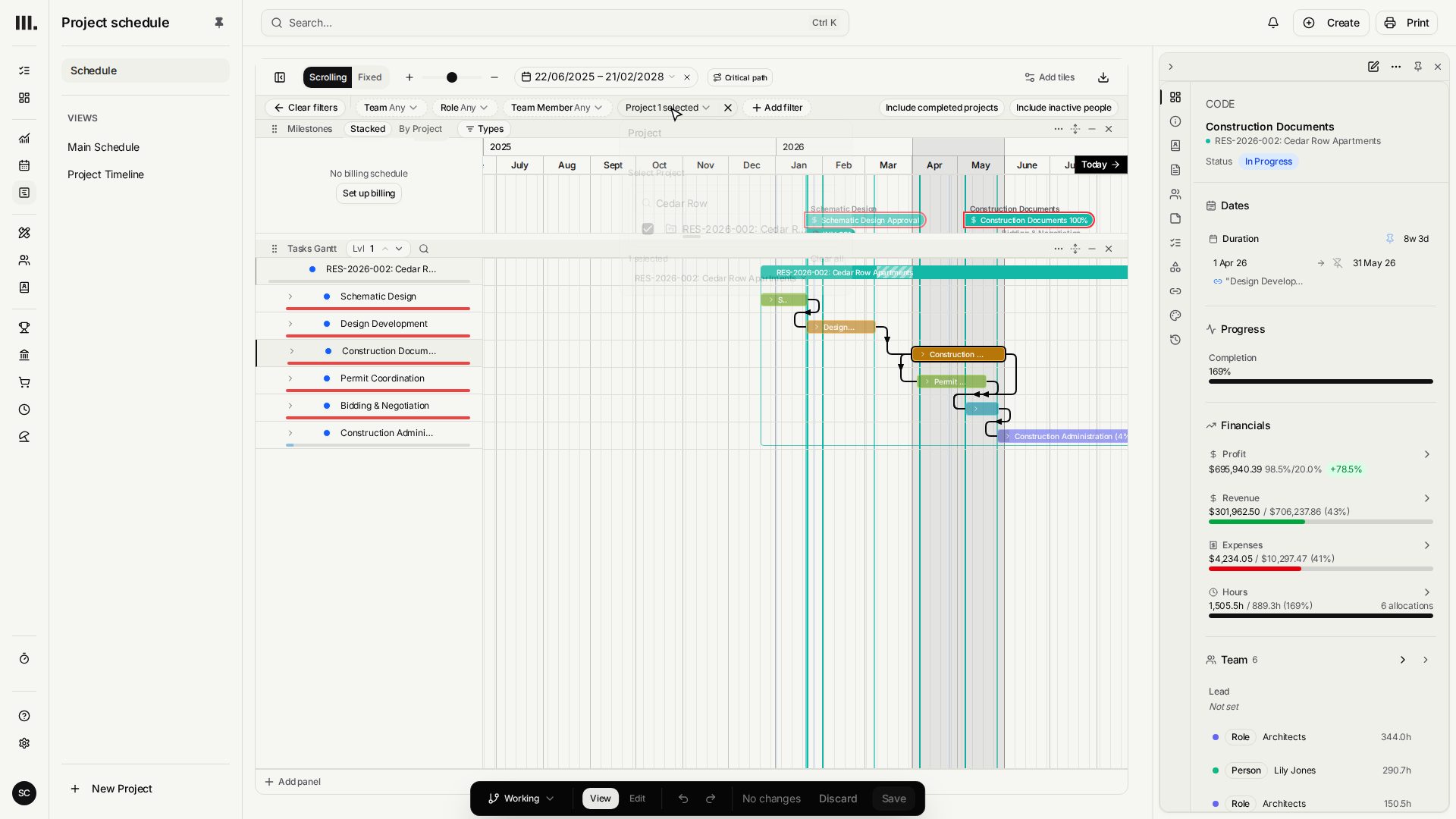
Add the Project filter through Add filter along the top of the schedule. It is the one you'll reach for most. Pick a project and Monument narrows the whole schedule to that project's work, the Gantt and the resource swimlanes both, so other-project allocations drop out of the lanes rather than staying visible in a quieter form. That's the right view for planning Cedar Row Apartments' own week, but it also means a person's lane only shows what they're doing on this project while the filter is on. Clear it before you judge anyone's total load.
- 1
Click Add filter, choose Project, then open its filter and choose Cedar Row Apartments.
- 2
Every other project's work drops out of the Gantt and the resource lanes alike.
- 3
Click Clear filters to remove the Project filter and bring everything, and everyone's full workload, back.
One workload, four ways to group it
Underneath the Gantt sit the resource swimlanes, with workload rows for people and groups (teams and roles). How those lanes are grouped doesn't change any of the underlying hours, it just changes which question the lanes answer:
- Team member: one lane per person, summing everything currently loaded on the schedule. With no Project filter, that's their true total load; filtered to one project, it's only that project's slice. Turn on Split by project, a switch that appears next to this grouping, to break each person's lane down by which job the hours belong to.
- Role: one lane per role, summing everyone who holds it.
- Team: one lane per team.
- Project: one lane per project, so you see how much of a week any single job is actually claiming across everyone booked on it.
- 1
Open the resource grouping selector above the swimlanes and choose Team member, Role, Team, or Project.
- 2
With Team member selected, turn on Split by project to break each person's lane down by job.
Switching grouping, or turning Split by project on and off, never moves a single hour. It only changes how the hours already on the schedule get sliced in front of you, so flip freely between them without worrying you'll change something.
Drill from the whole firm down to one stage
In the Gantt itself, a project starts life as a single bar. Expand it and its stages appear underneath, each one its own bar you can work with directly.
- 1
Expand Cedar Row Apartments in the Gantt to reveal its stages.
- 2
Click the Construction Documents stage, and its property panel opens on the right with its dates, team, and budget.
That panel is where a stage's actual details live, but this tour only points it out. Changing a stage's dates, staffing it, and shaping its budget each get their own dedicated walkthrough.
Zoom to match the question you're asking
The timeline zoom sits at the top of the toolbar: Daily, Weekly, and Monthly. Switch to Monthly to take in the shape of a whole programme at once; drop to Weekly or Daily when the question is about one specific week.
Troubleshooting
- A project I filtered out has disappeared entirely, resource lanes included. That's intended, not a bug. The Project filter narrows the whole schedule, Gantt and resource lanes alike, down to that project's work; it removes other-project work rather than dimming it. Clear filters to bring everything, and everyone's true load, back.
- My swimlanes look different from a colleague's screen. You're likely grouped differently. Check whether the lanes are set to Team member, Role, Team, or Project, and whether Split by project is on.
- A stage seems to have vanished. Its project is probably just collapsed. Expand the project bar again and the stage reappears underneath it.
Where this fits next
Now that you can move around the schedule, it's the place the real resourcing work happens. Use it to plan with roles and tracks, hand role work to staff, and balance capacity in the swimlanes once someone is carrying more than they should.
Search Monument help
Search help articles and open a result.