
Browse articles
- Getting started
- Start your first project
- Model your project
- Critical path and automatic dates
- Read and rebalance the swimlanes
- Get oriented on the schedule
- Going further
- Give overhead a home with admin projects
- Structure large projects
- Baselines and versions
- Change Gantt bar colours
- Set a revenue target on the schedule
- Getting started
- How Monument models finance
- Revenue from resourcing
- Fixed fees
- Budgeting costs
- Recording expenses
- Recording revenue entries
- Going further
- Formula based pricing and construction cost
- Recurring and periodic fees
- Revenue from expenses
- Modifiers: contingencies and discounts
- Progressive billing
- Pricing templates
- Operational expenses
- Getting started
- Read your Dashboard
- Build a custom report
- Edit a saved report
- Filter a report
- Formula columns
- Freeze a report into a snapshot
- Reports on a project
- Definitions: how each figure is worked out
- Going further
- Time-Series Columns
- Organise your work with tags
- Break reports and accounting down by office
- Control access to business finances
- Control access to rates
- Control who can create projects
- Control project administration
- Control staff and team management
- Control expenses and claims
- Control report definition editing
- Control access to contacts
- Give full project control with Owner
- Manage project work without changing money
- Let project members edit tasks safely
- Share a project safely with Viewer
- Let a team lead coordinate shared work
- Share teammate profiles without management access
- Keep team members focused on their own work
Invite your team
Bring colleagues into your workspace with the right access from day one: invite a new person by email, or send a login to someone already on your team.
What you'll achieve
Get your colleagues into Monument with a login and exactly the access they need.
You'll end up with: Invited team members who can sign in, each with the right account, project and team access.
Before you start
Adding someone to Monument is really two decisions bundled into one: does this person get a login, and what can they do once they have one. Handle both at the point you bring someone in and there's nothing to untangle later.
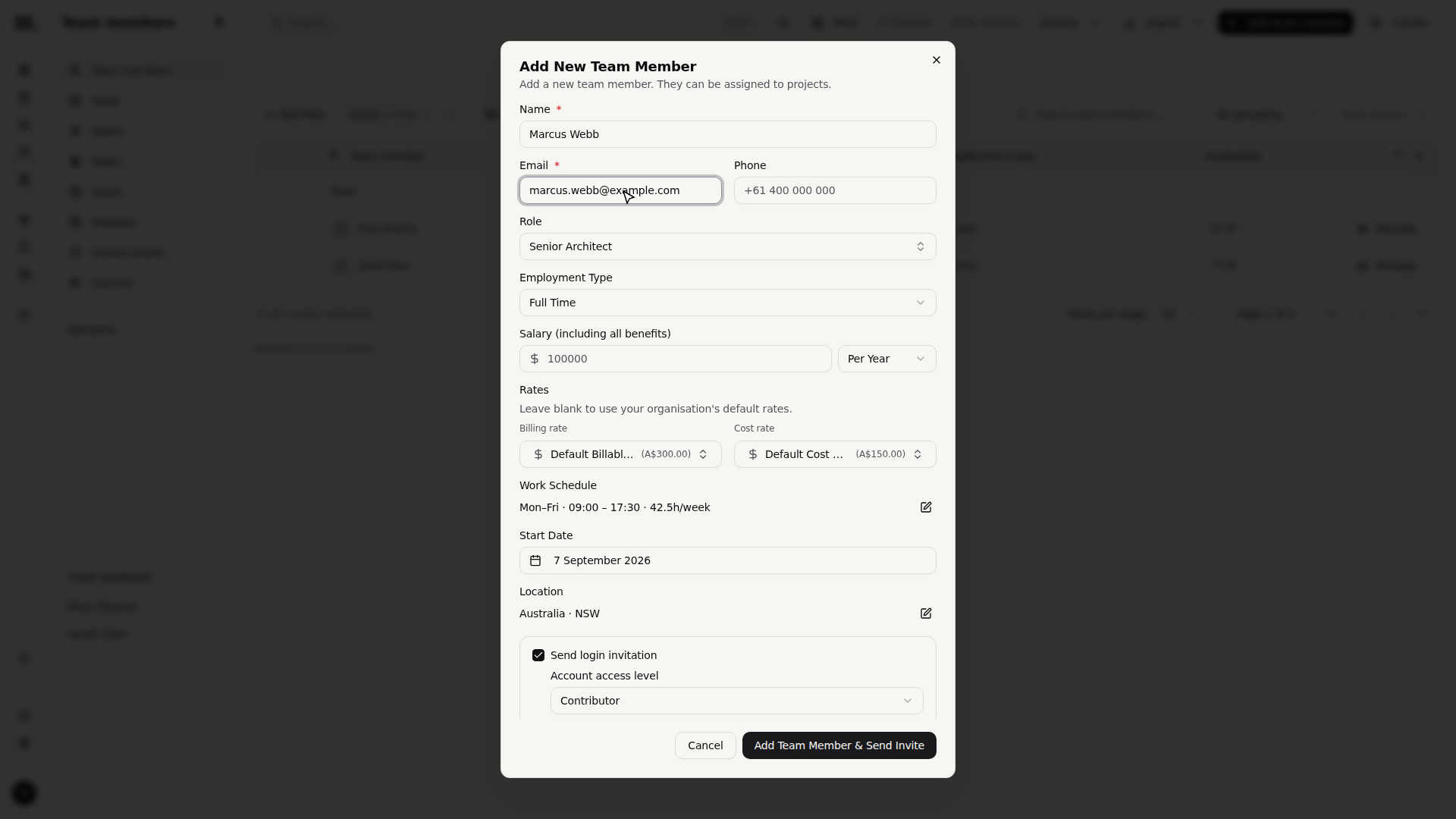
We'll bring Marcus Webb into Northlight Architects as a new hire, and see how to send a login to Priya Sharma, who's been on the team for a while already.
Access has three independent scopes
Monument doesn't rank people on one ladder. Instead, access sits at three separate scopes, and a person can hold a different access level in each at once:
- Account: what someone can do across the whole organisation. Access levels: Admin, Project Manager, Viewer, and Contributor (the default).
- Project: what they can do on one specific project. Access levels: Owner, Manager, Member, Viewer.
- Team: their standing within a team, a group of people. Access levels: Lead, Viewer, Member.
Because these compose, Marcus can be a plain Contributor account-wide, the Owner of Riverside Apartments, and the Lead of the architecture team, all simultaneously. Wide access on one project never has to mean wide access everywhere.
Everyone new defaults to Contributor at the account level: logging time and submitting expenses, nothing more. Widen access deliberately, project by project or team by team, rather than defaulting everyone to admin.
Add someone new, with a login in the same step
People are added under Team members. Creating the person and sending them a way to sign in happen together, in the same dialog.
- 1
Open Team members and click Add team member.
- 2
In Add New Team Member, fill in their details: name (Marcus Webb), role, employment type and so on.
- 3
Tick Send login invitation, then enter the Invitation Email to send it to.
- 4
Click Add Team Member. Monument creates the person and emails them the invitation.
The login invitation isn't mandatory at creation. Skip the tick box and the person still exists as a resource you can schedule and staff, and you can send their invitation from their profile the moment they're ready to sign in.
Invite someone who's been waiting
Not everyone arrives with an invitation attached on day one. Priya Sharma has been part-time on the team for a while, added as a resource before anyone got around to sending her a login. That's fine, since the invite lives on her profile whenever you want to send it.
- 1
On the Team members list, click Priya Sharma to open her profile on the right.
- 2
Click Edit at the top of the profile.
- 3
Scroll to the Login Access section, enter her email address, and click Send Invitation.
The link she receives is identical to the one sent from the dialog. Her record now shows the invitation pending, so a resend is one click away if it goes unanswered.
What actually happens when someone's invited
The invitation is an email carrying a secure link. Opening it signs your colleague up (or in), and drops them straight into your organisation: they return to the secure invitation page and accept it there, rather than building a workspace of their own.
Links do expire, so a resend now and then is normal rather than a sign something's broken. The person's record always shows the current status: sent, when, and how long is left.
Set what they can actually do
Access levels live under Team members → Access Levels, split into a tab per scope: Account access levels, Project access levels, Team access levels. Marcus's account access level, his standing on Riverside Apartments, and his place in a team are each set on their own tab.
Only Admins can open Access Levels or Settings at all. If you can't reach either, that's your account access level, not a bug, so find someone who is an admin.
Managing an invite after it's sent
An outstanding invitation lives in the person's detail panel, under Login Access:
- Pending: shows who it was sent to and when, with Resend and Revoke buttons. Resend nudges the same email again; revoke cancels it before it's ever accepted.
- Accepted: the record reads Linked to account, and Revoke Access cuts the login off entirely. The person stays on as a resource; they just lose the ability to sign in.
Troubleshooting
- No email, no invite. The login invitation needs somewhere to go, which is why an email address is the only field it actually requires.
- Revoke and Revoke Access aren't the same button. One cancels a pending invite; the other cuts off an active login. Different stage, different consequence.
- Contributor by default isn't a bug. It can log time and expenses, nothing financial or admin. If someone new "can't see anything", that's the default doing its job; grant what they actually need.
- Access can stack quietly. A Contributor account-wide might still be Owner on one project. Check all three access level tabs before assuming what someone can or can't do.
Where this fits next
Your people are in. Ready to put them to work? Start your first project next, or go deeper on team setup with Set your team's availability to organise teams and rates. For the defaults every new invite inherits, see Organisation setup.
Search Monument help
Search help articles and open a result.