
Browse articles
- Getting started
- Start your first project
- Model your project
- Critical path and automatic dates
- Read and rebalance the swimlanes
- Get oriented on the schedule
- Going further
- Give overhead a home with admin projects
- Structure large projects
- Baselines and versions
- Change Gantt bar colours
- Set a revenue target on the schedule
- Getting started
- How Monument models finance
- Revenue from resourcing
- Fixed fees
- Budgeting costs
- Recording expenses
- Recording revenue entries
- Going further
- Formula based pricing and construction cost
- Recurring and periodic fees
- Revenue from expenses
- Modifiers: contingencies and discounts
- Progressive billing
- Pricing templates
- Operational expenses
- Getting started
- Read your Dashboard
- Build a custom report
- Edit a saved report
- Filter a report
- Formula columns
- Freeze a report into a snapshot
- Reports on a project
- Definitions: how each figure is worked out
- Going further
- Time-Series Columns
- Organise your work with tags
- Break reports and accounting down by office
- Control access to business finances
- Control access to rates
- Control who can create projects
- Control project administration
- Control staff and team management
- Control expenses and claims
- Control report definition editing
- Control access to contacts
- Give full project control with Owner
- Manage project work without changing money
- Let project members edit tasks safely
- Share a project safely with Viewer
- Let a team lead coordinate shared work
- Share teammate profiles without management access
- Keep team members focused on their own work
Recording expenses
Log a real cost with its date, project or planned-item link, amount, description, and optional tags.
What you'll achieve
Record any real cost in Monument with the right project, task, or planned expense-item link.
You'll end up with: Expenses captured quickly against the correct project, task, or planned item and ready to review.
A budget is a prediction. An expense is what actually happened: the consultant invoice, travel charge, or one-off cost that landed on the job. Recording that reality against the right project, task, or planned expense item is what makes plan-versus-actual reporting useful.
We'll record a four-thousand-dollar structural engineering cost against Riverside Apartments.
One link places the cost in context
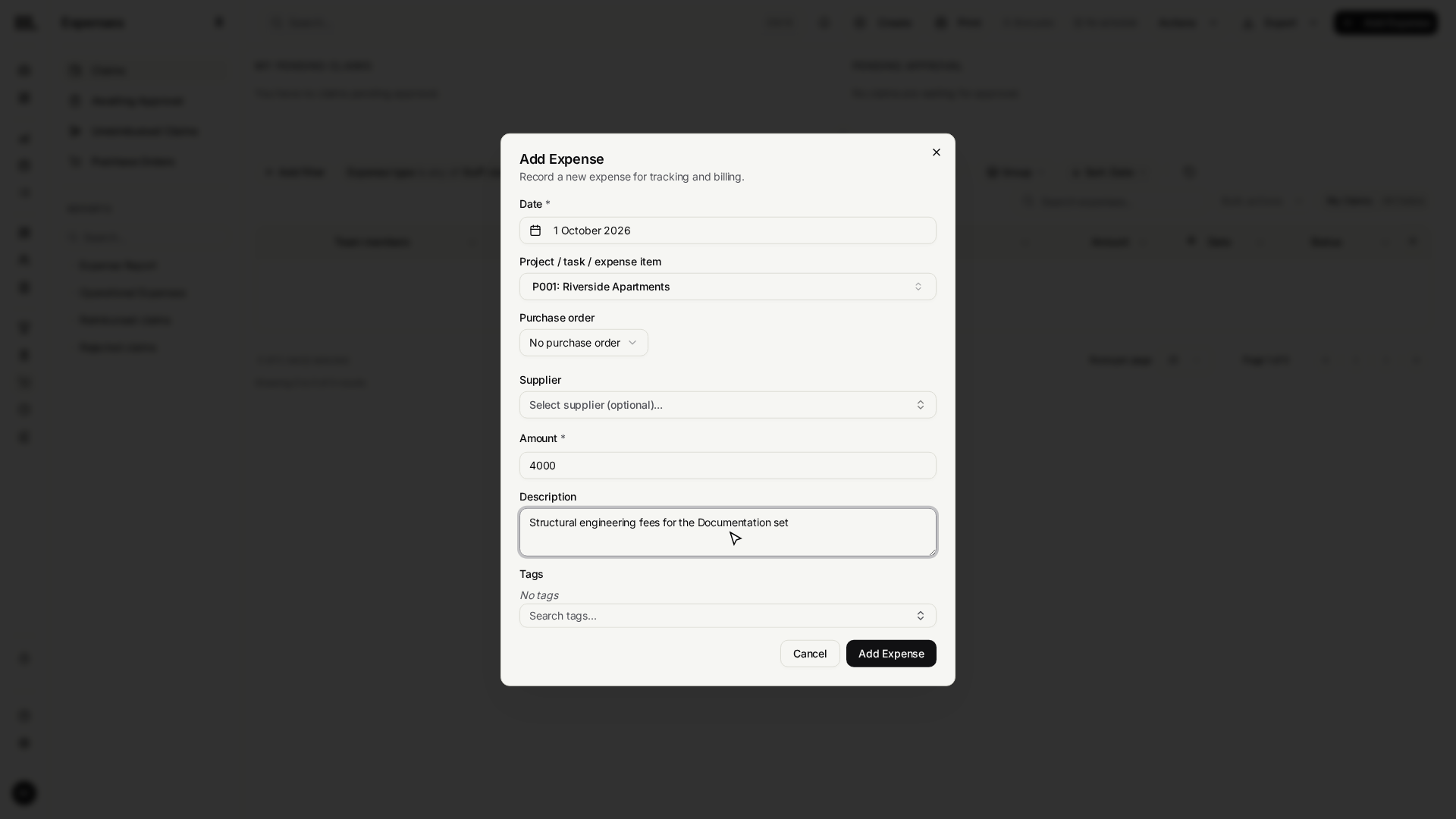
The Add Expense form keeps fast entry to five essentials:
- Date
- Project / task / expense item
- Amount
- Description
- Tags, when your firm needs an extra reporting label
The combined link is the important choice. Pick a project for broad job-level tracking, a task for a more precise actual cost, or a planned expense item to compare the actual directly with its budget.
An expense can be unlinked, but then it is only a general recorded cost. Link it to a project or task and it rolls into that job's actuals. Link a planned expense item and it also carries that item's commercial defaults.
Record the structural engineering cost
Northlight Architects has a four-thousand-dollar structural engineering cost on Riverside Apartments. Here's the complete capture.
- 1
Open Expenses and choose Add Expense.
- 2
Open Project / task / expense item, search for Riverside Apartments, and select the project.

- 3
Enter 4000 in Amount. Keep the Date on the day the cost was incurred.
- 4
Add a clear Description: Structural engineering fees for the Documentation set.
- 5
Add Tags only if your firm needs another reporting label.
- 6
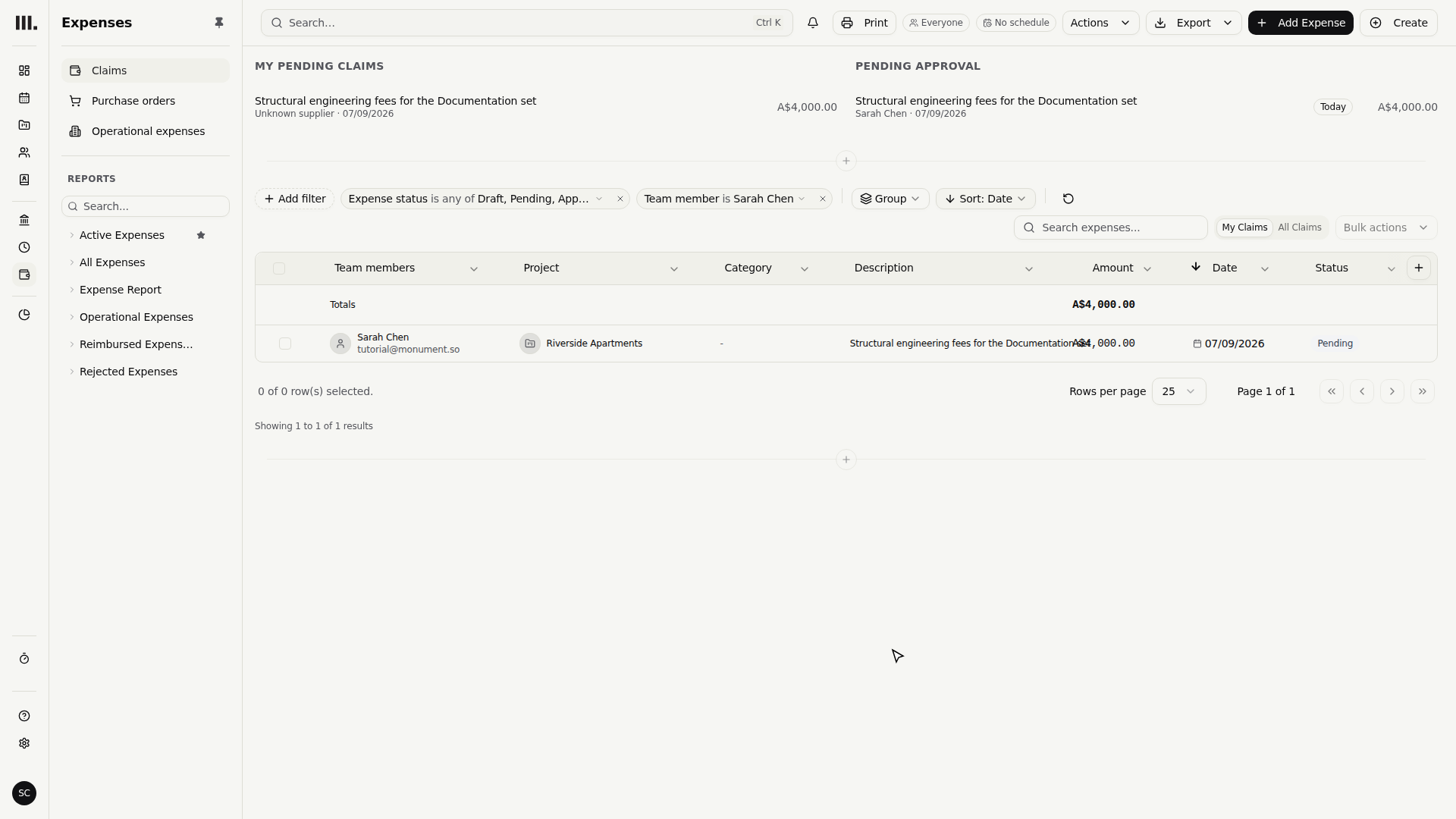
Choose Add Expense. The cost now appears in the list against Riverside Apartments.
Planned items carry the detail for you
When you select a planned expense item instead of only a project or task, Monument applies the item's expense type, supplier, billable setting, markup, and currency to the recorded actual. Those details do not clutter the fast-entry form, but they remain available when the expense is reviewed.
Choose the project when that is all you know. Choose a task when the cost clearly belongs to one stage. Choose a planned expense item when the actual should consume a named budget allowance and inherit its commercial settings.
Recording is only the start of the expense's life
Saving an expense puts the actual cost into Monument. From there, your finance workflow can review it, and planned-item defaults determine whether it is recoverable as revenue.
Troubleshooting
- The project or task does not appear. Search in the combined picker. Projects are the emphasized root rows; expanding one reveals its tasks and planned expense items.
- The cost needs supplier or billable settings. Link the relevant planned expense item so its defaults carry into the expense, then review the saved detail if needed.
- No project link. An unlinked expense is tracked as a general cost but does not roll into a job's actuals. Link it unless it is genuinely firm-wide.
Where this fits next
The expense recorded here is ready for review. Approving expenses covers the review workflow, and revenue from expenses shows how billable planned items recover actual costs.
Related articles
Search Monument help
Search help articles and open a result.