
Resource the project
Put people on the stages by dragging allocation bands onto the timeline, shape their hours, and watch cost and revenue appear.
Resourcing is where a project stops being a set of empty bars and starts costing and earning money. You put people onto the stages, and Monument does the arithmetic — turning the hours you allocate into a forecast of cost and revenue.
We'll staff the programme we just built for Riverside Apartments, putting Sarah Chen onto the Concept Design stage and shaping her time across it.
The idea: fees flow from resourcing
This is the mental model that makes the whole financial side click:
You don't type in a cost — you allocate people, and the cost follows. Each person has a charge-out rate and a cost rate. When you book their hours against a stage, Monument multiplies hours by rates to give you that stage's calculated cost and revenue, live. Change the hours and every number downstream moves with them.
So resourcing isn't admin you do after planning — it is the plan's financial model. Get the people and hours right and the fees take care of themselves.
Add someone to a stage
You allocate from the timeline: open a stage, then drag a band along its row for the period you want to book, and choose who fills it.
- 1
In the Riverside Apartments schedule, open the Concept Design stage so its resource lane appears.
- 2
Drag along the resource lane to create an allocation band over the period you're staffing — say the full length of Concept Design.
- 3
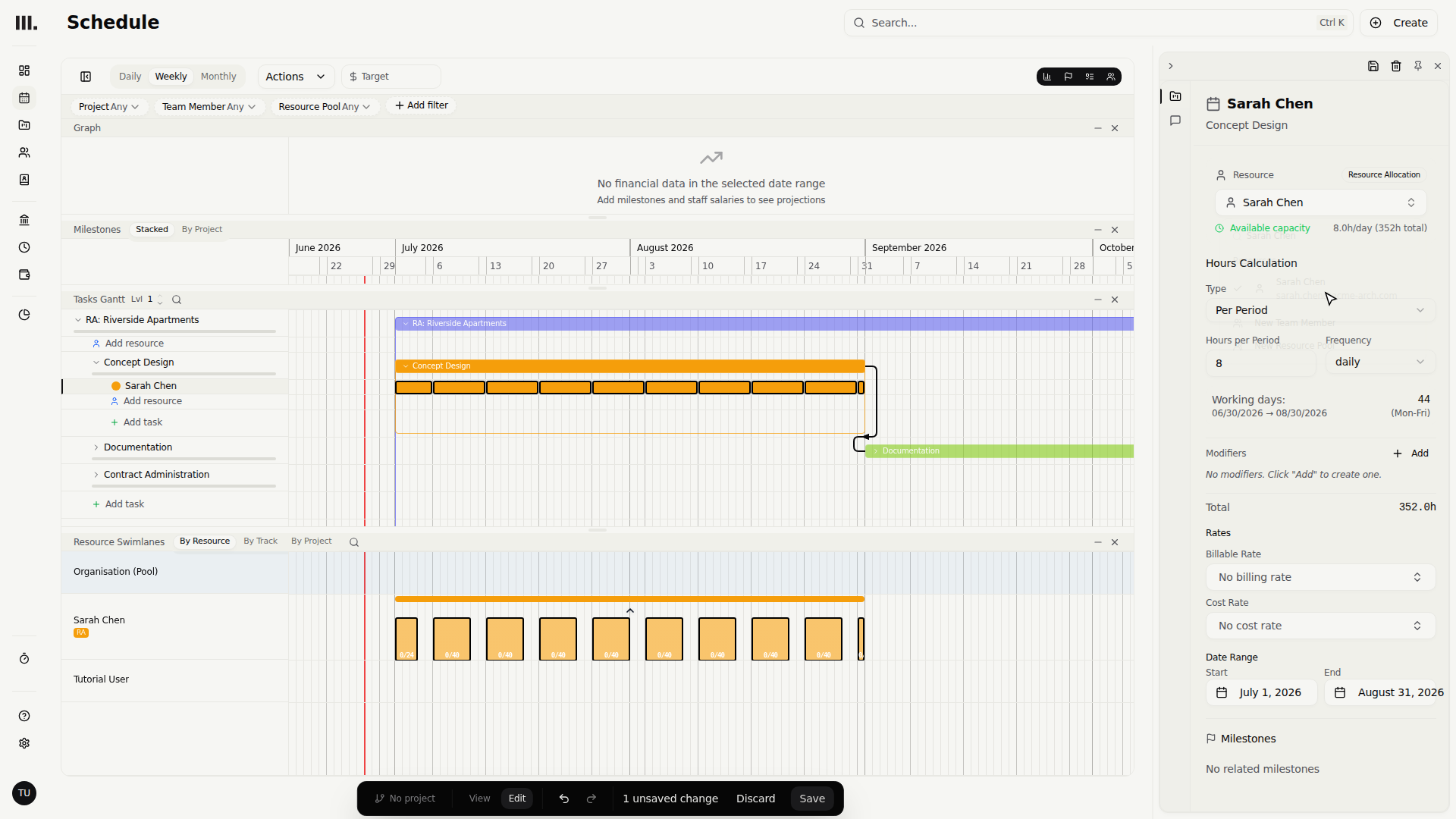
With the band there, choose the person — Sarah Chen — to fill it.
- 4
Not got the right person yet? Choose the create action in the dropdown to add a new staff member — their weekly hours, rate and start date — then pick them.
Allocate a resource pool instead of a named person when you know a stage needs, say, a senior architect's capacity but haven't decided exactly who yet. You can swap the pool for a real person later without redoing the numbers.
Shape the hours
An allocation isn't a flat block — it's a band you can shape, because real work isn't evenly spread.
- 1
Select the band to open its editor and set the hours over the period.
- 2
Weight them where the work really falls — heavier at the start and end of a stage, lighter through the middle.
- 3
Drag a band's edges to lengthen or shorten it, or drag again on the row to add a second burst for the same person.
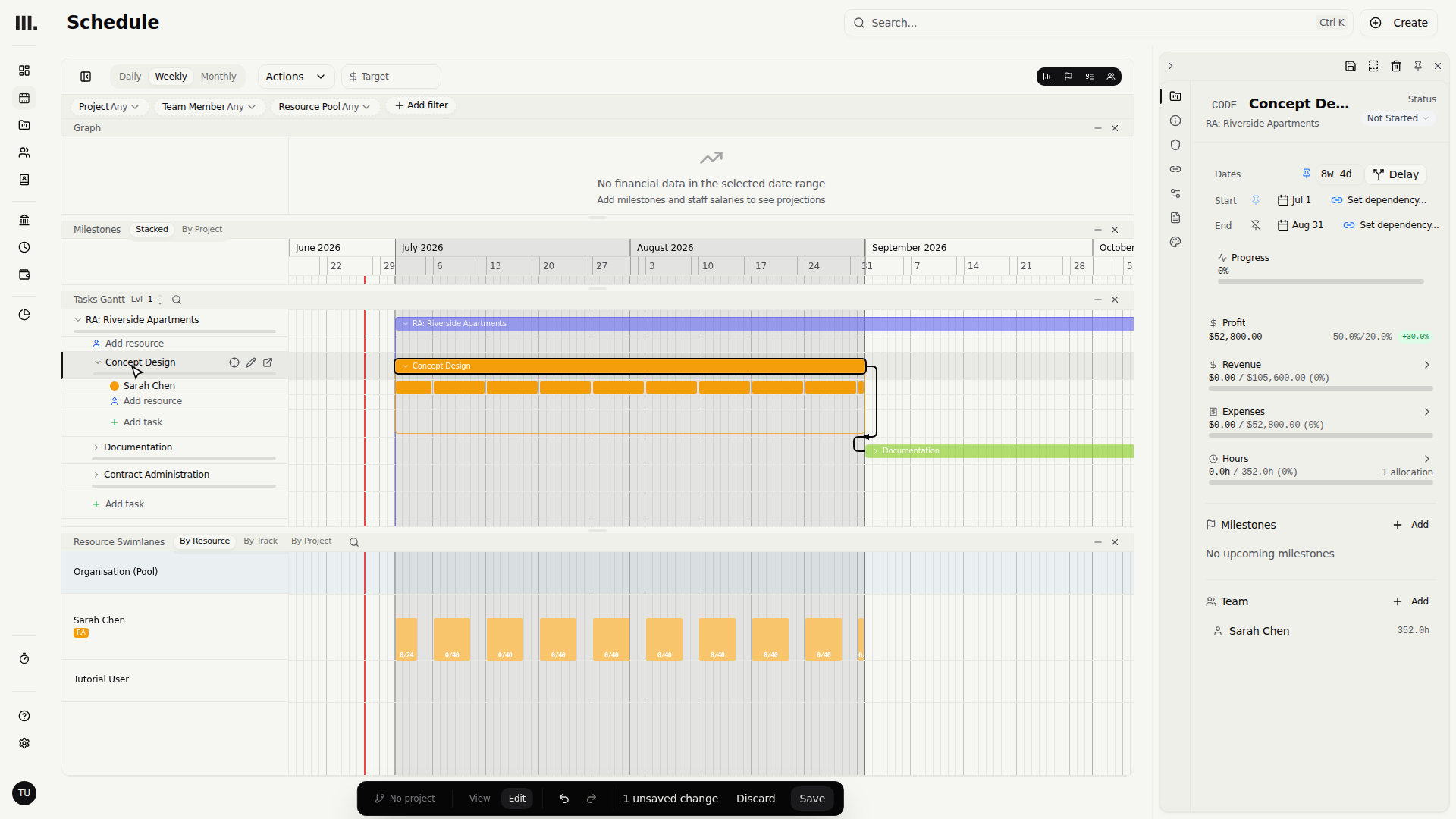
As you do, the stage totals update: hours, calculated cost, and calculated revenue all reflect what you've just booked.
Read the utilisation
Allocations shade by intensity — a hotter band means more hours packed into a shorter window. That shading is your early warning for over-utilisation: someone booked beyond their capacity.
Over-utilisation often hides across jobs. After staffing, switch to the All Projects view to make sure Sarah isn't already fully booked elsewhere in the same weeks.
Gotchas
- Everyone shows as over-utilised. With only one staff member in a young organisation, that's expected — add people, or assign to a pool, and it settles.
- Hours but no cost or revenue? The person has no rate set. Cost and revenue come from rates × hours, so a rate-less resource contributes hours only.
- Allocations live on the stage you created them on. A parent's totals aggregate its children; you don't allocate onto the project row itself.
Where this fits next
Your stages now carry people, hours and a first cut of cost and revenue. Next, start shaping what each stage actually earns: fixed and hidden fees.