
Timesheets & approvals
Review the week’s time and use approved hours to prepare project invoices.
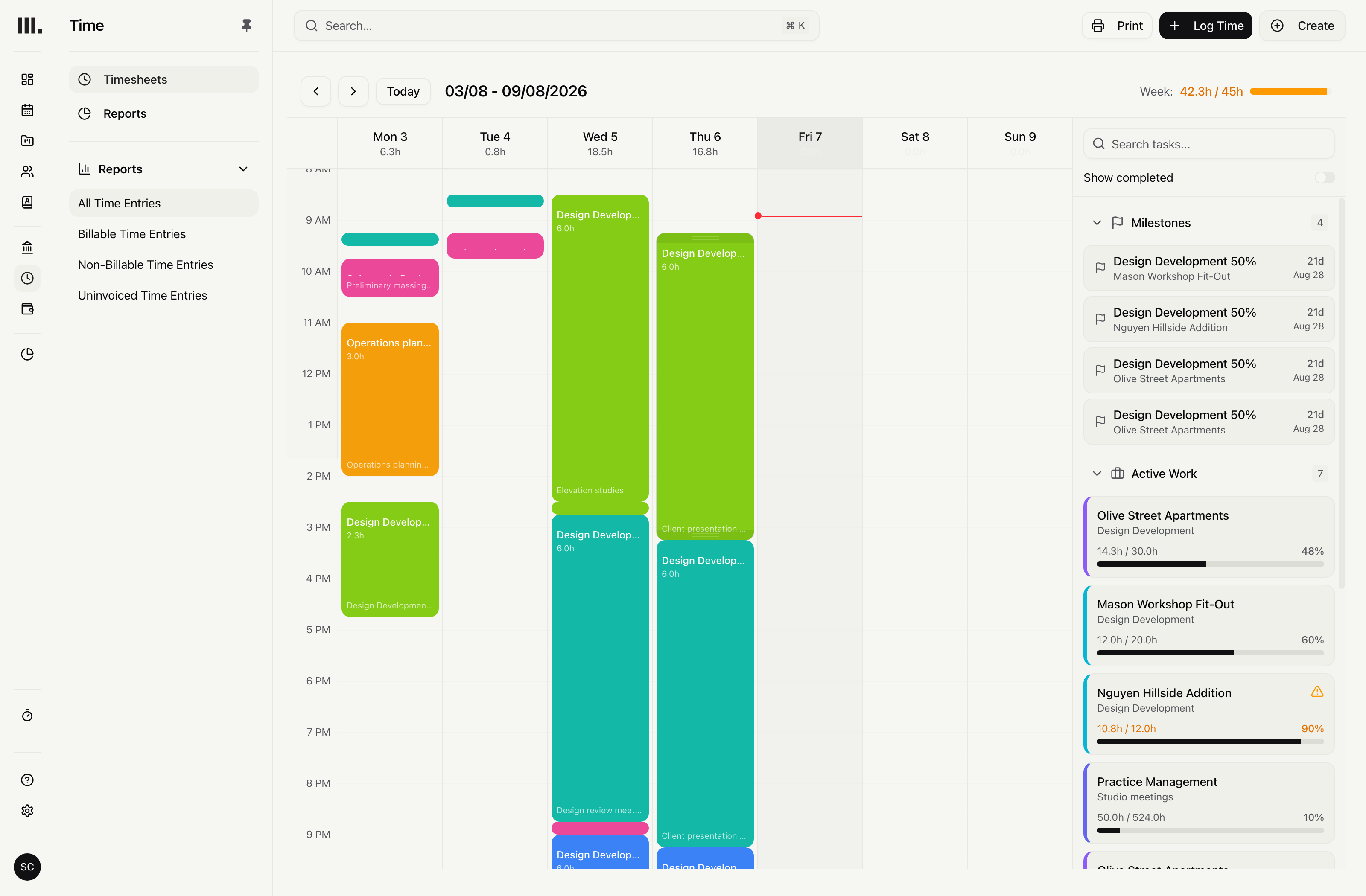
Review one entry or one person's week, return incorrect time with a reason, and carry the approval state into reports.
Review the week people actually recorded.
Approve or reject one pending entry, or act on a person's Monday-to-Sunday week.
Time stays on the project task
Record the person, local work date, hours and task so logged time remains attached to the project.
Approve or return one entry
Approve a pending entry directly, or reject it with a required correction reason.
Approve or return one week
Act on all pending entries for one person’s Monday-to-Sunday week without adding a submit step.
Approved time stays with its task.
Approval status, correction reasons and edit locks stay with the time entry as it feeds recorded-hours progress, reports and invoice lines.
Invoiced, aged or approved time locks
Prevent ordinary edits when time is invoiced, older than the organisation’s age window, or approved.
Return for correction
Reverse an approved, uninvoiced entry from its review, require a reason and make the rejected entry editable by its owner.
Invoice lines from approved time
Use approved time with billable supplier costs to build invoice lines without re-keying the project.
Approval status in reports
Add Approval Status to a time-entry report and distinguish pending, approved and rejected rows.
Approval stays deliberately direct.
Authorised reviewers approve or reject logged time directly. Staff do not submit a separate timesheet. Multi-step approvals and automatic reminders are not included.
Resource the practice
Explore related capabilities
Approve time where the work was planned.
Book a demo to see how one project from your practice moves through Monument.