
Invoicing
Turn the project you modelled into the invoice you send.
The invoice is due. Nothing agrees.
The signed fee is in one file, approved time in another and supplier costs in a third, so the project manager and accounts team rebuild the claim before they can send it.
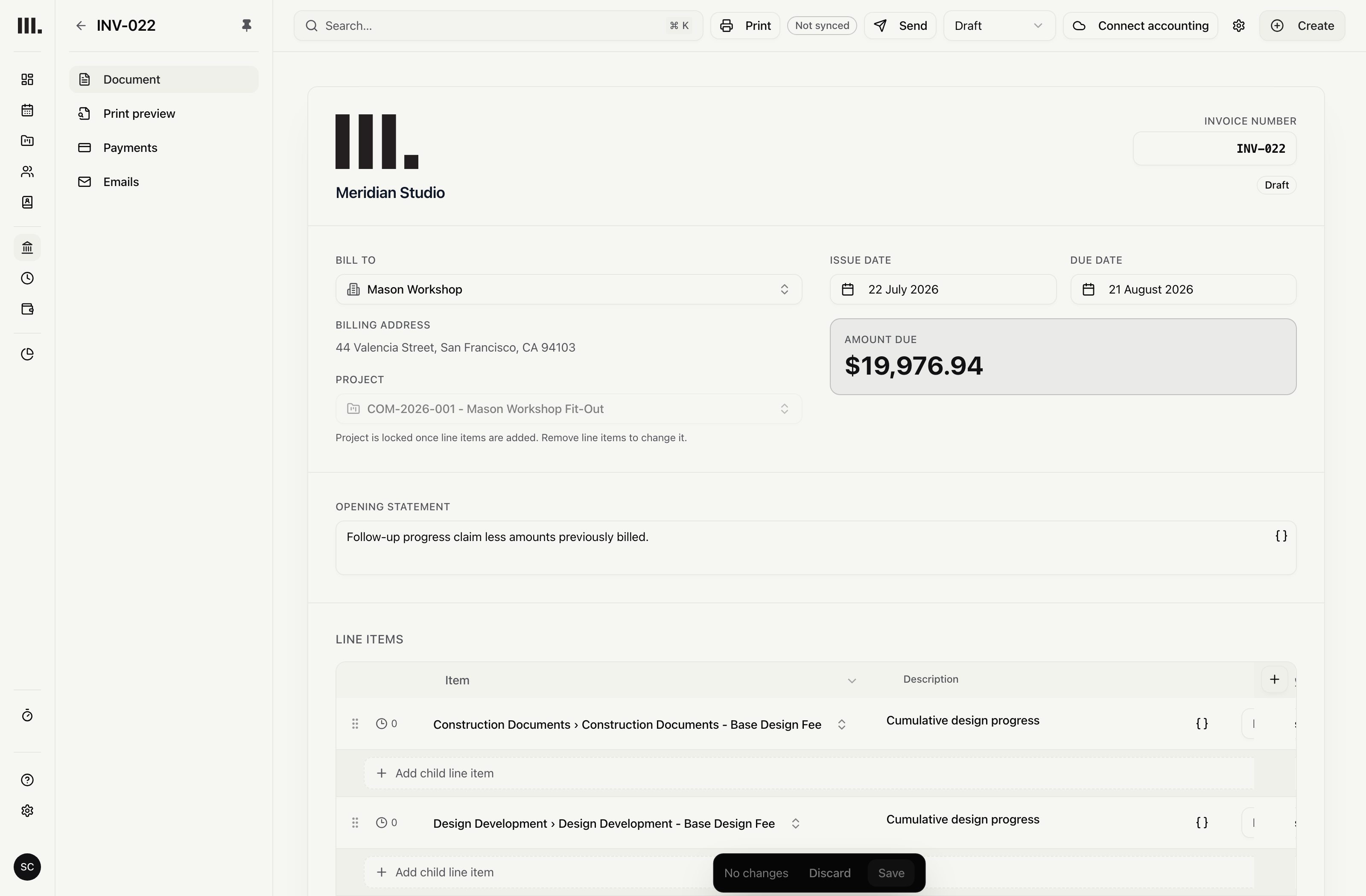
Build one draft from approved time, progress fees and selected billable supplier costs, then send the finished invoice to Xero, QuickBooks Online or MYOB.
Build the draft from the project.
Select approved time and eligible uninvoiced supplier costs without re-keying their task, quantity, rate or billable amount.
Approved time
Use approved project time for time-based invoice lines.
Eligible supplier costs
Select uninvoiced billable supplier costs for expense invoice lines.
Choose what enters this invoice
Filter or exclude the project entries that should not enter this invoice.
Combine time, fee progress and supplier costs.
Review approved time, fee progress and supplier costs in one draft before you save it.
Invoice lines from approved time
Keep approved hours, rates and amounts together in the invoice draft.
Fee progress
Include progress-based fees beside time and expense lines.
Preview before saving
Save the same lines and totals you approved in the preview.
Send it to your accounting system.
Push new and updated invoices to Xero, QuickBooks Online or MYOB after the Monument invoice is prepared.
Prepared invoice
Review the draft built from approved project time, fees and costs.
Send invoices
Send new and updated invoices to the connected accounting provider.
Accounting system retained
Keep accounting in Xero, QuickBooks Online or MYOB rather than replacing it.
Keep your accounting system.
Monument prepares and sends the invoice from supported project information; it does not replace the way your practice handles all accounting work.
Bill the contract
Explore related capabilities
Invoice from the project, not a spreadsheet.
Book a demo to see how one project from your practice moves through Monument.