
Expenses & supplier costs
Keep supplier costs attached to the plan.
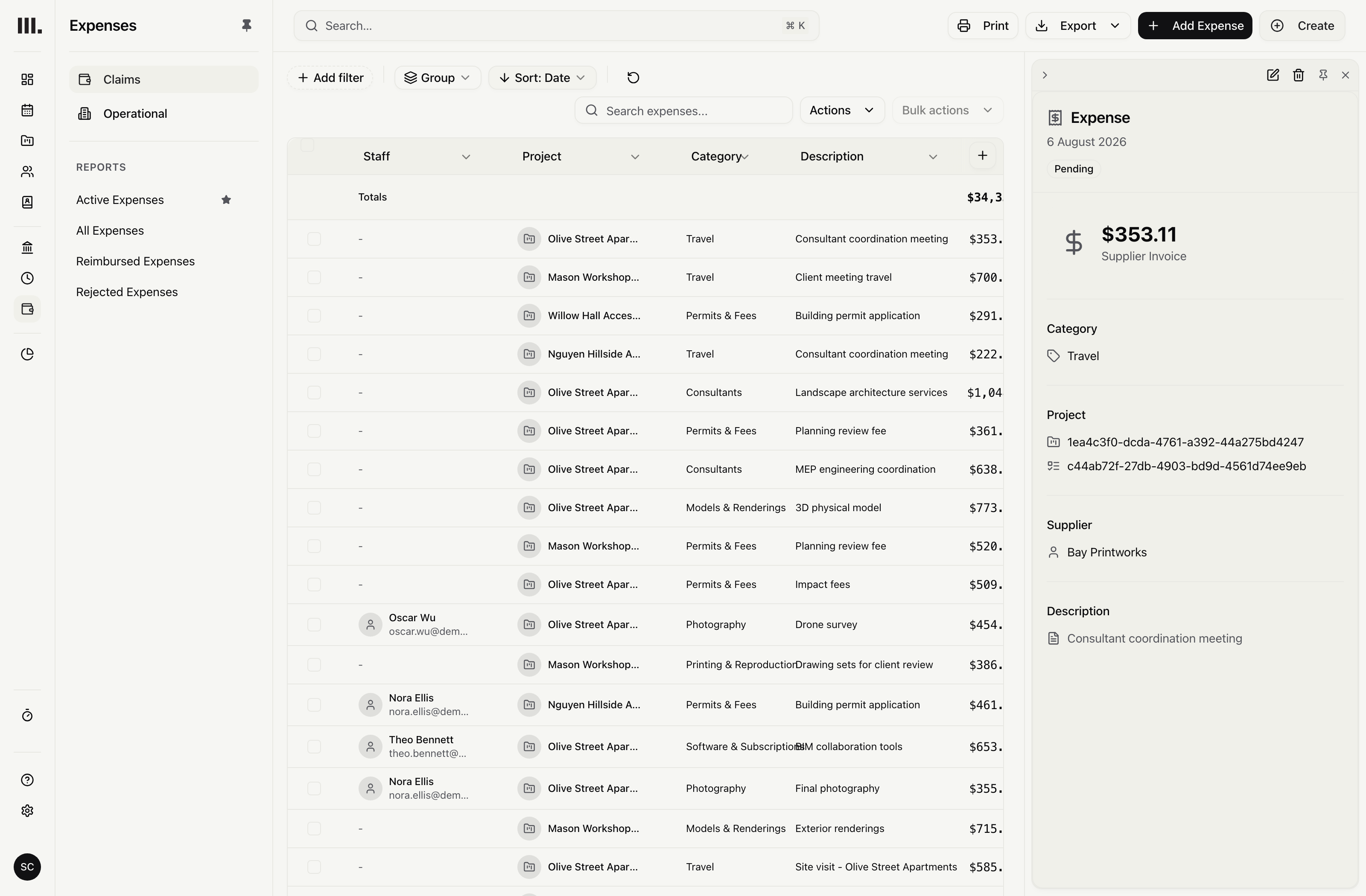
Link supplier invoices, staff claims and direct costs back to planned project expenses, then see plan versus actual before on-charging eligible costs.
Record the cost that arrived.
Capture a supplier invoice, staff claim or direct cost against its project or task, with supplier or claimant, category, billability and status.
Supplier invoices
Record a supplier, category, amount, date, whether it can be on-charged and its status.
Staff claims
Keep the claimant and reimbursement status with the expense.
Direct costs
Record a direct project cost without presenting it as a supplier invoice.
Each cost lands against what you planned.
The link back to the planned cost survives project versions. It carries the supplier, billing choice and markup into the recorded cost, then warns without blocking when cost exceeds plan.
The planned cost stays linked
Keep the link to the planned cost as project versions change.
Supplier details carried forward
Carry supplier, billing choice and markup from the selected plan into the recorded cost.
Warning, not a hard block
Show that recorded cost exceeds plan without preventing the entry.
On-charge selected costs deliberately.
Choose which costs can be on-charged, apply markup or target margin, and carry that amount into invoice expense lines.
Markup
Recalculate the on-charged amount when cost or markup changes.
Target margin
Calculate the supplier-cost fee from a target margin where required.
Eligible invoice costs
Select uninvoiced supplier costs marked for billing for invoice expense lines.
Approve and inspect each claim.
Authorised users can approve or reject a pending expense, then filter reports by supplier, office, category, status, whether it can be on-charged or whether it has been invoiced.
Approval status
Move expenses through draft, pending, approved or rejected, and paid.
Access required to approve
Require expense edit access plus access to the relevant entry, project and office.
Expense filters
Filter by supplier, claimant, office, category, status, whether the cost can be on-charged and whether it has been invoiced.
Keep overhead out of project costs.
Keep practice operating expenses in dated recurring versions, then include them in weekly or monthly forward financial views.
Recurring expense
Set the recurrence separately from project costs.
Dated versions
Preserve amount changes, start and end dates, reasons and the chain of earlier versions.
Overhead in forward views
Include operating expenses in weekly or monthly financial views.
Supplier bills and payments stay elsewhere.
Record project expenses and compare them with planned costs. Supplier-bill processing, purchase-order matching and payments stay in your other systems. Receipt upload is not included.
Bill the contract
Explore related capabilities
Every supplier cost lands on its project.
Book a demo to see how one project from your practice moves through Monument.