
Fee modelling
Model the fee you signed, not the one software expects.
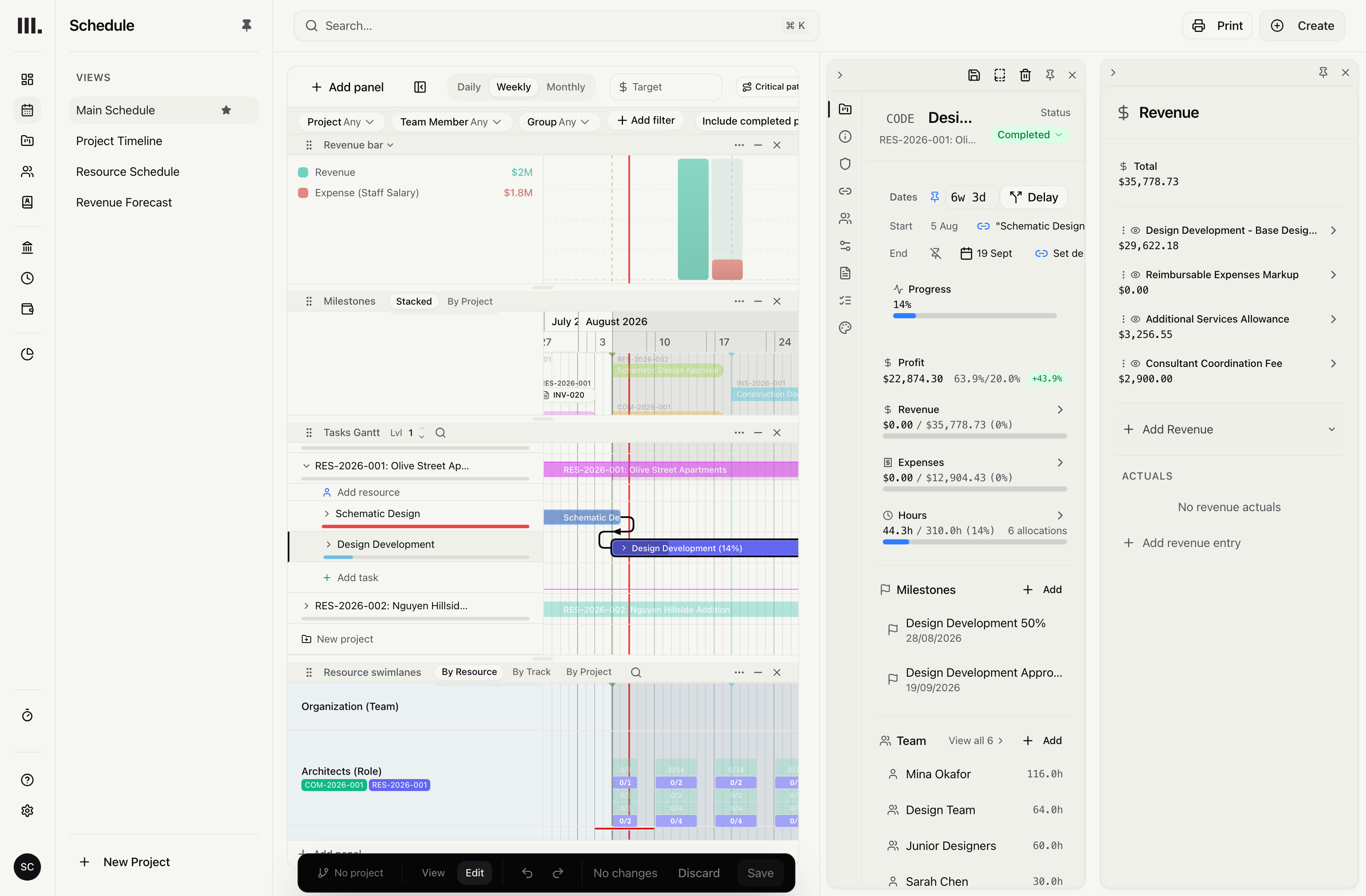
One project can carry staff time, retainers and on-charged supplier costs beside fixed, capped and hourly fees. Track progress separately for each fee.
Fixed, hourly and capped fees together.
Keep retainers and staff time beside fixed, capped and hourly fees and on-charged supplier costs, without flattening the project.
Fixed, capped and retainer
Set a fixed fee, add an amount cap, or repeat the fee by period.
Hourly and hourly-capped
Price staff time from rates and enforce an hours cap when agreed.
Formula and milestone
Use formulas or quantity inputs, then weight planned milestone revenue by stage.
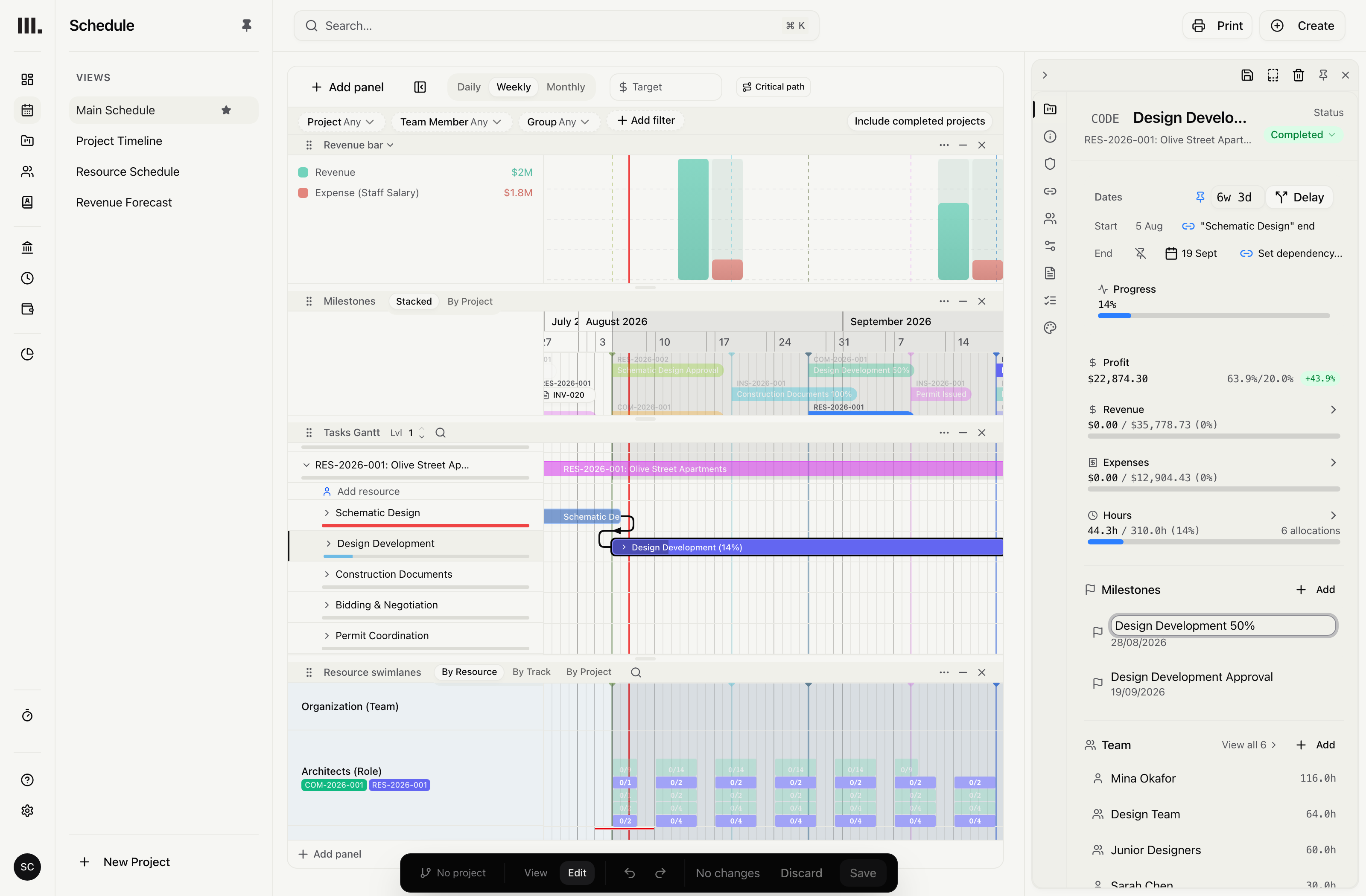
Keep each agreed cap visible.
Apply amount or hours caps to the relevant fee. When the commercial plan changes, add the fee and preserve the agreement in a named version.
Amount caps
Set an amount limit on the relevant fee.
Hours caps
Set an hours limit where the fee requires it.
Scope and fee change
Add fees and preserve agreed project versions or baselines.
On-charge supplier costs at your markup.
Choose planned supplier or sub-consultant costs, then calculate the on-charged amount from markup or target margin.
Selected planned costs
Choose the supplier costs on-charged through this fee.
Markup
Calculate the billed amount by applying a markup to the selected cost.
Target margin
Calculate the billed amount required for the chosen target margin.
Keep the signed fee beside every change.
Add the fee for a variation to the project. Keep the revised plan alongside the original agreement in a saved project version or baseline.
Bill the contract
Explore related capabilities
One project, every fee type it carries.
Book a demo to see how one project from your practice moves through Monument.